


Introduction
I love user controls! User Controls are very versatile and quite easy to develop. Today I will show you how to create a User Control with VB.
User Controls
As its name implies, a User Control is a user specific control. OK, so what does that mean? It means that sometimes there are circumstances where an ordinary Windows Control (those found in the Visual Studio Toolbox) does not suffice for the need at hand. There are times that a combination of Windows Controls fit one particular need; this is where a User Control can be extremely handy. There are a few types of User Controls, and they are:
- A Combination control. This means that a combination of various Windows controls makes up one functional User Control with all the Windows controls used inside of it.
- An Inherited control. This is a control that simply inherits capabilities from a Windows control, but provides more custom functionality.
- A Custom control. This is a control that doesn’t exist at all even with a combination of other controls.
Today I will concentrate on the first item in the list above, as this article serves to introduce you to the world of User Controls. You have to crawl before you can walk.
Our Project
Today, with our small project we will create a User Control and make use of it in a Windows Form. It is not a big program, as I’d like to keep things as simple as possible. Open Visual Studio and create a new Visual Basic Windows Forms project. Name it anything you like. Do not worry about the design as yet. Once the project has loaded, add a user control to the project by clicking Project, Add User Control. You may name the User Control ScrollText if you like.
The User Control will appear. Visually, the User Control only differs from a Windows Form with it not having a title bar. It is also a container control. This means that it can host controls inside of it, similar to a Windows Form. Here is more information regarding User Controls.
Resize your control a bit so that it is small but wide. Add a Label control to your User control and name it lblScroll. Add a Timer to the control and leave its default settings as is. Your control should look like Figure 1 when you’re done.
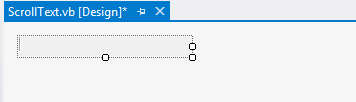
Figure 1 – User Control
Code
Add the following code to the Timer’s Tick event on the User Control:
    Private Sub Timer1_Tick(sender As Object, e As EventArgs) Handles Timer1.Tick

        Dim strBegin As String = Mid(lblScroll.Text, 1, 1) 'Extract First Character

        Dim strEnd As String = Mid(lblScroll.Text, 2, lblScroll.Text.Length()) 'Extract Rest Of String

        lblScroll.Text = strEnd & strBegin 'Add Beginning To End

    End Sub
This code produces a scrolling string by taking the first character from the start and adding it to the end of the string continuously, giving the looping effect. For more information regarding the Mid statement, have a look here. Build your program by selecting Build from the Build menu. After you have built the project, the User Control will appear in the Toolbox, as per Figure 2 underneath.
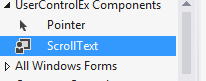
Figure 2 – Our User Control in the Toolbox
Add this control now onto your Windows Form the same way you would add any other control. Add two buttons to the form as well and label them “Start” and “Stop“, then add the following code behind the Windows form:
    Private Sub btnStart_Click(sender As Object, e As EventArgs) Handles btnStart.Click

        ScrollText1.lblScroll.Text = "Hannes is very very very hungry..." 'Provide Text

        ScrollText1.Timer1.Enabled = True 'Enable Timer

    End Sub

    Private Sub btnStop_Click(sender As Object, e As EventArgs) Handles btnStop.Click

        ScrollText1.Timer1.Enabled = False 'Stop Scrolling

    End Sub
The Start button provides the string to be used for the Scrolling message and starts the Timer. The Timer’s code will start executing and the Label’s text will start scrolling. The next button simply disables the Timer to stop the scrolling effect.
I am providing the project as a download with this article.
Conclusion
Thanks for reading today’s quick and dirty article, and I hope that have enjoyed it as much as I have. Until next time, cheers!