


Introduction
As you may or may not know: strings are strange creatures! I say so because there are so many ways to do a certain task. It is, however, up to us (as developers) to determine the correct way to achieve our goals.
In this article, I will show you different ways to change each letter of a word in a sentence to upper case. This is known as Title Case or Proper Case. Now, there are various quick ways to do this, but to figure out which method is the best is what you should be looking for.
Let’s create a quick example project.
Create a new Visual Basic Windows Forms application. On the Form, add four buttons and one TextBox. Do not worry too much about the names for the objects; this example makes use of the default names.
The Code
Add the following code behind Button1:
   Private Sub Button1_Click(sender As Object, e As EventArgs) _
         Handles Button1.Click

      Dim strInput() As String

      strInput = TextBox1.Text.Split(" "c)

      For i As Integer = 0 To strInput.Rank + 1

         strInput(i) = (strInput(i).Substring(0, 1).ToUpper & _
            strInput(i).Substring(1, strInput(i).Length - 1))
      Next

      Dim strOutput As String = String.Empty

      For j As Integer = 0 To strInput.Rank + 1

         If j = 0 Then

            strOutput = (strInput(j))

         Else

            strOutput = (strOutput & " " & strInput(j))

         End If

      Next

      TextBox1.Text = strOutput

   End Sub
This code tries to emulate some string functions by looping through each character and attempting to change it to an uppercase letter.
I have made use of the following text inside the TextBox to see if this code would work in a real-world situation:
ThIS iS really REALLY a SiMpLe test for YOU to SeE
Make sure to copy this text. You will be using it with the other buttons as well.
The result after clicking Button1 is shown in Figure 1:
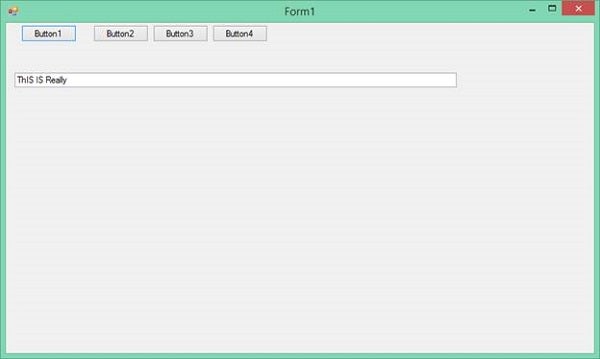
Figure 1: Button 1
As you can see, the code behind Button1 fails to change all the words to proper case and it cuts off some text. This is not what we want! If all the words were completely in lower case, the code would have worked. So, let’s move on to Button2.
   Private Sub Button2_Click(sender As Object, e As EventArgs) _
         Handles Button2.Click

      Dim strInputOutput As String

      strInputOutput = TextBox1.Text

      strInputOutput = Globalization.CultureInfo.CurrentCulture _
         .TextInfo.ToTitleCase(strInputOutput)

      TextBox1.Text = strInputOutput

   End Sub
Here, you make use of the CultureInfo object to help set the case for the words. The result after clicking Button2 is shown in Figure 2:
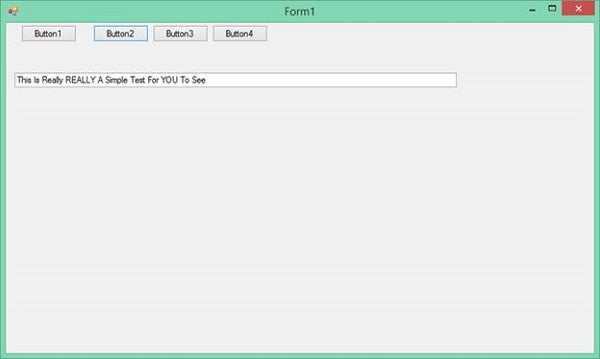
Figure 2: Button 2
This looks somewhat better. If you look closely though, you will notice that the words that are entirely in Upper case have not been changed… Let’s hope Button3 works better!
   Private Sub Button3_Click(sender As Object, e As EventArgs) _
         Handles Button3.Click

      Dim strInput As String = TextBox1.Text

      Dim strOutput As String = StrConv(strInput, _
         VbStrConv.ProperCase)

      TextBox1.Text = strOutput

   End Sub
Here, the old VB6 function StrConv is used to attempt to convert the words to proper case, let’s look at Figure 3 to see if it worked:
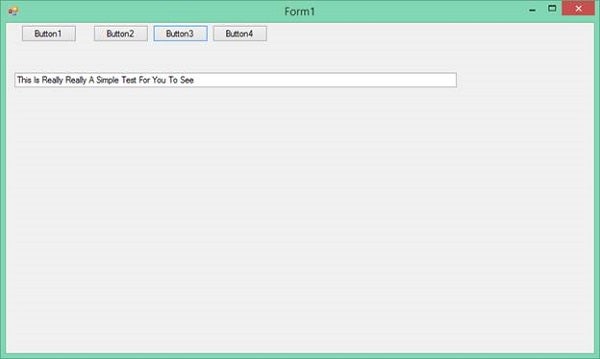
Figure 3: Button 3
Perfect! Now, what is wrong then? Well, the StrConv function is an old Visual Basic 6 function. VB6 has not been around for a long time and it will basically be frowned upon to still use it, so technically, it is not what is actually needed. Finally, add the code for Button4.
   Function ChangeToProperCase(ByVal strInput As String) As String

      Dim strOutput As String = ""

      strInput = strInput.ToLower
      strOutput = Globalization.CultureInfo.CurrentCulture _
         .TextInfo.ToTitleCase(strInput)

      Return strOutput

   End Function

   Private Sub Button4_Click(sender As Object, e As EventArgs) _
         Handles Button4.Click

      Dim strInputOutput As String = TextBox1.Text

      strInputOutput = strInputOutput.ToProperCase()

      TextBox1.Text = strInputOutput

   End Sub
Add a Module with the following code:
Module ExtensionMethods

   <System.Runtime.CompilerServices.Extension()>
   Function ToProperCase(ByVal strInput As String) As String

      Dim strOutput As System.Globalization.TextInfo

      strOutput = New System.Globalization.CultureInfo("en-US", _
         False).TextInfo

      strInput = strInput.ToLower
      strInput = strOutput.ToTitleCase(strInput)

      Return strInput

   End Function

End Module
Perhaps it’s a bit too overly complicated? No. If you need a solution, albeit a basic one such as changing letters to Proper Case, it must be working properly and in this case it should be able to compensate for lower, upper, and mixed case words.
An Extension method is created that first converts the words to lowercase, then to Proper Case, then a Function calls this Extension method which then gets called in Button4 (see Figure 4).
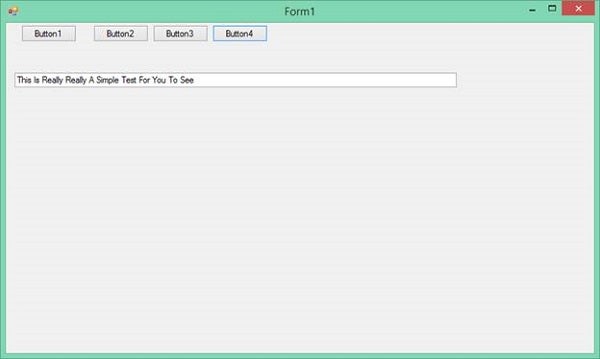
Figure 4: Button 4
Conclusion
As always, there are many different ways to achieve a goal. The question, however, is determining which method is more appropriate for your current situation and which method gives the most functionality. I hope I have answered these questions. Until next time, happy coding!