


Games, I love them—who doesn’t? Certain games just have that special something (it is hard to explain exactly what) that just keep you hooked and I won’t say begging for more, but they just have something about them that keeps reeling you in, as if you’re a fish…
I started programming ages ago, when dinosaurs still roamed the earth freely and dial-up Internet, with the intention of being a games programmer, but alas. Technology just grew so quick and opportunities flew out of the window even quicker! The very first game I attempted (and actually succeeded in making) was a memory game. This is what you will learn today. It is actually much easier than you might realize!
What Is a Memory Game?
A memory game is a game where you rely on your memory to beat the game. An example (which we will do today) is a game where there is a bunch of cards that are face down. One by one, you need to select a card and see if you can match (and remember) different pairs of matches. The trick is to remember where a certain picture was so that you can finish the game quicker.
Let’s get started!
Design
Create a new Visual Basic Windows Forms application and design your form to resemble Figure 1. I have named my game HTG_Memory_ZAP. Keep in mind that my object names may also differ from yours.
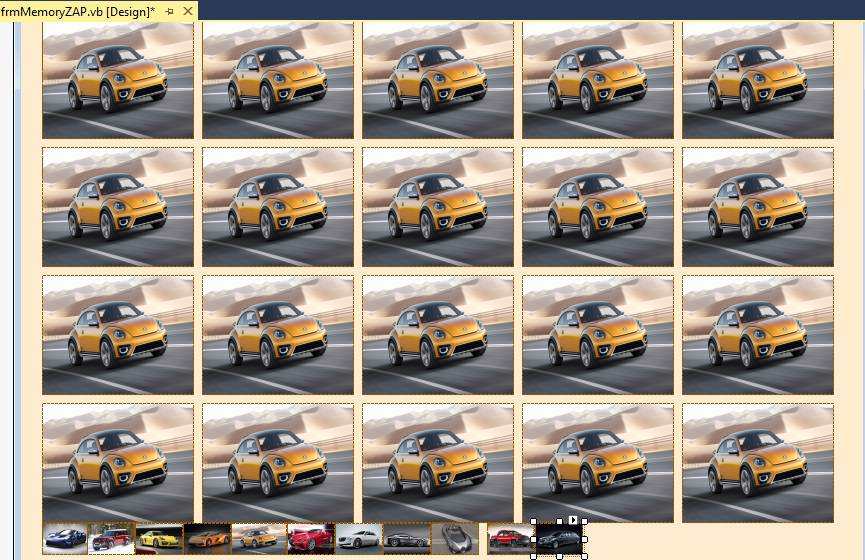
Figure 1: Our Design
Apart from all the PictureBoxes, you need to add the following controls as well—I am listing all the controls in the following table:
| Control |
| 1 Timer |
| 4 Labels (Refer to Figure 2 for the Captions) |
| 1 ProgressBar |
| 2 Buttons (Refer to Figure 2 for the Captions) |
| 20 Big PictureBoxes |
11 Small PictureBoxes named as follows:
|
Code
Add the following Modular variables. These variables will be used throughout the program:
   'Ensures if a match found it knows, or if no match found it knows'
   Private intPairSelection As Integer
   Private arrPairPicked(2) As Integer    'The two cards that were picked'
   Private arrMoveBehind(20) As Integer   'Moves cover card to the back'
   Private intGuesses As Integer          'How many Guesses you took'
   Private intScore As Integer            'Score'

   Private imgSelection(9) As PictureBox  'Selected images'
   Private imgCardBack(19) As PictureBox  'background of cards'
intPairSelection is responsible for identifying if a pair has been selected successfully. arrPairPicked holds the two current cards that have been selected. arrMoveBehind basically moves the ‘cover’ card to the back and puts the random card in front of it—this is ultimately the card that has been chosen. intGuesses holds the number of guesses made. intScore is the current score. imgSelection is the currently selected image, and imgCardBack is the cover cards that hide the available card choices.
Add the Form_Load event procedure, which executes when the form is first displayed:
   Private Sub Form1_Load(ByVal sender As System.Object, _
      ByVal e As System.EventArgs) Handles MyBase.Load

      'Initialize images'
      imgSelection(0) = imgSelection1
      imgSelection(1) = imgSelection2
      imgSelection(2) = imgSelection3
      imgSelection(3) = imgSelection4
      imgSelection(4) = imgSelection5
      imgSelection(5) = imgSelection6
      imgSelection(6) = imgSelection7
      imgSelection(7) = imgSelection8
      imgSelection(8) = imgSelection9
      imgSelection(9) = imgSelection10

      imgCardBack(0) = imgHidden1
      imgCardBack(1) = imgHidden2
      imgCardBack(2) = imgHidden3
      imgCardBack(3) = imgHidden4
      imgCardBack(4) = imgHidden5
      imgCardBack(5) = imgHidden6
      imgCardBack(6) = imgHidden7
      imgCardBack(7) = imgHidden8
      imgCardBack(8) = imgHidden9
      imgCardBack(9) = imgHidden10
      imgCardBack(10) = imgHidden11
      imgCardBack(11) = imgHidden12
      imgCardBack(12) = imgHidden13
      imgCardBack(13) = imgHidden14
      imgCardBack(14) = imgHidden15
      imgCardBack(15) = imgHidden16
      imgCardBack(16) = imgHidden17
      imgCardBack(17) = imgHidden18
      imgCardBack(18) = imgHidden19
      imgCardBack(19) = imgHidden20

   End Sub
All I have done here is to set the arrays created earlier to the images on the form. This is easier because now you can keep much better track of which card needs to do what.
Add the following two events:
   Private Sub btnStart_Click(sender As Object, e As EventArgs) _
      Handles btnStart.Click

      Start()

   End Sub

   Private Sub btnExit_Click(ByVal sender As System.Object, _
      ByVal e As System.EventArgs) Handles btnExit.Click

      Application.Exit()

   End Sub
The btnStart event calls a procedure (which we will create now) named Start. btnExit exits the game. Let’s add the Start sub now:
   Private Sub Start()   'Starts the game

      Randomize()   'random number'
      ShuffleCards(20, arrMoveBehind)   'Shuffle

      Dim i As Integer

      For i = 1 To 20

         If arrMoveBehind(i) > 10 Then

            arrMoveBehind(i) = arrMoveBehind(i) - 10

         End If

         'Move backwards'
         arrMoveBehind(i) = arrMoveBehind(i) - 1
         arrMoveBehind(i - 1) = arrMoveBehind(i)

      Next i

      'Reset'
      intScore = 0
      intGuesses = 0
      intPairSelection = 1
      btnStart.Enabled = False
      btnExit.Text = "Stop"
      lblScore.Text = intScore.ToString()
      lblGuesses.Text = intGuesses.ToString()

   End Sub
As the name implies, the Start() sub procedure starts the game. Besides that, it also resets all the controls to their default settings and clears the score and guesses variables. Inside this sub, another sub named ShuffleCards is called, Let’s add this sub now:
   'Shuffle items'
   Private Sub ShuffleCards(ByVal intItems As Integer, _
      ByVal intNumbers() As Integer)

      Dim intCounter As Integer
      Dim intPicked As Integer
      Dim intRemaining As Integer
      Dim intTemp As Integer

      'Populate items'
      For intCounter = 1 To intItems

         intNumbers(intCounter) = intCounter

      Next intCounter

      'randomly pick item and swap out images'
      For intRemaining = intItems To 2 Step -1

         IntPicked = Int (Rnd () * intRemaining) + 1

         intTemp = intNumbers(intRemaining)

         intNumbers(intRemaining) = intNumbers(intPicked)

         intNumbers(intPicked) = intTemp

      Next intRemaining

   End Sub
The preceding sub shuffles all the available images randomly and populates each array item (playing card) with the random image.
Add the following event:
Private Sub imgHidden1_Click(ByVal sender As System.Object, _
         ByVal e As System.EventArgs) Handles imgHidden1.Click,
         imgHidden2.Click, imgHidden3.Click, imgHidden4.Click,
         imgHidden5.Click, imgHidden6.Click, imgHidden7.Click,
         imgHidden8.Click, imgHidden9.Click, imgHidden10.Click,
         imgHidden11.Click, imgHidden12.Click, imgHidden13.Click,
         imgHidden14.Click, imgHidden15.Click, imgHidden16.Click,
         imgHidden17.Click, imgHidden18.Click, imgHidden19.Click,
         imgHidden20.Click

         'MAKE SURE YOU HAVE SET THE TAG PROPERTY FOR EACH imgHidden. '
         'Go To Properties'
         'Select imgHidden1 For Example'
         'Select the TAG Property’
         'Type 0'
         'imgHidden Tag is 0'
         'imgHidden20 Tag is 19'
      Play(Int32.Parse(sender.tag))
   End Sub
This one event is responsible for handling all the click events for the card covers. All of these images share the same event handler and calls the same sub procedure (named Play) that we will add now.
   Private Sub Play(ByVal intIndex As Integer)

      'Same box, or already selected box'
      If (intPairSelection = 2 And intIndex = arrPairPicked(1)) _
         Or arrMoveBehind(intIndex) = -1 Or btnStart.Enabled Then

         Exit Sub

      End If

      'Display selected Image'
      imgCardBack(intIndex).Image = _
         imgSelection(arrMoveBehind(intIndex)).Image

      imgCardBack(intIndex).Refresh()

      If intPairSelection = 1 Then

         arrPairPicked(1) = intIndex

         intPairSelection = 2

         Exit Sub

      End If

      arrPairPicked(2) = intIndex

      'Match'
      If arrMoveBehind(arrPairPicked(1)) = _
         arrMoveBehind(arrPairPicked(2)) Then

         arrMoveBehind(arrPairPicked(1)) = -1
         arrMoveBehind(arrPairPicked(2)) = -1

         intScore = intScore + 1
         lblScore.Text = intScore

      Else
         'No Match, restore cardbacks'
         intGuesses = intGuesses + 1

         lblGuesses.Text = Format(intGuesses, "0")

         Timer1.Enabled = True

      End If

      intPairSelection = 1

   End Sub
This sub handles the physical game play for the user. Each time the user clicks an image, it will determine if the same card has been clicked twice, or if the card is already part of a successful pairing, or if the card has to show the image that is hidden behind it.
Add the last event:
   Private Sub Timer1_Tick(ByVal sender As System.Object, ByVal e As System.EventArgs) Handles Timer1.Tick

      'Check if cards are the same'
      ProgressBar1.Value += 20

      For x As Integer = 0 To imgCardBack.Length - 1

         imgCardBack(x).Enabled = False

      Next

      If ProgressBar1.Value = ProgressBar1.Maximum Then

         ProgressBar1.Value = ProgressBar1.Minimum

         Timer1.Enabled = False

         imgCardBack(arrPairPicked(1)).Image = picBack.Image
         imgCardBack(arrPairPicked(2)).Image = picBack.Image

         For x As Integer = 0 To imgCardBack.Length - 1

            imgCardBack(x).Enabled = True

         Next

      End If

   End Sub
The timer’s event aids in showing the wrong selection with the use of a timed Progressbar. If the wrong card has been chosen, it will display for a while and then redisplay the cover card.
That is it! Not too complicated at all! Figure 2 shows the working game in action.
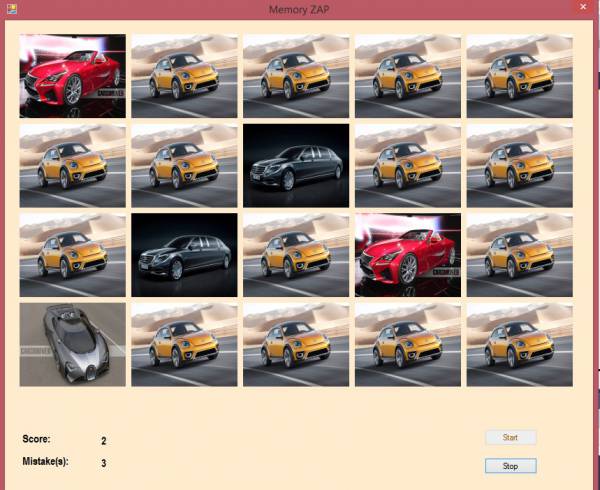
Figure 2: Our game in action
Conclusion
Creating a complicated game is actually pretty easy. There were no advanced methods used, apart from logic.