


- Introduction
- DateTime Methods and Properties
- Our Project
- Adding a Date or Time onto a Date
- Determining Month Length : DaysInMonth
- Comparing Dates and Times: Compare
- Determining Leap Years: IsLeapYear
- Subtracting Dates and Times: Subtract
- Formatting Date Functions
- Parsing Dates: Parse
- Determining Current Dates or Times
- Capturing the Precise Time and Date
- Conclusion
Introduction
Working with Dates can get pretty frustrating sometimes, especially if you are a new or inexperienced developer. One particular mistake new developers make is that they do not realize that Time is also in fact a date – they find it hard to fathom. If you are very new to programming, the .NET Framework provides the DateTime class (among other) for any sort of date manipulation. This is what we will work with today.
DateTime Methods and Properties
As any class in the .NET Framework, the DateTime class has several properties and methods. Properties are simple settings that you can store and retrieve for an object, whereas methods are what that particular object can do. Following is a complete list of all the DateTime Properties and methods.
I will cover the 20 most frequently used methods and properties, or variants thereof with small practical examples.
Our Project
Open Visual Studio and create a new Visual basic Windows Forms application. Design your form to resemble Figure 1, beneath:
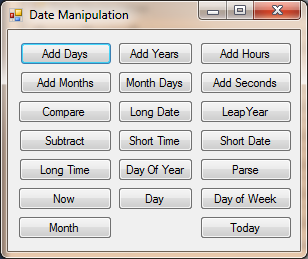
Figure 1 – Our Design
I did not name any of the objects, to keep it as simple as possible. You will add code to each of these buttons to see each of these methods in action. Let us add the code now.
Adding a Date or Time onto a Date
You can add any time or date onto an existing date or time. That sounds confusing, almost as confusing as the title of the Back to the Future movies! This simply means that if you have an existing date, you can add onto that date to get a future date or time. Now why would we ever want to do this? It is simple. Any program should be able to compensate for future events. In a sense, your program should be able to see the future and make decisions based on that. Let me use a small example now. Let us say that you have a fruit market. Let us presume further that each of the fruits have expiry dates on them. You should be able to know when those fruit expire so that you can take them off of the shelves and not sell potentially almost rotten fruit to the public. Make sense now? Sure it does!
Our first Adding method is Add Days, let us add the code for it underneath the ‘Add Days’ button:
        'Add Days

        Dim dtToday As DateTime 'For Today's Date
        Dim dtTomorrow As DateTime 'For Tomorrow's Date

        dtToday = System.DateTime.Now 'Get Today's Date

        dtTomorrow = dtToday.AddDays(1) 'Add A Day To A Date

        MessageBox.Show("Today is : " & dtToday.ToString("mmm-dd-yyyy")) 'Show Nicely Formatted Date
        MessageBox.Show("Tomorrow is : " & dtTomorrow.ToString("mmm-dd-yyyy")) 'Show Tomorrow's Date Formatted The Same Way
I created two DateTime objects. One is aptly named dtToday for today’s date and the next is named dtTomorrow, for tomorrow’s date. Although tomorrow’s date may be obvious to you, it is not for your program. I stored System.DateTime.Now inside dtToday. This gives me the precise date and time – more on this later – and I used the AddDays method to add one day to today’s date. This gives me tomorrow’s date. I show today’s date in a MessageBox as well as tomorrow’s date.
You will notice that I have made use of the ToString method to format the date like this: “mmm-dd-yyy” This simply gives me: “25/01/2014”. I will delve into formatting dates, perhaps later again, but I did cover it in this article: Back to the Basics: Visual Basic Strings
Add the next code behind the ‘Add Years’ button:
        'Add years

        Dim dtFourteen As DateTime
        Dim dtFifteen As DateTime

        dtFourteen = System.DateTime.Now 'Get Today's Date
        dtFifteen = dtFourteen.AddYears(1) 'Add A Year To Above Date

        MessageBox.Show("This Year is : " & dtFourteen.ToString("mmm-dd-yyyy"))
        MessageBox.Show("Next Year is : " & dtFifteen.ToString("mmm-dd-yyyy"))
Pardon my object naming, but as mentioned, I am trying to keep this as simple and basic as possible. I followed precisely the same principle I followed with the first button, except that I have now added a year onto the date. This will give me ‘2015’ if the current year is ‘2014.’
Add Month is almost the same. I’d actually wanted you to try it yourself and not give you a sample, but I am in general a good guy, so here is the code for the ‘Add Months’ button:
        'Add Months

        Dim dtCurrentMonth As DateTime
        Dim dtNextMonth As DateTime

        dtCurrentMonth = System.DateTime.Now 'Get Today's Date
        dtNextMonth = dtCurrentMonth.AddMonths(1) 'Add A Month

        MessageBox.Show("The Current Month is : " & dtCurrentMonth.ToString("mmm-dd-yyyy"))
        MessageBox.Show("The Next Month is : " & dtNextMonth.ToString("mmm-dd-yyyy"))
Here I simply used the AddMonths method to add one month.
Let us now proceed to add times to dates. Add the following code for the ‘Add Hours’ button:
        'Add Hours

        Dim dtCurrentHour As DateTime
        Dim dtNextHour As DateTime

        dtCurrentHour = System.DateTime.Now 'Get Today's Date
        dtNextHour = dtCurrentHour.AddHours(1) 'Add An Hour

        MessageBox.Show("The Current Hour is : " & dtCurrentHour.ToString())
        MessageBox.Show("The Next Hour is : " & dtNextHour.ToString())
And add the next code behind ‘Add Seconds’:
        'Add Seconds

        Dim dtCurrentSecond As DateTime
        Dim dtNextSecond As DateTime

        dtCurrentSecond = System.DateTime.Now 'Get Today's Date
        dtNextSecond = dtCurrentSecond.AddSeconds(10) 'Add 10 Seconds

        MessageBox.Show("The Current Second is : " & dtCurrentSecond.ToString())
        MessageBox.Show("The Next Second is : " & dtNextSecond.ToString())
This is what makes the .NET Framework so fantastic! It makes it simple to understand all the methods just by learning one! I know the Adding seconds and Hours buttons was perhaps an overkill, but I am just illustrating how they work, and how simple it is to work with them.
Determining Month Length : DaysInMonth
With the DaysInMonth method you can determine how many days are in that specific month. For example: by using this method you could determine how many days February has. This year, 2014 February will have 28 days, however, 2016 will have 29 days. Why is this useful? Well, say you have a program that has to ensure you pay your workers at the end of the month. Sometimes a person can simply forget what day it is due to the fact that he or she is extremely busy. This method can help determining the last day of the month. This is also pretty useful in calendar applications. These are just a few very basic examples of this method’s usage. Add the next code behind the ‘Month Days’ button:
      'DaysInMonth

        Dim dtCurrentDate As DateTime

        dtCurrentDate = Now 'Get Current Date & Time

        MessageBox.Show(Date.DaysInMonth(dtCurrentDate.Year, dtCurrentDate.Month)) 'How Many days Are In This Month?
Comparing Dates and Times: Compare
As the method’s name implies, you can easily compare two dates or times with one another. Add the following code behind the button labelled ‘Compare’:
        'Compare

        Dim dtToday As DateTime
        Dim dtTomorrow As DateTime

        dtToday = System.DateTime.Now 'Get Today's Date
        dtTomorrow = dtToday.AddDays(1) 'Add A Day

        'Compare The Given Dates
        Dim intResult As Integer = DateTime.Compare(dtToday, dtTomorrow)

        'If Smaller Than 0, Date Is Earlier
        If intResult < 0 Then

            MessageBox.Show(dtToday.ToString("mmm-dd-yyyy") & " is earlier than " & dtTomorrow.ToString("mmm-dd-yyyy"))

            'If 0 Then Dates Are The Same
        ElseIf intResult = 0 Then

            MessageBox.Show(dtToday.ToString("mmm-dd-yyyy") & " is the same time as " & dtTomorrow.ToString("mmm-dd-yyyy"))
        Else

            'If Higher Than 0 Then date Is Later
            MessageBox.Show(dtToday.ToString("mmm-dd-yyyy") & " is later than " & dtTomorrow.ToString("mmm-dd-yyyy"))

        End If
In the above example, I created two date objects, one for today’s date, and the other for tomorrow’s date. I then created an integer variable named intResult, which will hold the value of the Compare method. This value could be -1, 0, or +1. Within the If statement I compare dtToday with dtTomorrow. if the result is -1, it means that the first date supplied (in this case dtToday) is smaller than the second date supplied (dtTomorrow). If intresult is 0, it means both supplied dates are exactly the same. If intResult is +1, it means that dtToday is later than dtTomorrow. If I just switched the two parameters here, you would see that dtTomorrow is in fact later than today, and the comparison would be correct.
Determining Leap Years: IsLeapYear
A very handy function to know is the IsLeapYear method. It simply determines if the supplied year is a leap year. If you do not know what a leap year is, a Leap year is when February has 29 days. A leap year is normally divisible with 4, 100, or 400. The reason I mention these numbers is because in the olden days, developers needed to divide those numbers with the year in question to reach the answer. Just another example how the .NET Framework makes things easier for us. Add the next code under the ‘LeapYear’ button:
        'Leap Year

        Dim dtToday As DateTime

        dtToday = System.DateTime.Now 'Get Today's Date

        'LeapYear?
        If Date.IsLeapYear(dtToday.Year) Then

            MessageBox.Show("Leap Year")

        Else

            MessageBox.Show("Not A Leap year")

        End If
This one is quite simple. I created a DateTime object, and stored the current date and time inside it. I then used the IsLeapYear method to establish whether this year is a leap year. If this method returns false, it is not a leap year; if it is true, it is a leap year.
Subtracting Dates and Times: Subtract
Just as you can Add a certain date or time onto a date, you can subtract. Although the process is not exactly the same, the logic still persists. Add the next code behind the ‘Subtract’ button:
        'Subtract

        Dim dtToday As New DateTime(2014, 1, 14) 'Current Date
        Dim dtTomorrow As New DateTime(2014, 8, 27) 'Future Date

        Dim dtYesterday As TimeSpan 'Holds Time Difference

        dtYesterday = dtTomorrow.Subtract(dtToday) 'Subtract The Dates

        MessageBox.Show(dtYesterday.ToString()) 'Show Result
The process is quite simple, as you can probably deduct from the code above. I created two dates. One of the dates is in the distant future. I created a TimeSpan object next. This object will hold the exact time difference between the two given dates. After the TimeSpan object is created I call the Subtract method to do the physical calculation and store it inside the TimeSpan object.
Formatting Date Functions
There are quite a few methods available for formatting dates. Most commonly, developers tend to rather use String Formatting for this purpose, but there are ordinary date methods available as well. I will demonstrate four of them, to get you started. Add the next code behind the ‘Long Date’ button:
        'Long Date

        Dim dtToday As DateTime

        dtToday = System.DateTime.Now 'Get Today's Date

        MessageBox.Show(dtToday.ToLongDateString()) 'Format To Long Date
Here, I simply used the ToLongDateString method to format the date properly and output it as a string. Add the next code (behind the ‘Long Time’ button):
        'Long Time

        Dim dtToday As DateTime

        dtToday = System.DateTime.Now 'Get Today's Date

        MessageBox.Show(dtToday.ToLongTimeString()) 'Show Seconds and PM/ AM As Well
Here I have used the ToLongTimeString to show the seconds, as well as the period / Meridian indicators AM (Ante Meridiem) and PM (Post Meridiem).
Now that you can show both a long time and date formatted nicely, let me investigate short times and short dates. Add the next two code segments at the respective button’s click event:
        'Short Time

        Dim dtToday As DateTime

        dtToday = System.DateTime.Now 'Get Today's Date

        MessageBox.Show(dtToday.ToShortTimeString()) 'Do Not Show AM / PM

        'Short Date

        Dim dtToday As DateTime

        dtToday = System.DateTime.Now 'Get Today's Date

        MessageBox.Show(dtToday.ToShortDateString()) 'Show Short Date
When you click on either button you will see a date that is formatted to be very short, as well as a time. It all depends on your exact needs. I am just illustrating what you can achieve with the date formatting methods.
Parsing Dates: Parse
Parse helps us in converting a date inside a string as a date. Usually when someone has to enter a date in a TextBox, it is considered a string. Yes, there are many better ways to obtain a date from the user, but I am just using the TextBox as an example. We have to convert it if we want to manipulate the date further. Add the next code behind the ‘Parse’ button:
        'Parse

        Dim strDate As String = "21 January, 2014" 'String That Contains A Date

        Dim dtToday As DateTime = Date.Parse(strDate) 'Convert To Date

        MessageBox.Show(dtToday.ToString()) 'Show Converted Date
Here, I purposely created a String object and populated it with a date like entry. I then used the parse method to convert this date into an actual date object, then displayed it inside a MessageBox.
Determining Current Dates or Times
OK, this heading might sound a bit weird, as we have DateTime objects that do this anyway. What am I trying to do? Well, there are times when you need to determine the current month, or specific day of the week, or a specific day of the month.
Add the following code behind the ‘Day of year’ button:
        'Day of Year

        Dim dtDate As New DateTime(2014, 7, 14) 'Date

        MessageBox.Show(dtDate.DayOfYear) 'Day Number Of Year
This gives you the day number of the specified date. Add the next code behind the ‘Day’ button:
        'Day

        Dim dtToday As New DateTime(2014, 6, 14)

        MessageBox.Show(dtToday.Day) 'Day Number Of Month
This gives you the day number of the month. The example is a bit basic. Usually you’d provide an unknown date to it in order to produce the desired result.
Add the next code segments behind the ‘Day of Week’, ‘Month’ and ‘Today’ buttons respectively:
        'Day of Week

        Dim dtToday As New DateTime(2014, 1, 14)

        MessageBox.Show(dtToday.DayOfWeek) 'Day Number Of Week

        'Month

        Dim dtToday As New DateTime(2014, 1, 14) 'Month Number

        MessageBox.Show(dtToday.Month)

        'Today

        MessageBox.Show(Date.Today()) 'Today's Date
Capturing the Precise Time and Date
To get the precise moment when an event occurs, you could use the Now method. This method returns the date, and time of an action. This is a good method to know when you are working with a Log in system or even a clock in system. Add the next code behind the ‘Now’ button:
        'Now

        Dim dtToday As DateTime

        dtToday = System.DateTime.Now 'Get Precise Date And Time

        MessageBox.Show(dtToday)
Conclusion
Although this is just a very small list of all the DateTime methods available, there are hundreds more. I just wanted to introduce you to date manipulation and open your eyes a bit so that you can see how easy it is to work with dates. I now leave you, and hope that you have learned something today and benefitted from my article. I also hope that you will delve a bit deeper into Date Manipulation. Cheers!