


Linting is the process of checking the source code for programmatic and stylistic errors. A Linter is an automated tool that runs on static code to find formatting discrepancies, non-adherence to coding standards and conventions, and find logical errors in your program. Running a Linter (static code analyzer) over your source code improves code quality, helps to ensure that source code is legible, readable, less polluted, and easier to maintain. Linters are also useful for code formatting and adhering to language-specific best practices.
A JavaScript Linter can check all your JavaScript source code for common mistakes. A few common mistakes that JavaScript Linter looks for are missing semicolons at the end of a line, curly braces, code that is never run, case statements in a switch that do not have a break statement, leading and trailing decimal points on a number, a leading zero that turns a number into octal, comments within comments, ambiguity whether two adjacent lines are part of the same statement, statements that don’t do anything, and so forth.
Read: Top C# Debugging Tools
The Top JavaScript Linters for Web Developers
Following are the five most widely used JavaScript Linters to analyze and report problems in JavaScript files.
1. JSLint
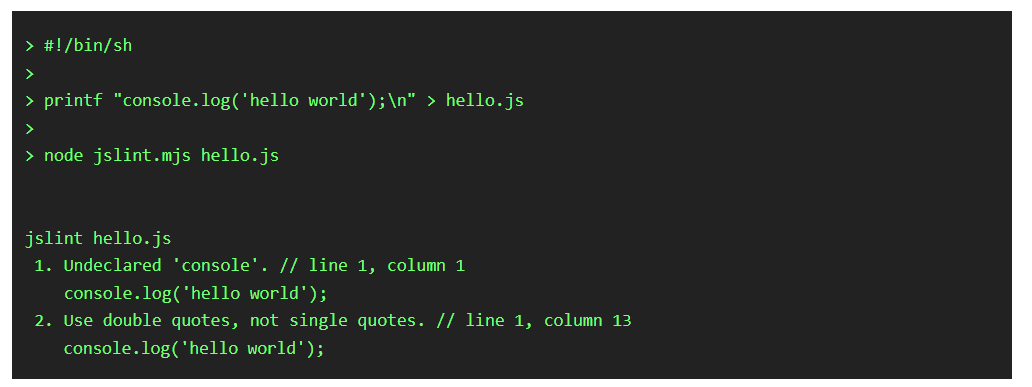
The JSLint JavaScript Linter can be found by visiting the JSLint website.
2. ESLint
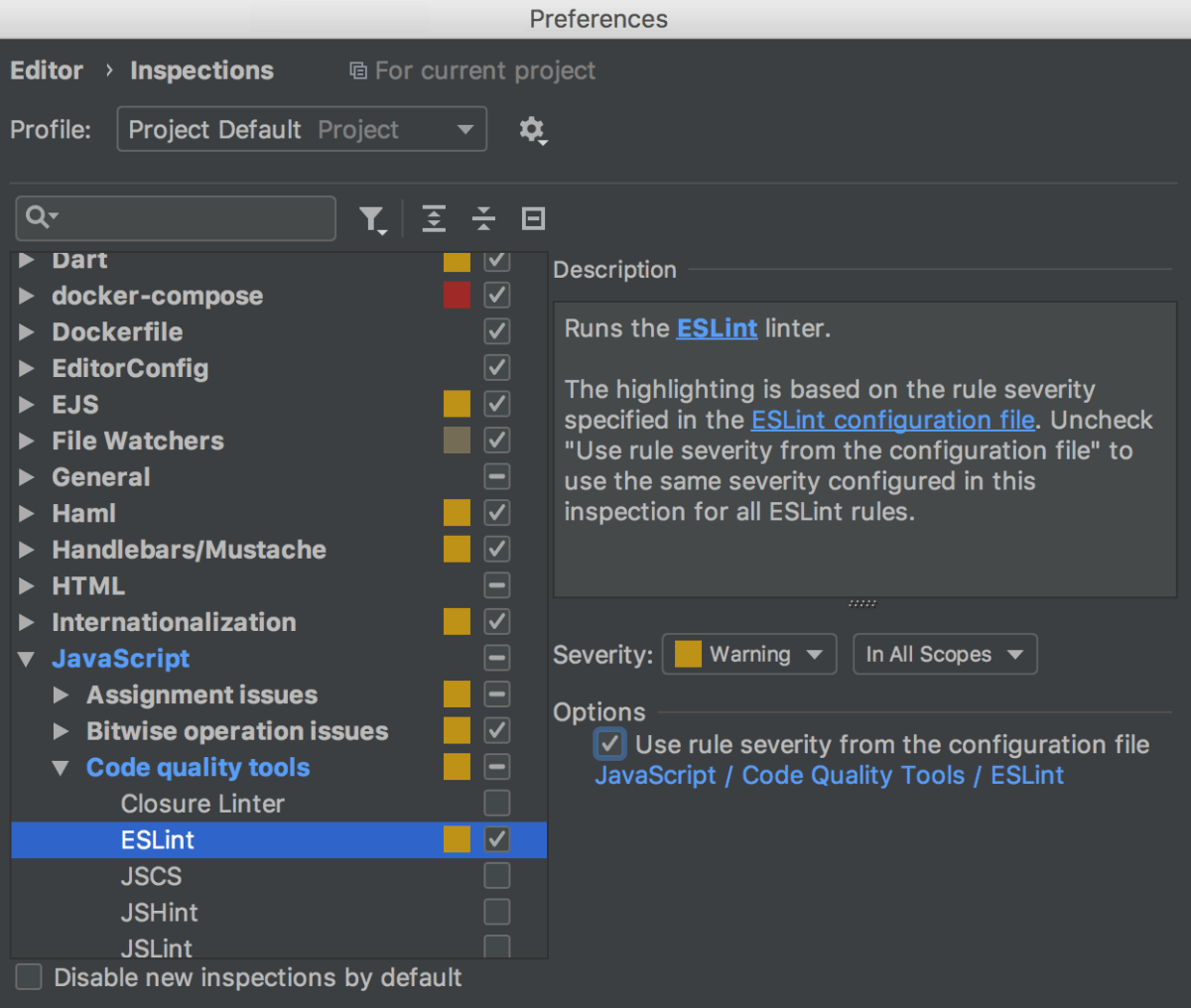
A developer can integrate ESLint extensions into their VS Code editor. This extension uses the ESLint library installed in the opened workspace folder.
3. JSHint
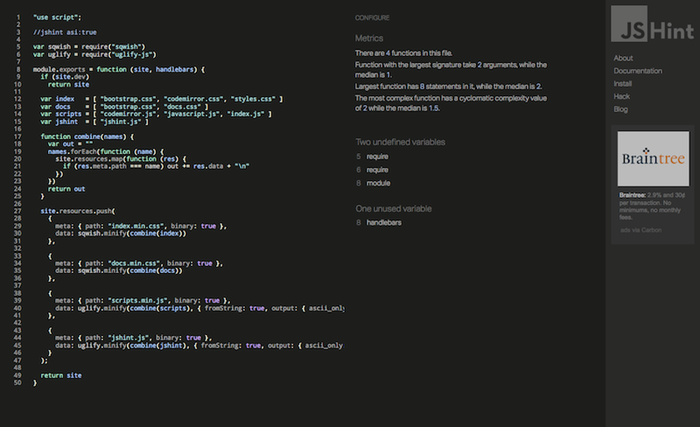
JSHint can be found at the JSHint website.
4. JSCS JavaScript Linter
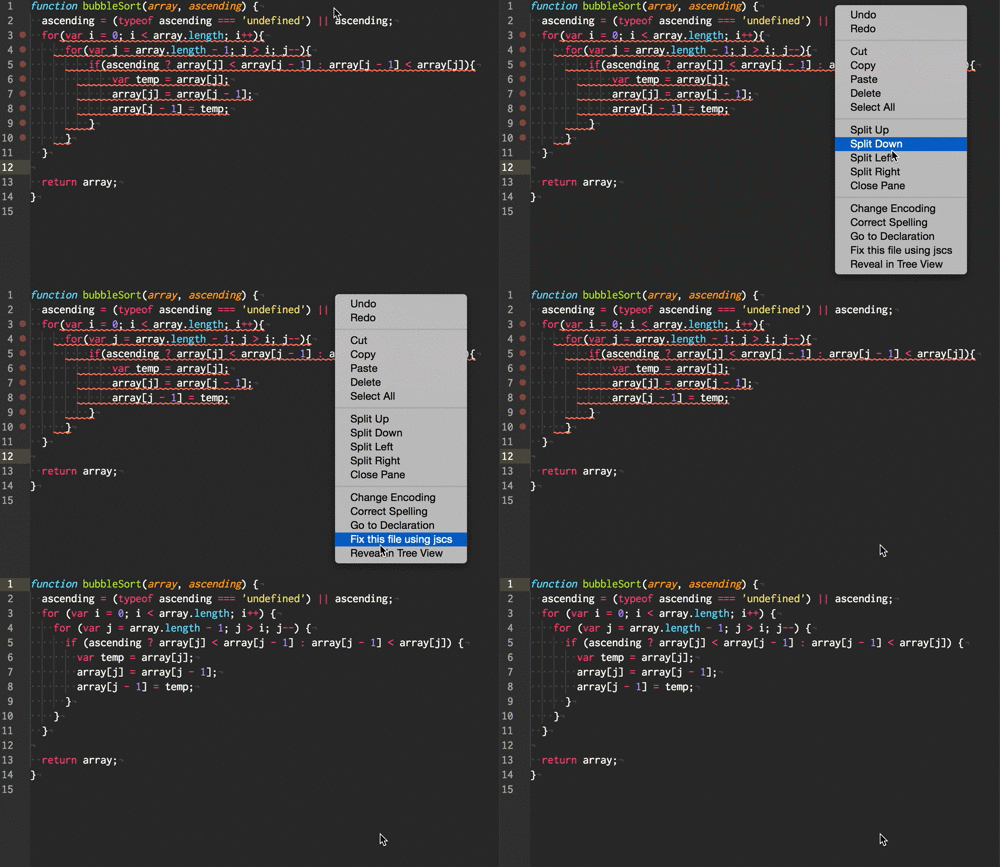 This Linter plugin is located at https://jscs-dev.github.io/.
5. Standard JS
Standard is a popular JavaScript code style guide built on top of ESLint. The tool can be used as a JavaScript style guide, linter, and formatter. It automatically formats code and catches style and programmer errors during the early development period. Developers adopt standard JS because it’s an open source framework. Developers can use Standard the VSCode extension to integrate JavaScript Standard Style into their VSCode editor.
Conclusion to JavaScript Linting Tools
Finally, if you ask about my choice of these five, ESLint is my preference. For VS code developers, ESLint can be configured easily. JSHint is my second choice. If you don’t need the advanced linting features, JSHint catches a good number of issues once it’s properly configured. JSCS is a good choice if you only want to check your coding style. It has a huge number of available rules and it is a top pick if you don’t need anything other than coding style checks.