


Introduction
Every file has an icon. This icon depends on the program that can open the file in question. Obtaining these icons can be tricky, or easy, depending on the route you take. In this article, you will learn how to extract associated icons from files and display them in your programs.
I will demonstrate the different methods of extracting icons. One uses the built-in .NET Framework capabilities, and the other methods demonstrate Windows API methods.
Practical
Open Visual Studio and create a new Visual Basic Windows Forms application. On your form, add the following objects:
- Two Buttons
- One ListView
- One ImageList
Set the following properties for the ListView:
- View: SmallIcon
- SmallImageList: The name of your ImageList
Your design should look like Figure 1.
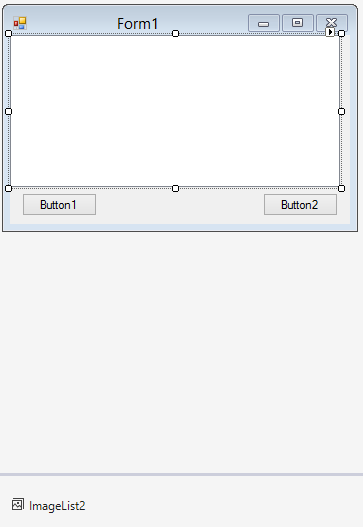
Figure 1: Design
Code
Add the following code:
   Public Sub ExtractIcon_1()

      Dim dInfo As New System.IO.DirectoryInfo("c:\")

      Dim lvItem As ListViewItem

      ListView2.BeginUpdate()

      ListView2.Items.Clear()

      Dim CurrFile As System.IO.FileInfo

      For Each CurrFile In dInfo.GetFiles()

         Dim iFileIcon As Icon = SystemIcons.WinLogo

         lvItem = New ListViewItem(CurrFile.Name, 1)

         If Not (ImageList2.Images.ContainsKey _
               (CurrFile.Extension)) Then

            iFileIcon = System.Drawing.Icon.ExtractAssociatedIcon _
               (CurrFile.FullName)

            ImageList2.Images.Add(CurrFile.Extension, iFileIcon)

         End

         lvItem.ImageKey = CurrFile.Extension
         ListView2.Items.Add(

      Next CurrFile

      ListView2.EndUpdate()

   End Sub
Add the following subroutine behind the first button:
   Private Sub Button1_Click(sender As Object, e As EventArgs) _
         Handles Button1.Click

      ExtractIcon_1()

   End Sub
The ExtractIcon_1 sub procedure loops through each of the files in the given path, and then makes use of the System.Drawing.Icon.ExtractAssociatedIcon method to extract each icon.
Add the following namespace to allow for working with the Windows API:
Imports System.Runtime.InteropServices
Add the following Windows APIs, Structs, Enums, and Constants:
   <DllImport("shell32.dll", CharSet:=CharSet.Auto)>
   Private Shared Function SHGetFileInfo(ByVal pszPath As String, _
      ByVal dwFileAttributes As Integer, <Out> ByRef _
      psfi As SHFILEINFO, ByVal cbfileInfo As UInteger, _
      ByVal uFlags As SHGFI) As Integer
   End Function
   <StructLayout(LayoutKind.Sequential, CharSet:=CharSet.Auto)>
   Private Structure SHFILEINFO

      Public Sub New(ByVal b As Boolean)

         hIcon = IntPtr.Zero
         iIcon = 0
         dwAttributes =
         szDisplayName = ""
         szTypeName = ""

      End Sub

      Public hIcon As IntPtr

      Public iIcon As Integer

      Public dwAttributes As UInteger

      <MarshalAs(UnmanagedType.ByValTStr, SizeConst:=MAX_PATH)>
      Public szDisplayName As String

      <MarshalAs(UnmanagedType.ByValTStr, SizeConst:=MAX_TYPE)>
      Public szTypeName As String

   End Structure

   <Flags>
   Enum SHGFI

      Icon = 256
      DisplayName = 512
      TypeName = 1024
      Attributes = 2048
      IconLocation = 4096
      ExeType = 8192
      SysIconIndex = 16384
      LinkOverlay = 32768
      Selected = 65536
      Attr_Specified = 131072
      LargeIcon = 0
      SmallIcon = 1
      OpenIcon = 2
      ShellIconSize = 4
      PIDL = 8
      UseFileAttributes = 16
      AddOverlays = 32
      OverlayIndex = 64

   End Enum
The SHGetFileInfo Windows API function retrieves information about a file or folder. The SHFILEINFO API structure contains information about a file object. Add the following code:
   Private Function GetIcons_2(ByVal strPath As String, _
         ByVal blnSmall As Boolean) As Icon

      Dim shInfo As SHFILEINFO = New SHFILEINFO(

      Dim intInfo As Integer = Marshal.SizeOf(shInfo)

      Dim fSettings As SHGFI

      If blnSmall Then fSettings = SHGFI.Icon Or
         SHGFI.SmallIcon Or SHGFI.UseFileAttributes _
            Else fSettings = SHGFI.Icon Or
         SHGFI.LargeIcon Or SHGFI.UseFileAttributes

      SHGetFileInfo(strPath, 256, shInfo, CUInt(intInfo), _
         fSettings)

      Return Icon.FromHandle(shInfo.hIcon)

   End Function
   Public Sub ExtractIcon_2()

      Dim dInfo As New System.IO.DirectoryInfo("c:\")

      Dim lvItem As ListViewItem

      ListView2.BeginUpdate()

      ListView2.Items.Clear()

      Dim CurrFile As System.IO.FileInfo

      For Each CurrFile In dInfo.GetFiles()

         Dim iFileIcon As Icon = SystemIcons.WinLogo

         lvItem = New ListViewItem(CurrFile.Name, 1)

         If Not (ImageList2.Images.ContainsKey _
               (CurrFile.Extension)) Then

            iFileIcon = GetIcons_2(CurrFile.FullName, True)

            ImageList2.Images.Add(CurrFile.Extension, iFileIcon)

         End If

         lvItem.ImageKey = CurrFile.Extension
         ListView2.Items.Add(lvItem)

      Next CurrFile

      ListView2.EndUpdate()

   End Sub


   Private Sub Button2_Click(sender As Object, e As EventArgs) _
         Handles Button2.Click

      ExtractIcon_2()

   End Sub
You may have noticed that there are many similarities between the first ExtractIcon sub (ExtractIcon_1) and ExtractIcon_2. It is basically verbatim the same, except for the assignment of the icon. ExtractIcon_2 calls the GetIcons_2 method, which returns the specified icon with the specified size and settings. Lastly, add the following code to see another Windows API method to extract icons:
   <DllImport("shell32.dll", CharSet:=CharSet.Auto)>
   Shared Function ExtractIconEx(ByVal szFileName As String,
      ByVal nIconIndex As Integer,
      ByVal phiconLarge() As IntPtr,
      ByVal phiconSmall() As IntPtr,
      ByVal nIcons As Integer) As Integer
   End Function

   <DllImport("user32.dll", EntryPoint:="DestroyIcon", _
      SetLastError:=True)>
   Shared Function DestroyIcon(ByVal hIcon As IntPtr) As Integer
   End Function

   Private Const MAX_PATH As Integer = 260

   Private Const MAX_TYPE As Integer = 80


   Public Function GetIcons_3(ByVal strPath As String, _
         ByVal blnLarge As Boolean) As Icon

      Dim intCount As Integer = 0

      Dim iptLarge As IntPtr() = New IntPtr(0) {IntPtr.Zero}
      Dim iptSmall As IntPtr() = New IntPtr(0) {IntPtr.Zero}

      Try

         If (blnLarge) Then

            intCount = ExtractIconEx(strPath, 0, iptSmall, _
               iptLarge, 1)

         Else

            intCount = ExtractIconEx(strPath, 0, iptLarge, _
               iptSmall, 1)

         End If

         If (intCount > 0 AndAlso Not iptSmall(0).Equals _
               (IntPtr.Zero)) Then

            Dim extractedIcon As Icon = Icon.FromHandle _
               (iptSmall(0)).Clone()

            Return extractedIcon

         Else

            Return Nothing

         End If

      Catch ex As Exception


         Throw New ApplicationException("Error: ", ex)

      Finally

         For Each ptr As IntPtr In iptSmall

            If (Not ptr.Equals(IntPtr.Zero)) Then

               DestroyIcon(ptr)

            End If

            Next ptr

            For Each ptr As IntPtr In iptLarge

               If Not (ptr.Equals(IntPtr.Zero)) Then

                  DestroyIcon(ptr)

               End If

            Next ptr

      End Try

   End Function
The ExtractIconEx function creates an array of handles to icons extracted from the specified file.
Additional Reading
I wrote the following articles some time ago. They should give you more detail on understanding File Associations.
The code for this article is available on GitHub.
Conclusion
Complicated things are sometimes not too complicated. Extracting icons from files will come in handy, and it polishes off your program’s little features nicely.