


Introduction
Hello again! Today, I will show you how to make your own text editor in Visual Basic. We have a lot of work to do, so let’s get started.
Our Project
As you probably know, a text editor is a computer program with which you can enter text. You can ultimately save or open the file into or from the program itself. Basically, what you can expect is the functionality behind opening and saving files, as well as loading a most recently used list of files. These file names appear in your file menu, an aid for quicker access.
Design
Start Visual Studio and create a new Windows Forms project. Once done, design your form to resemble Figure 1:
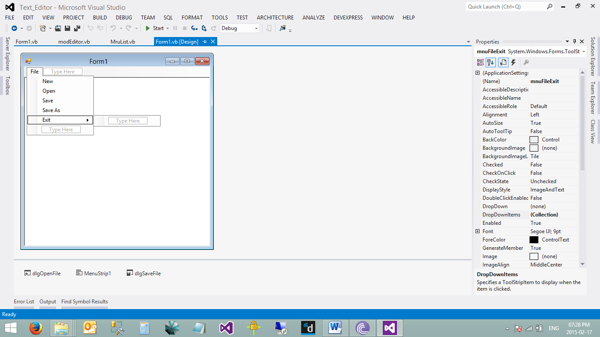
Figure 1: Our design
Code
Let me start with the Form’s code, and then move to the other objects as we encounter them. Add the following variables to your form:
Private Const APP_NAME As String = "Editor"
Private m_DataDirty As Boolean
Private m_FileName As String
Private WithEvents m_MruList As MruList
App_Name is my application’s name, DataDirty determines if the opened file’s content has changed. Based on this, we will know that we need to save. FileName will be the name of the file that gets used. mruList is a separate class for the Most Recently Used items; I will explain this later.
Add the following code for the New menu item:
'start a new document
Private Sub mnuFileNew_Click(ByVal sender As System.Object, _
   ByVal e As System.EventArgs) Handles mnuFileNew.Click


   'Make sure the current data is safe.
   If Not DataSafe() Then Exit Sub

   Me.rchFile.Text = ""
   m_FileName = Nothing
   Me.Text = APP_NAME & " []"
   m_DataDirty = False

   'no point in saving a blank file
   Me.mnuFileSave.Enabled = False
   Me.mnuFileSaveAs.Enabled = False
End Sub
Here, I reference a function named DataSafe (which we will create now) and set up the Richtextbox and the rest of the screen. Add the DataSafe function now:
'Return true if it is safe to discard the current data.
Private Function DataSafe() As Boolean
   If Not m_DataDirty Then Return True

   Select Case MessageBox.Show("The data has been modified. _
      Do you want to save the changes?", _
      "Save Changes?", MessageBoxButtons.YesNoCancel)
         Case Windows.Forms.DialogResult.Cancel
            'the user is canceling the operation.
            'don't discard the changes.
            Return False
         Case Windows.Forms.DialogResult.No
            'the user wants to discard the changes
            Return True
         Case Windows.Forms.DialogResult.Yes
            'try to save the data
            SaveData(m_FileName)
            'see if the data was saved
            Return (Not m_DataDirty)
   End Select
End Function
Here I just made sure the content of the Rich Textbox has indeed changed, and depending on the displayed messagebox’s result, I either cancel, or save the information into a file. Notice how I keep setting the value of the DataDirty variable…
Now, add the Form_load event:
'Set the Dialog's initial directory.
Private Sub Form1_Load(ByVal sender As System.Object, _
      ByVal e As System.EventArgs) Handles MyBase.Load
   Dim init_dir As String = Application.StartupPath
   If init_dir.EndsWith("\bin") Then init_dir = _
         init_dir.Substring(0, init_dir.Length - 4)
      dlgOpenFile.InitialDirectory = init_dir
      dlgSaveFile.InitialDirectory = init_dir

      m_MruList = New MruList(APP_NAME, MenuStrip1, 4)
End Sub
Inside Form_Load, you determine your application’s startup path. I made reference to the MruList class here as well, because it needs to load the recent items when loaded. I will explain the class a bit later.
Add the following sub procedure:
'mark the data as modified.
Private Sub rchFile_TextChanged(ByVal sender As System.Object, _
      ByVal e As System.EventArgs) Handles rchFile.TextChanged
   If Not m_DataDirty Then
      Me.Text = APP_NAME & "*[" & FileTitle(m_FileName) & "]"
      m_DataDirty = True
      mnuFileSave.Enabled = True
      mnuFileSaveAs.Enabled = True
   End If
End Sub
This fires when the content of the RichTextBox has changed. It indicates that the file has not yet been saved if you are creating a new file.
Now, add the LoadData and SaveData subs:
'load a data file
Private Sub LoadData(ByVal file_name As String)
   Dim stream_reader As IO.StreamReader
   Try
      'load the file
      stream_reader = New IO.StreamReader(file_name)
      Dim txt As String = stream_reader.ReadToEnd
      rchFile.Text = txt

      'save the file name and title
      m_FileName = file_name
      Me.Text = APP_NAME & " [" & FileTitle(m_FileName) & "]"
      m_DataDirty = False

      'update the MRU list
      m_MruList.Add(m_FileName)
      mnuFileSave.Enabled = False
      mnuFileSaveAs.Enabled = False
   Catch ex As Exception
      MessageBox.Show("Error loading file" & file_name & _
         vbCrLf & ex.Message, "Load Error", _
         MessageBoxButtons.OK, MessageBoxIcon.Error)
      m_MruList.Remove(file_name)
   Finally
      If Not (stream_reader Is Nothing) Then stream_reader.Close()
   End Try
End Sub

'save the file.
Private Sub SaveData(ByVal file_name As String)
   Dim stream_writer As IO.StreamWriter
   Try
      'save the file
      stream_writer = New IO.StreamWriter(file_name)
      stream_writer.Write(Me.rchFile.Text)
      stream_writer.Close()

      'save the file name and title.
      m_FileName = file_name
      Me.Text = APP_NAME & " [" & FileTitle(file_name) & "]"
      m_DataDirty = False

      'Update the MRU List
      m_MruList.Add(m_FileName)
      Me.mnuFileSave.Enabled = False
      Me.mnuFileSaveAs.Enabled = False
   Catch ex As Exception
      MessageBox.Show("Error saving file " & _
         file_name & vbCrLf & ex.Message, _
         "Save Error", MessageBoxButtons.OK, _
         MessageBoxIcon.Error)
   End Try
End Sub
Whether you are saving or opening a file, almost the same happens. I made use of a StreamReader object to read the content of the file into the Richtextbox, and I used a StreamWriter to save the content of the Rich textbox into a file. If it is the first time you’ve worked with files in this way, I suggest you read up on the StreamReader and the StreamWriter objects.
Add the following events:
'open a file selected from the MRU List
Private Sub m_MruList_OpenFile(ByVal file_name As String) _
      Handles m_MruList.OpenFile
   LoadData(file_name)
End Sub
' save the file.
Private Sub mnuFileSave_Click(ByVal sender As System.Object, _
      ByVal e As System.EventArgs) Handles mnuFileSave.Click
   If m_FileName Is Nothing Then
      mnuFileSaveAs_Click(sender, e)
   Else
      SaveData(m_FileName)
   End If
End Sub
'save the file with a new name.
Private Sub mnuFileSaveAs_Click(ByVal sender As System.Object, _
      ByVal e As System.EventArgs) Handles mnuFileSaveAs.Click
   If dlgSaveFile.ShowDialog = Windows.Forms.DialogResult.OK Then
      SaveData(dlgSaveFile.FileName)
   End If
End Sub
'Open a file
Private Sub mnuFileOpen_Click_1(ByVal sender As System.Object, _
      ByVal e As System.EventArgs) Handles mnuFileOpen.Click
   'make sure the current data is safe
   If Not DataSafe() Then Exit Sub
   If dlgOpenFile.ShowDialog = Windows.Forms.DialogResult.OK Then
      LoadData(dlgOpenFile.FileName)
   End If
End Sub
Here you just call the subs we created earlier from the associated menu item.
Add the remaining events for the form:
'close the application
Private Sub mnuFileExit_Click(ByVal sender As System.Object, _
      ByVal e As System.EventArgs) Handles mnuFileExit.Click
   Me.Close()
End Sub
Private Sub Form1_FormClosing(ByVal sender As Object, _
      ByVal e As System.Windows.Forms.FormClosingEventArgs) _
      Handles Me.FormClosing
   e.Cancel = Not DataSafe()
End Sub
This simply exits the application properly.
Add a new class called MruList by clicking Project, Add Class. Add the following variables into it:
Private m_ApplicationName As String
Private m_FileMenu As MenuStrip
Private m_NumEntries As Integer
Private m_FileNames As Collection
Private m_MenuItems As Collection
Add the rest of the class:
Public Event OpenFile(ByVal file_name As String)

Public Sub New(ByVal application_name As String, _
      ByVal file_menu As MenuStrip, _
      ByVal num_entries As Integer)
   m_ApplicationName = application_name
   m_FileMenu = file_menu
   m_NumEntries = num_entries
   m_FileNames = New Collection
   m_MenuItems = New Collection

   'load saved file names from the Registry.
   LoadMruList()

   'Display the Mru list
   DisplayMruList()
End Sub


'Load previously saved file names from the Registry.
Private Sub LoadMruList()
   Dim file_name As String
   For i As Integer = 1 To m_NumEntries
      'get the next file name and tile
      file_name = GetSetting(m_ApplicationName, "MruList", _
         "FileName" & i, "")

      'see if we got anything
      If file_name.Length > 0 Then
         'save this file name
         m_FileNames.add(file_name, file_name)
      End If
   Next i
End Sub
'save the MRU list into the Registry.
Private Sub SaveMruList()
   'remove previous entries
   If GetSetting(m_ApplicationName, "MruList", "FileName1", _
      "").Length > 0 Then
      DeleteSetting(m_ApplicationName, "MruList")
   End If

   'make the new entries
   For i As Integer = 1 To m_FileNames.count
      SaveSetting(m_ApplicationName, "MruList", _
         "FileName" & i, m_FileNames(i).ToString)
   Next i
End Sub
'MRU menu item envent handler
Private Sub MruItem_Click(ByVal sender As System.Object, _
      ByVal e As System.EventArgs)
   Dim mnu As MenuItem = DirectCast(sender, MenuItem)

   'find the menu item that raised this event
   For i As Integer = 1 To m_FileNames.Count
      'see if this is the item (add 1 for the seperator)
      If m_MenuItems(i + 1) Is mnu Then
         'this is the item. raise the OpenFile
         'event for its file name
         RaiseEvent OpenFile(m_FileNames(i).ToString)
         Exit For
      End If
   Next i
End Sub
'display the MRU list
Private Sub DisplayMruList()
   'remove old menu items from the file menu
   For Each mnu As ToolStripItem In m_MenuItems
      m_FileMenu.Items.Remove(mnu)
   Next mnu
   m_MenuItems = New Collection

   'see if we have any file names
   If m_FileNames.Count > 0 Then
      'make the separator.
      Dim mnu As ToolStripItem
      mnu.Text = "-"
      m_MenuItems.Add(mnu)
      m_FileMenu.Items.Add(mnu)

      'make the other menu items.
      For i As Integer = 1 To m_FileNames.Count
         mnu.Text = "&" & i & " " & _
            FileTitle(m_FileNames(i).ToString)

         ' mnu = New ToolStripItem("&" & i & " " & _
         ' FileTitle(m_FileNames(i).ToString), _
         ' New System.EventHandler(AddressOf MruItem_Click))
         m_MenuItems.Add(mnu)
         m_FileMenu.Items.Add(mnu)
      Next i
   End If

End Sub
'add a file to the MRU list
Public Sub Add(ByVal file_name As String)
   'remove this file from the MRU lis
   'if it is present.
   Dim i As Integer = FileNameIndex(file_name)
   If i > 0 Then m_FileNames.Remove(i)

   'add the item to the begining of the list
   If m_FileNames.Count > 0 Then
      m_FileNames.add(file_name, file_name, _
         m_FileNames.Item(1))
   Else
      m_FileNames.Add(file_name, file_name)
   End If

   'if the list is too long, remove the last item
   If m_FileNames.Count > m_NumEntries Then
       m_FileNames.Remove(m_NumEntries + 1)
   End If

   'display the list
   DisplayMruList()

   'save the updated list
   SaveMruList()
End Sub
'return the index of this file in the list
Private Function FileNameIndex(ByVal file_name As String) _
      As Integer
   For i As Integer = 1 To m_FileNames.Count
      If m_FileNames(i).ToString = file_name Then Return i
   Next i
   Return 0
End Function
'remove a file from the MRU list
Public Sub Remove(ByVal file_name As String)
   'see if the file is present
   Dim i As Integer = FileNameIndex(file_name)
   If i > 0 Then
      'remove the file.
      m_FileNames.Remove(i)

      'display the list
      DisplayMruList()

      'save the updated List
      SaveMruList()
   End If
End Sub
Almost done!
Add a module to your application by clicking Project, Add Module, and enter this function inside:
'Return the file's name without its path
Public Function FileTitle(ByVal file_name As String) As String
   If file_name = Nothing Then Return ""
   Dim pos As Integer = file_name.LastIndexOf("\")
   If pos >= 0 Then Return file_name.Substring(pos + 1)
   Return file_name
End Function
This function simply returns the File name without its full path.
Conclusion
I hope you have enjoyed today’s article. Until next time, cheers!