


Because the old classic Nokia phones have made a comeback, I thought it apt to write about the most popular feature of the Nokia-phone–era: Snake. Contrary to popular belief, Nokia did not pioneer the Snake game, though.
Snake is simply a name for a video game concept where the player has to maneuver a line which grows in length. The Snake concept originated in the arcade game Blockade in 1976. Today, however, there are hundreds of variances of the original Snake game.
Playing the game involves a player having to attempt to “eat” items by running into them with the head of the snake. Each item eaten makes the snake longer, causing the controlling of the snake’s movements to progressively become more difficult.
Let’s build one!
Practical
Open Visual Studio and create a new Visual Basic Windows Forms project. Once your project has been created, design your form to resemble Figure 1:
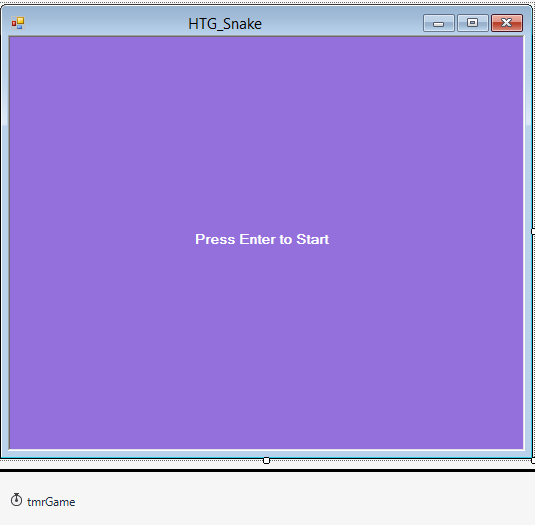
Figure 1: Our Design
This project needs a big Picturebox, one Label, and one Timer. Name the objects anything you desire, but keep in mind that my names may differ from yours.
Add a new class to your project. Name it clsMovement. Then, add the following Properties and Enum to clsMovement:
   Private pntLocation As Point
   Private intStep As Integer
   Private iDirection As intDirection

   Public ReadOnly Property Location() As Point

      Get

         Return pntLocation

      End Get

   End Property

   Public Property Direction() As intDirection

      Get

          Return iDirection

      End Get

      Set(ByVal Value As intDirection)

         iDirection = Value

      End Set

   End Property


   Public ReadOnly Property Increment() As Integer

      Get

         Return intStep

      End Get

   End Property

   Public Enum intDirection As Integer

      None = -1
      Left
      Down
      Right
      Up

   End Enum
These properties determine the direction the snake is moving, where it is, and by how many segments it should grow after it has eaten. Add the Constructors:
   Public Sub New()

      intStep = 8

      pntLocation = New Point(0, 0)

      Direction = intDirection.Right

   End Sub

   Public Sub New(ByVal iStep As Integer, ByVal pStart As Point, _
         ByVal dirNew As intDirection)

      iDirection = dirNew

      intStep = iStep

      pntLocation = pStart
   End Sub
Either one of these (depending on whether you have instantiated the class with parameters or without parameters) sets the default values of the direction, location, or growing objects. Add the following sub procedures:
   Public Function NextLoc(Optional ByVal dirNext _
         As intDirection = intDirection.None) As Point

      Dim pntLoc As New Point(pntLocation.X, pntLocation.Y)

      If (dirNext = intDirection.None) Then dirNext = iDirection

      Select Case dirNext

         Case intDirection.Left

            pntLoc.X -= intStep

         Exit Select

         Case intDirection.Down

            pntLoc.Y += intStep

         Exit Select

         Case intDirection.Right

            pntLoc.X += intStep

            Exit Select

         Case intDirection.Up

            pntLoc.Y -= intStep

            Exit Select

      End Select

      Return pntLoc

   End Function

   Public Sub Move(Optional ByVal dirMove As intDirection = _
         intDirection.None)

      If (dirMove = intDirection.None) Then dirMove = iDirection

      Select Case dirMove

         Case intDirection.Left

            pntLocation.X -= intStep

            Exit Select

         Case intDirection.Down

            pntLocation.Y += intStep

            Exit Select

         Case intDirection.Right

            pntLocation.X += intStep

            Exit Select

         Case intDirection.Up

            pntLocation.Y -= intStep

            Exit Select

      End Select

   End Sub

   Public Sub Move(ByVal rectBounds As Rectangle, Optional ByVal _
         dirMove As intDirection = intDirection.None)

      Move(dirMove)

      If (pntLocation.X > rectBounds.Right) Then

         pntLocation.X = CInt(rectBounds.Left / intStep) * intStep

      ElseIf (pntLocation.X < rectBounds.Left) Then

         pntLocation.X = CInt(rectBounds.Right / intStep) * intStep

      ElseIf (pntLocation.Y > rectBounds.Bottom) Then

         pntLocation.Y = CInt(rectBounds.Top / intStep) * intStep

      ElseIf (pntLocation.Y < rectBounds.Top) Then

         pntLocation.Y = CInt(rectBounds.Bottom / intStep) * _
            intStep

      End If

   End Sub
These subs are responsible for the snake object’s movement. They need to see where the snake currently is, which side of the screen to appear from next, as well as to keep track of which direction to move to, based upon the user’s key press.
Add a new class and name it clsSegment. Add the following properties to it:
   Private rectLoc As Rectangle

   Public ReadOnly Property Rect() As Rectangle

      Get

         Return rectLoc

      End Get

   End Property

   Public Property Loc() As Point

      Get

         Return rectLoc.Location

      End Get

      Set(ByVal Value As Point)

         rectLoc.Location = Value

      End Set

   End Property

   Public ReadOnly Property Size() As Size

      Get

         Return rectLoc.Size

      End Get

   End Property
These properties determine the current location as well as the size of the snake. Add the Constructor:
   Public Sub New(ByVal pntLoc As Point, ByVal intWidth As Integer)

      rectLoc = New Rectangle(pntLoc, New Size(intWidth, intWidth))

   End Sub

   Public Function CloneSegment() As clsSegment

      Return New clsSegment(rectLoc.Location, rectLoc.Width)

   End Function

   Public Overrides Function ToString() As String

      Return Me.GetType.ToString + ": " + rectLoc.Location.ToString

   End Function
Add a new class and name it clsSnake. Add the following members:
   Private Const intMaxLength As Integer = 1024
   Private Const intDefaultLength As Integer = 4
   Private Const intDefaultWidth As Integer = 8

   Private qSegments As Queue
   Private intWidth As Integer
The preceding code determines the maximum snake length, its starting length, and the snake’s width. It also creates a queue object to keep the new segments. Add the following properties:
   Public Property NumberOfSegments() As clsSegment()

      Get

         Dim cSegments(qSegments.Count - 1) As clsSegment

         qSegments.CopyTo(cSegments, 0)

         Return cSegments

      End Get

      Set(value As clsSegment())

      End Set

   End Property

   Public Property Head() As clsSegment

      Get

         Return DirectCast(qSegments.Peek, clsSegment).CloneSegment

      End Get

      Set(value As clsSegment)

      End Set

   End Property
Here, you keep track of the number of segments as well as where the snake’s head is. Add the constructor:
   Private Sub InitializeSnake(ByVal pntLoc As Point, _
         ByVal iWidth As Integer, ByVal iLength As Integer)

      intWidth = iWidth

      Dim pLoc As Point = pntLoc

      Dim i As Integer

      For i = 1 To iLength

         Eat(pLoc)

         pLoc.X -= intWidth

      Next

   End Sub

   Public Sub New()

      MyBase.New()

      InitializeSnake(New Point(intDefaultLength * _
         intDefaultWidth, 0), intDefaultWidth, intDefaultLength)

   End Sub

   Public Sub New(ByVal pntStart As Point, _
         ByVal iWidth As Integer, ByVal iLength As Integer)

      MyBase.New()

      InitializeSnake(pntStart, iWidth, iLength)

   End Sub
The New Constructor makes use of the InitializeSnake procedure to set all the defaults. Add the following sub procedures and Function:
   Public Sub Eat(ByVal pntLoc As Point)

      Dim cHead As New clsSegment(pntLoc, intWidth)

      If (qSegments Is Nothing) Then

         qSegments = New Queue(intMaxLength)

      ElseIf (qSegments.Count = intMaxLength) Then

         Move(pntLoc)

         Exit Sub

      End If

      qSegments.Enqueue(cHead)

   End Sub

   Public Sub Clear()

      qSegments.Clear()

   End Sub

   Public Sub Move(ByVal pntLoc As Point)

      Dim cHead As New clsSegment(pntLoc, intWidth

      qSegments.Enqueue(cHead)

      qSegments.Dequeue()

   End Sub


   Public Function FoodPlacedOnSnake(ByVal pntLoc As Point) _
         As Boolean

      Dim ieSegments As IEnumerator = qSegments.GetEnumerator

      While ieSegments.MoveNext

         If DirectCast(ieSegments.Current, clsSegment) _
            .Rect.Contains(pntLoc) Then Return True

      End While

   End Function
Eat allows the snake to eat and grow, Clear starts over, and Move completes the move. The FoodPlacedOnSnake function determines if the food has been placed on the snake; if so, we must place it somewhere else. Add the following members to your Form:
   Private Const intGrow As Integer = 3
   Private Const intWidth As Integer = 8

   Private cSnake As clsSnake
   Private cMovement As clsMovement

   Private blnMoving As Boolean = False
   Private blnExpanding As Boolean = False

   Private rectFood As Rectangle

   Private intScore As Integer
These members allow the snake to grow, expand, and keep track of the score for you. Add the following Functions and subs:
   Public Sub Feed()

      Dim pntFood As Point

      Do

         pntFood = Randomize()

         If Not (cSnake Is Nothing) Then

            If Not cSnake.FoodPlacedOnSnake(pntFood) Then Exit Do

         Else

            Exit Do

         End If

      Loop

         rectFood.Location = pntFood

   End Sub

   Private Sub Die()

      DisplayMessage("Press Enter to play or Escape to quit.")

      Initialize()

   End Sub


   Private Sub Initialize()

      intScore = 0

      rectFood = New Rectangle(0, 0, intWidth, intWidth)

      Feed()

      Dim pntStart As New Point(CInt(picGame.ClientSize.Width _
         / 2 / intWidth + 0.5) * intWidth, CInt(picGame _
         .ClientSize.Height / 2 / intWidth + 0.5) * intWidth)

      cSnake = New clsSnake(pntStart, intWidth, 1)

      cMovement = New clsMovement(intWidth, cSnake.Head.Loc, _
         clsMovement.intDirection.Right)

      blnExpanding = True

   End Sub

   Private Sub UpdateUI()

      Static iGrow As Integer = intGrow

      Static intAddSeg As Integer

      If Not blnMoving Then Exit Sub

      cMovement.Move(picGame.ClientRectangle)


      If cSnake.FoodPlacedOnSnake(cMovement.Location) Then

         iGrow = 0
         intAddSeg = 0

         Die()

         Return


      ElseIf rectFood.Contains(cMovement.Location) Then

         iGrow += intGrow

         blnExpanding = True

         Feed()

         intScore += 5

         Text = "Score: " + intScore.ToString

      End If

      If blnExpanding Then

         If iGrow < intGrow Then iGrow = intGrow

         If intAddSeg >= iGrow Then

            blnExpanding = False

            intAddSeg = 0
            iGrow = 0

            cSnake.Move(cMovement.Location)

         Else

            cSnake.Eat(cMovement.Location)

            intAddSeg += 1

            End If

      Else

         cSnake.Move(cMovement.Location)

      End If

   End Sub

   Private Sub DisplayMessage(ByVal strMsg As String)

      lblMessage.Text = strMsg
      lblMessage.Visible = True
      blnMoving = False

      tmrGame.Enabled = False

   End Sub

   Public Function Randomize() As Point

      Dim rnd As New Random(Now.Second)

      Dim intScreenWidth As Integer = ((ClientRectangle.Width \ _
         intWidth) - 2) * intWidth
      Dim intScreenHeight As Integer = ((ClientRectangle.Height \ _
         intWidth) - 2) * intWidth

      Dim intX As Integer = rnd.Next(0, intScreenWidth)
      Dim intY As Integer = rnd.Next(0, intScreenHeight)

      intX = (intX \ intWidth) * intWidth

      intY = (intY \ intWidth) * intWidth

      Return New Point(intX, intY)

   End Function

   Private Sub HideMessage()

      Me.Text = "Score: " + intScore.ToString

      lblMessage.Visible = False
      blnMoving = True
      tmrGame.Enabled = True

   End Sub
We feed the snake randomly until it dies. When the snake dies, we have to display a message with the score and start the game again. Add the events for Form1 that will enable us to draw the snake, its food, and to intercept keyboard messages:
   Private Sub Form1_Load(ByVal sender As Object, _
         ByVal e As System.EventArgs) Handles MyBase.Load

      Initialize()

   End Sub

   Private Sub picGame_Paint(ByVal sender As Object, ByVal e As _
         System.Windows.Forms.PaintEventArgs) Handles picGame.Paint

      If Not blnMoving Then

         e.Graphics.Clear(picGame.BackColor)

         Exit Sub

      End If

      e.Graphics.FillEllipse(Brushes.White, rectFood)

      Dim segCurrent As clsSegment


      For Each segCurrent In cSnake.NumberOfSegments

         e.Graphics.FillRectangle(Brushes.White, segCurrent.Rect)

      Next

   End Sub

   Private Sub tmrGame_Tick(ByVal sender As System.Object, _
         ByVal e As System.EventArgs) Handles tmrGame.Tick

      UpdateUI()

      picGame.Invalidate()

   End Sub

   Private Sub Form1_KeyUp(ByVal sender As Object, ByVal e As _
         System.Windows.Forms.KeyEventArgs) Handles MyBase.KeyUp

      Select Case e.KeyCode

         Case Keys.Enter

            HideMessage()

         Case Keys.Escape

            If blnMoving Then

               DisplayMessage("Press Enter to continue or Escape _
                  to quit.")

            Else

               Me.Close()

            End If

      End Select

   End Sub

   Private Sub Form1_KeyDown(ByVal sender As Object, ByVal e As _
         System.Windows.Forms.KeyEventArgs) Handles MyBase.KeyDown

      Select Case e.KeyCode

         Case Keys.Right

            cMovement.Direction = clsMovement.intDirection.Right

         Case Keys.Down

            cMovement.Direction = clsMovement.intDirection.Down

         Case Keys.Left

            cMovement.Direction = clsMovement.intDirection.Left

         Case Keys.Up

            cMovement.Direction = clsMovement.intDirection.Up

      End Select

   End Sub
The code for this article is available on GitHub.
Conclusion
I hope that you would agree that creating a snake game was quite fun. Most games are just logic—nothing else. After all, logic is what it is all about.