Xamarin, Part 4: Shared Projects | CodeGuru

Xamarin, Part 4: Shared Projects

Introduction Part 4 in my Xamarin series of articles explains Shared Projects and the benefits of sharing code. You have come a long way so far within the Xamarin series. We have covered the basics and the installation of Xamarin, as well as Layouts in Xamarin. Shared Projects Shared Projects enables you to write common […]

Written By
Hannes DuPreez
Hannes DuPreez
May 17, 2019
2 minute read
CodeGuru content and product recommendations are editorially independent. We may make money when you click on links to our partners. Learn More

Introduction

Part 4 in my Xamarin series of articles explains Shared Projects and the benefits of sharing code. You have come a long way so far within the Xamarin series. We have covered the basics and the installation of Xamarin, as well as Layouts in Xamarin.

Shared Projects

Shared Projects enables you to write common code that can be referenced by different application projects. In other words: Shared Projects empowers you to write code that is shared between target projects. A Shared Project cannot get compiled on its own; it is merely a grouping of source code files which can be included in other projects. A Shared Project’s code gets compiled as part of a project in which it resides. Shared Projects contain no references or Component Nodes in the Solution Explorer.

To make use of a Shared Project, it needs to be referenced, just like a normal library would be referenced.

  1. Start a new Project.
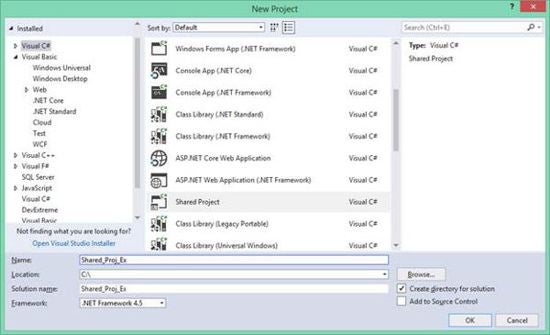
  2. Search for the Shared Library Template, as shown in Figure 1.
    New
    Figure 1: New

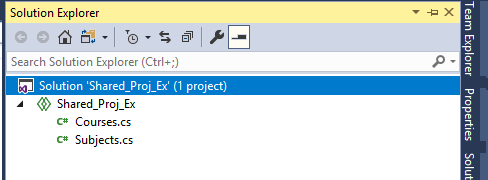
The Solution Explorer would resemble Figure 2, after two Classes have been added.
Solution Explorer
Figure 2: Solution Explorer

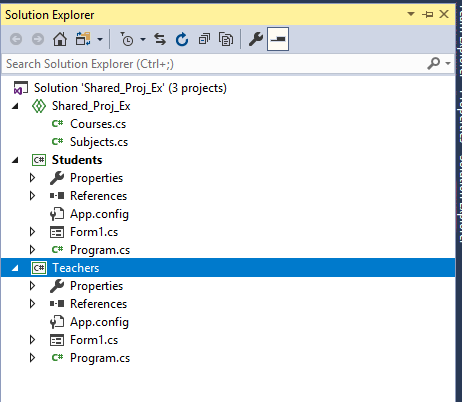
Now, to use this Shared Project, we need other projects to reference it. Add New Projects to the Solution by Clicking File, Add. Choose any project type; this is just a short example. Once done, add another project. Your Solution Explorer should resemble Figure 3.
More projects added
Figure 3: More projects added

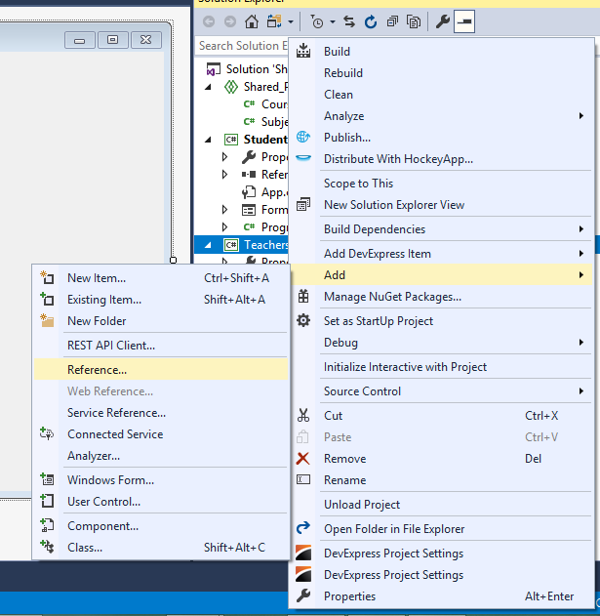
Add a Reference to the Shared project, by right-clicking the project in your Solution Explorer and selecting Add, Reference, as shown in Figure 4:
Add Reference
Figure 4: Add Reference

Inside the Reference Manager box, select Shared Projects, and select the one you have created now (see Figure 5).
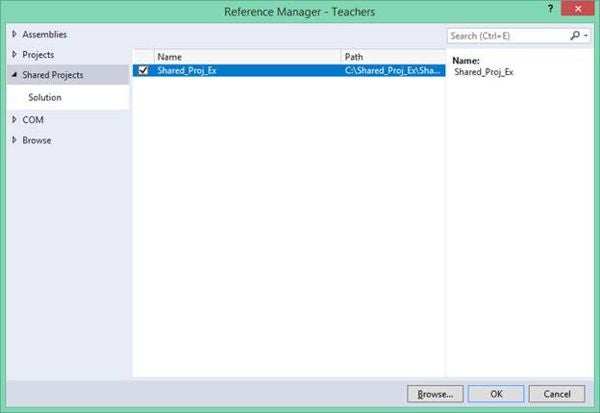
Reference Manager
Figure 5: Reference Manager

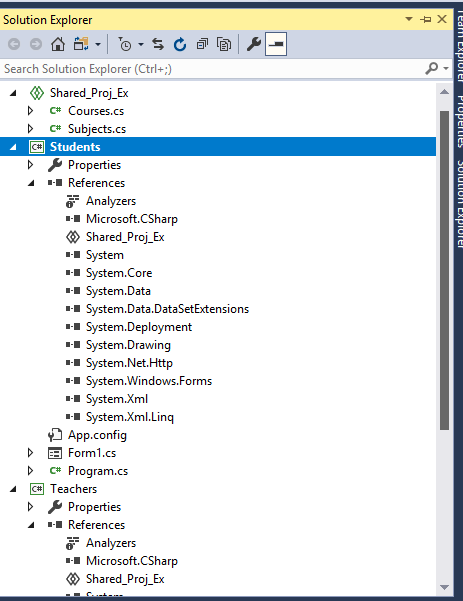
Now, you can use the Shared Project’s logic inside both linked projects. The Solution Explorer shows the reference that was added, as you can see in Figure 6.
Advertisement

References
Figure 6: References

Conclusion

The next and final installment will cover PCLs in Xamarin. Until then, keep learning!

Hannes DuPreez

Ockert J. du Preez is a passionate coder and always willing to learn. He has written hundreds of developer articles over the years detailing his programming quests and adventures. He has written the following books: Visual Studio 2019 In-Depth (BpB Publications) JavaScript for Gurus (BpB Publications) He was the Technical Editor for Professional C++, 5th Edition (Wiley) He was a Microsoft Most Valuable Professional for .NET (2008–2017).

CodeGuru Logo

CodeGuru covers topics related to Microsoft-related software development, mobile development, database management, and web application programming. In addition to tutorials and how-tos that teach programmers how to code in Microsoft-related languages and frameworks like C# and .Net, we also publish articles on software development tools, the latest in developer news, and advice for project managers. Cloud services such as Microsoft Azure and database options including SQL Server and MSSQL are also frequently covered.

Property of TechnologyAdvice. © 2026 TechnologyAdvice. All Rights Reserved

Advertiser Disclosure: Some of the products that appear on this site are from companies from which TechnologyAdvice receives compensation. This compensation may impact how and where products appear on this site including, for example, the order in which they appear. TechnologyAdvice does not include all companies or all types of products available in the marketplace.