


Introduction
The JSON format is an open standard format. It’s a very familiar and commonly used concept. It’s a data interchange medium and is very lightweight. Developers use different JSON types for data transformation. JsonResult is an ActionResult type in MVC. It helps to send the content in JavaScript Object Notation (JSON) format. In this article, I will explain how to access the data from a JsonResult object and display it in a browser with an example.
JsonResult and Properties
The JsonResult type has following properties:
- ContentEncoding: It helps to indicate the content encoding type, the default encoding for JSON is UTF-8.
- ContentType: It helps to indicate the content type. The default content type for JSON is application/json; charset=utf-8.
- Data: This indicates what the content data is. That means what you will send in JSON format.
- JsonRequestBehavior: This property has two options. Those are AllowGet and DenyGet. The default option is DenyGet.
- MaxJsonLength: This helps to get or set the maximum JSON content length that you will send. The default value for this is 2097152 characters.
- RecursionLimit: Indicates the constraining number of object levels to process. The default value is 100.
Sample MVC Project to Explain JsonResult
Create a new MVC project (see Figure 1) with the name ProjectJsonResultDemo. Choose the template as MVC (see Figure 2).
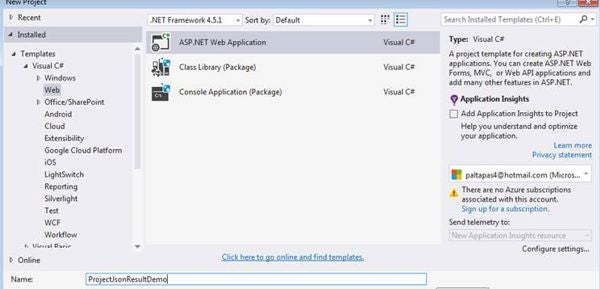
Figure 1: New .NET Project
Next, click the OK button. The contents of Figure 2 will be displayed.
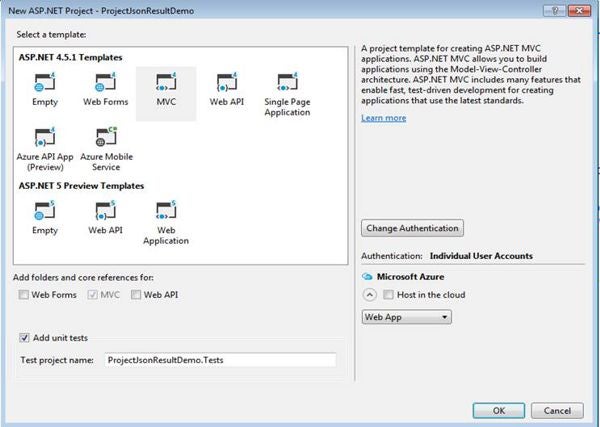
Figure 2: New MVC Application Template
Once the project is created, the startup application page is displayed, as shown in Figure 3.
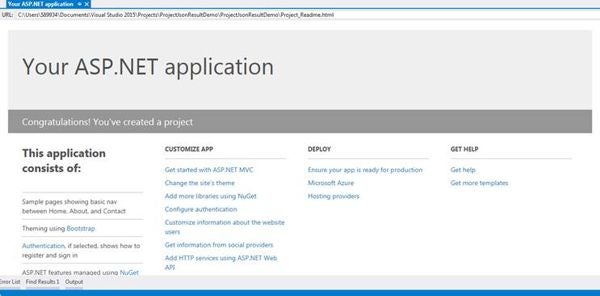
Figure 3: New MVC Application Created
Next, I have added a controller and provided the name as “JsonResultDemoController”. Click the Controller to open the popup window. Click the “Add” button to open a popup to enter the name “JsonResultDemoController” as depicted in Figure 4.
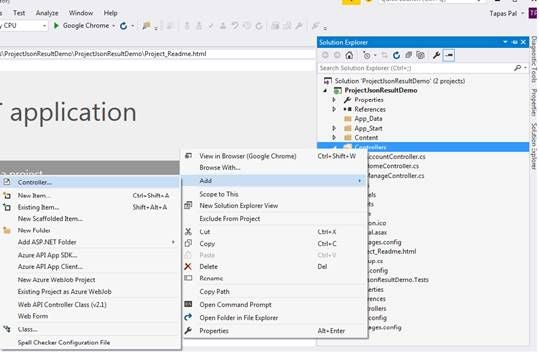
Figure 4: Adding a New Controller
After adding the controller to the project, the controller page looks like Figure 5.
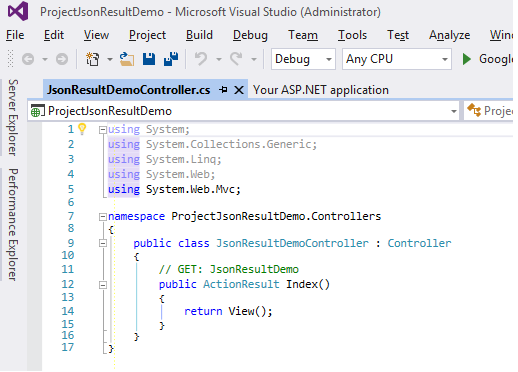
Figure 5: Controller Code
Now, replace the JsonResultDemoController code with following code snippet.
using System;
using System.Collections.Generic;
using System.Linq;
using System.Web;
using System.Web.Mvc;
using ProjectJsonResultDemo.Models;

namespace ProjectJsonResultDemo.Controllers
{
   public class JsonResultDemoController : Controller
   {
      #region ActionControllers

      public JsonResult WelcomeNote()
      {
         bool isAdmin = false;
         string output = isAdmin ? "Welcome";

         return Json(output, JsonRequestBehavior.AllowGet);
      }


      private List<UserModel> GetUsers()
      {
         var usersList = new List<UserModel>
         {
            new UserModel
            {
               UserId = 1,
               UserName = "Tapas",
               Company = "ABC"
            },
            new UserModel
            {
               UserId = 1,
               UserName = "Robin",
               Company = "ABC"
            },
            new UserModel
            {
               UserId = 1,
               UserName = "Robin",
               Company = "AbCDEF"
            }
         };

         return usersList;
      }

      public JsonResult GetUsersData()
      {
         var users = GetUsers();
         return Json(users, JsonRequestBehavior.AllowGet);
      }

      private List<UserModel> GetUsersHugeData()
      {
         var usersList = new List<UserModel>();
         UserModel user;
         for (int i = 1; i < 51000; i++)
         {
            user = new UserModel
            {
               UserId = i,
               UserName = "User-" + i,
               Company = "Company-" + i
            };
            usersList.Add(user);
         }

         return usersList;
      }

      public JsonResult GetUsersHugeList()
      {
         var users = GetUsersHugeData();
         return Json(users, JsonRequestBehavior.AllowGet);
      }

      public ActionResult SampleView()
      {
         return View();
      }
      protected override JsonResult Json(object data,
            string contentType, Encoding contentEncoding,
            JsonRequestBehavior behavior)
         {
            return new JsonResult()
            {
               Data = data,
               ContentType = contentType,
               ContentEncoding = contentEncoding,
               JsonRequestBehavior = behavior,
               MaxJsonLength = Int32.MaxValue
            };
         }
      #endregion
   }
}
Now, let’s create a View file named “SampleView.cshtmll” by right-clicking View() in the Sample action controller method, then clicking “Add View”, as shown in Figures 6 and 7. Replace the view code with the following code snippet.
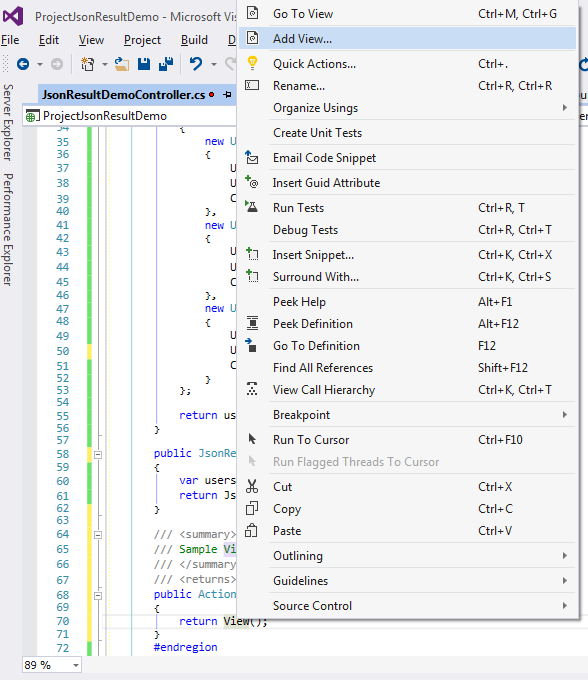
Figure 6: Adding a New View
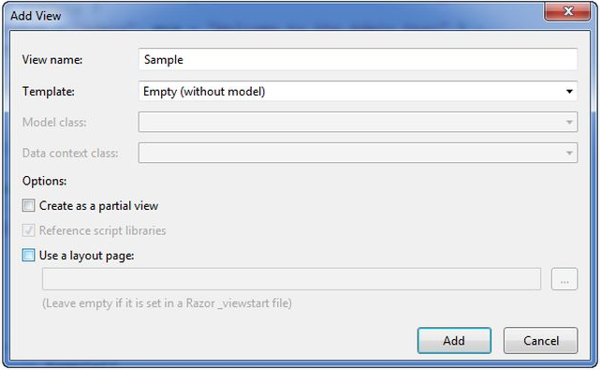
Figure 7: Naming the View
@{
   Layout = null;
}

<!DOCTYPE html>

<html>
<head>
   <meta name="viewport" content="width=device-width" />
   <title>Create Sample JSON Data </title>
</head>
<body>
   <div>
      <label>Create Sample User JSON Data</label>
         <br /><br />
      <input type="button" id="btnUpdateUserDetail"
         value="Update User Detail"
         onclick="UpdateUserDetail();" />
   </div>
</body>
</html>
<script src="~/Scripts/jquery-1.10.2.min.js"></script>
<script lang="en" type="text/javascript">

   function UpdateUserDetail() {
      var usersJson = GetSampleUsersList();
      var getReportColumnsParams = {
         "usersJson": usersJson
      };
      $.ajax({
         type: "POST",
         traditional: true,
         async: false,
         cache: false,
         url: '/JsonDemo/UpdateUsersDetail',
         context: document.body,
         data: getReportColumnsParams,
         success: function (result) {
            alert(result);
         },
         error: function (xhr) {
            // Debugger;
            console.log(xhr.responseText);
            alert("Error has occurred...");
         }
      });
   }
   function GetSampleUsersList() {
      var userDetails = {};
      var usersList = [];
      for (var i = 1; i <= 3; i++) {
         userDetails["UserId"] = i;
         userDetails["UserName"] = "User- " + i;
         userDetails["Company"] = "Company- " + i;
         usersList.push(userDetails);
      }
      return JSON.stringify(usersList);
   }
</script>
Next, I have added a class file named “UserModel.cs” (see Figure 8). It will be the model of the view created above.
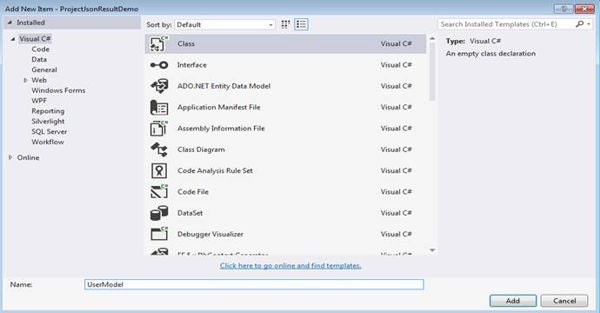
Figure 8: Adding a new Model
Next, update the user model with the following code snippet.
using System;
using System.Collections.Generic;
using System.Linq;
using System.Web;

namespace ProjectJsonResultDemo.Models
{
   public class UserModel
   {
      public int UserId { get; set; }
      public string UserName { get; set; }
      public string Company { get; set; }

   }
}
Finally, build and run the application (press F5) with the URL. Then, the resulting screen will have a JSON response returned, using JsonResult.
Conclusion
I hope this article has given you an idea of JsonResult, JsonResult Properties, and the usage of JsonResult.
That’s all for today. Happy coding!