


Introduction
It can be quite a process for some to change a computer’s power settings, especially for inexperienced users. Some people choose to have a good power plan; others do not. Technology has come a long way since the era of bubble screens and screen burns.
Because I am a curious chap, and like to share my findings with my readers, I have created this article. In this article, you will learn about the various ways you can obtain system power information through your .NET programs.
Practical
You will create a Windows Forms program in both Visual Basic.NET and C#, which illustrate three ways to determine power settings. These settings are:
- The Windows API
- The Windows Registry
- Windows Management Instrumentation (WMI)
Design your Form to resemble Figure 1.
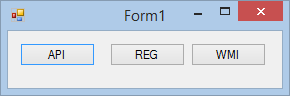
Figure 1: Design
Code
Add the following Namespaces to your Class.
C#
using Microsoft.Win32;
using System;
using System.Data;
using System.Linq;
using System.Management;
using System.Runtime.InteropServices;
using System.Windows.Forms;
VB.NET
Imports System.Management
Imports System.Runtime.InteropServices
Imports Microsoft.Win32
The System.Management Namespace enables WMI calls, System.Runtime.InteropServices helps with API calls, and Microsoft.Win32 helps with any Registry manipulation. Add the following API declarations.
C#
   private static Guid GUID_SLEEP_SUBGROUP =
      new Guid("238c9fa8-0aad-41ed-83f4-97be242c8f20");
   private static Guid GUID_HIBERNATEIDLE =
      new Guid("9d7815a6-7ee4-497e-8888-515a05f02364");

   [DllImport("powrprof.dll")]
   static extern uint PowerGetActiveScheme(
      IntPtr UserRootPowerKey,
      ref IntPtr ActivePolicyGuid);

   [DllImport("powrprof.dll")]
   static extern uint PowerReadACValue(
      IntPtr RootPowerKey,
      ref Guid SchemeGuid,
      ref Guid SubGroupOfPowerSettingGuid,
      ref Guid PowerSettingGuid,
      ref int Type,
      ref int Buffer,
      ref uint BufferSize);
VB.NET
   Private Shared GUID_SLEEP_SUBGROUP As Guid = New _
      Guid("238c9fa8-0aad-41ed-83f4-97be242c8f20")
   Private Shared GUID_HIBERNATEIDLE As Guid = New _
      Guid("9d7815a6-7ee4-497e-8888-515a05f02364")

   <DllImport("powrprof.dll")>
   Private Shared Function PowerGetActiveScheme(ByVal _
      UserRootPowerKey As IntPtr, ByRef ActivePolicyGuid _
      As IntPtr) As UInteger
   End Function

   <DllImport("powrprof.dll")>
   Private Shared Function PowerReadACValue(ByVal RootPowerKey _
      As IntPtr, ByRef SchemeGuid As Guid, ByRef _
      SubGroupOfPowerSettingGuid As Guid, ByRef PowerSettingGuid _
      As Guid, ByRef Type As Integer, ByRef Buffer As Integer, _
      ByRef BufferSize As UInteger) As UInteger
   End Function
The PowerGetActiveScheme API function retrieves the current power scheme and returns a GUID that identifies the scheme. The PowerReadACValue API function retrieves the AC power value for the given power setting.
Add the code for Button1.
C#
   private void button1_Click(object sender, EventArgs e)
   {

      IntPtr ActiveScheme = IntPtr.Zero;

      PowerGetActiveScheme(IntPtr.Zero, ref ActiveScheme);

      Guid ActivePolicy = Marshal.PtrToStructure<Guid>
         (ActiveScheme);

      int Type = 0;
      int Buffer = 0;
      uint BufferSize = 4u;

      PowerReadACValue(IntPtr.Zero, ref ActivePolicy, ref
         GUID_SLEEP_SUBGROUP, ref GUID_HIBERNATEIDLE, ref Type,
         ref Buffer, ref BufferSize);

      MessageBox.Show($"Hibernate after {Buffer} seconds.");

   }
VB.NET
   Private Sub button1_Click(sender As Object, e As EventArgs) _
         Handles button1.Click

      Dim ActiveScheme As IntPtr = IntPtr.Zero
      PowerGetActiveScheme(IntPtr.Zero, ActiveScheme)

      Dim ActivePolicy As Guid = Marshal.PtrToStructure(Of Guid) _
         (ActiveScheme)

      Dim Type As Integer = 0
      Dim Buffer As Integer = 0
      Dim BufferSize As UInteger = 4UI

      PowerReadACValue(IntPtr.Zero, ActivePolicy, _
         GUID_SLEEP_SUBGROUP, GUID_HIBERNATEIDLE, Type, Buffer, _
         BufferSize)

      MessageBox.Show($"Hibernate after {Buffer} seconds.")

   End Sub
Inside Button1_Click, you made use of the APIs to return when the PC will be going to sleep again. See Figure 2.

Figure 2: Power Options
Add the code for Button2.
C#
   private void button2_Click(object sender, EventArgs e)
   {

      int Seconds = 0;

      RegistryKey HKLM = Registry.LocalMachine;

      string ActivePlan = @"SOFTWARE\Microsoft\Windows\
         CurrentVersion\Explorer\ControlPanel\NameSpace\
         {025A5937-A6BE-4686-A844-36FE4BEC8B6D}";

      object ActivePreferredPlan = HKLM.OpenSubKey(ActivePlan)
         .GetValue("PreferredPlan");

      string SleepGroup = "238c9fa8-0aad-41ed-83f4-97be242c8f20";

      string Hibernate = "9d7815a6-7ee4-497e-8888-515a05f02364";

      string CustomKey = $@"SYSTEM\CurrentControlSet\Control\Power\
         User\PowerSchemes\" + $@"{ActivePreferredPlan}\
         {SleepGroup}\{Hibernate}";

      string DefaultKey = $@"SYSTEM\CurrentControlSet\Control\
         Power\PowerSettings\" + $@"{SleepGroup}\{Hibernate}\
         DefaultPowerSchemeValues\{ActivePreferredPlan}";

      RegistryKey SettingKey = HKLM.OpenSubKey(CustomKey, false);

      if (SettingKey != null)
      {

         object result = SettingKey.GetValue("ACSettingIndex");

         if (result != null)
            Seconds = (int)result;

      }
      else
     {

         SettingKey = HKLM.OpenSubKey(DefaultKey, false);
         Seconds = (int)SettingKey.GetValue("ProvAcSettingIndex");

      }

      MessageBox.Show($"Hibernate after {Seconds} seconds.");
   }
VB.NET
   Private Sub button2_Click(sender As Object, e As EventArgs) _
         Handles button2.Click

      Dim Seconds As Integer = 0

      Dim HKLM As RegistryKey = Registry.LocalMachine

      Dim ActivePlan As String = "SOFTWARE\Microsoft\Windows\ _
         CurrentVersion\Explorer\ControlPanel\NameSpace\ _
         {025A5937-A6BE-4686-A844-36FE4BEC8B6D}"
      Dim ActivePreferredPlan As Object = HKLM.OpenSubKey _
         (ActivePlan).GetValue("PreferredPlan")

      Dim SleepGroup As String = "238c9fa8-0aad-41ed-83f4- _
         97be242c8f20"
      Dim Hibernate As String = "9d7815a6-7ee4-497e-8888- _
         515a05f02364"

      Dim CustomKey As String = $"SYSTEM\CurrentControlSet\ _
         Control\Power\User\PowerSchemes\" & $" _
         {ActivePreferredPlan}\{SleepGroup}\{Hibernate}"
      Dim DefaultKey As String = $"SYSTEM\CurrentControlSet\ _
         Control\Power\PowerSettings\" & $"{SleepGroup}\ _
         {Hibernate}\DefaultPowerSchemeValues\ _
         {ActivePreferredPlan}"

      Dim SettingKey As RegistryKey = HKLM.OpenSubKey(CustomKey, _
         False)

      If SettingKey IsNot Nothing Then

         Dim result As Object = SettingKey.GetValue _
            ("ACSettingIndex")
         If result IsNot Nothing Then Seconds = CInt(result)

      Else

         SettingKey = HKLM.OpenSubKey(DefaultKey, False)
         Seconds = CInt(SettingKey.GetValue("ProvAcSettingIndex"))

      End If

      MessageBox.Show($"Hibernate after {Seconds} seconds.")

   End Sub
If you know where the power options are saved inside the Registry, it becomes easy to manipulate the stored values. Figure 3 shows the Registry.
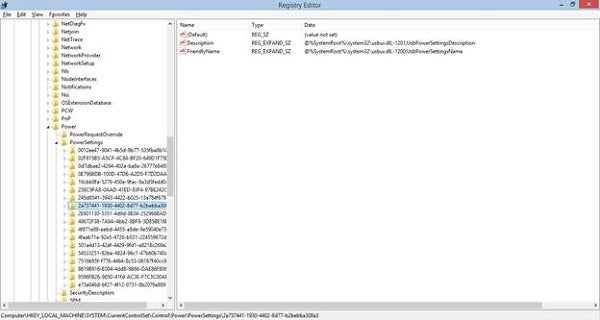
Figure 3: Registry
Add the code for Button3, which makes use of WMI.
C#
   private void button3_Click(object sender, EventArgs e)
   {

      string CIMKey = @"root\cimv2\power";
      string Query = "SELECT * FROM Win32_PowerPlan WHERE IsActive
         = True";

      ManagementObjectSearcher Finder = new
         ManagementObjectSearcher(CIMKey, Query);
      ManagementObject ActivePlan = Finder.Get().Cast
         <ManagementObject>().First();

      string PlanID = ((string)ActivePlan.GetPropertyValue
         ("InstanceId")).Split('\\')[1];

      ManagementObject Hibernate = ActivePlan.GetRelated
            ("Win32_PowerSettingDataIndex").Cast
            <ManagementObject>()
         .Where(x => (string)x.GetPropertyValue("InstanceId") ==
            $@"Microsoft:PowerSettingDataIndex\{PlanID}\AC\
            {{9d7815a6-7ee4-497e-8888-515a05f02364}}"
         ).First();

      uint Value = (uint)Hibernate.GetPropertyValue
         ("SettingIndexValue");

      MessageBox.Show($"Hibernate after {Value} seconds.");

   }
VB.NET
   Private Sub button3_Click(sender As Object, e As EventArgs) _
         Handles button3.Click

      Dim CIMKey As String = "root\cimv2\power"
      Dim Query As String = "SELECT * FROM Win32_PowerPlan _
         WHERE IsActive = True

      Dim Finder As ManagementObjectSearcher = New _
         ManagementObjectSearcher(CIMKey, Query)

      Dim ActivePlan As ManagementObject = Finder.[Get]().Cast _
         (Of ManagementObject)().First()
      Dim PlanID As String = (CStr(ActivePlan.GetPropertyValue _
         ("InstanceId"))).Split("\"c)(1)

      Dim Hibernate As ManagementObject = ActivePlan.GetRelated _
         ("Win32_PowerSettingDataIndex").Cast _
         (Of ManagementObject)().Where(Function(x) _
         CStr(x.GetPropertyValue("InstanceId")) = $"Microsoft: _
         PowerSettingDataIndex\{PlanID}\AC\{{9d7815a6-7ee4-497e- _
         8888-515a05f02364}}").First()

      Dim Value As UInteger = CUInt(Hibernate.GetPropertyValue _
         ("SettingIndexValue"))

      MessageBox.Show($"Hibernate after {Value} seconds.")

   End Sub
Your program is now complete, but there may be a question or two on your mind. The big question would be where the GUID values came from. To answer your question: The GUID values are stored inside your computer. These GUIDs can be found through the Developer Command Prompt (which should be run in Admin Mode). Once you have the Developer Command Prompt open, execute the command as shown next (see Figure 4).
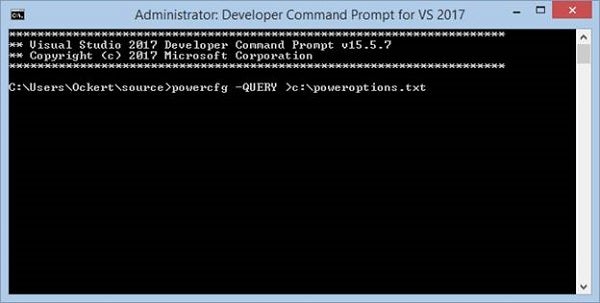
Figure 4: Developer Command Prompt
This command outputs all the Power GUIDs into a text file named poweroptions.txt. A few GUIDs follow.
Battery Settings
Subgroup GUID: e73a048d-bf27-4f12-9731-8b2076e8891f  (Battery)
   GUID Alias: SUB_BATTERY
   Power Setting GUID: 637ea02f-bbcb-4015-8e2c-a1c7b9c0b546
         (Critical battery action)
      GUID Alias: BATACTIONCRIT
      Possible Setting Index: 000
      Possible Setting Friendly Name: Do nothing
      Possible Setting Index: 001
      Possible Setting Friendly Name: Sleep
      Possible Setting Index: 002
      Possible Setting Friendly Name: Hibernate
      Possible Setting Index: 003
      Possible Setting Friendly Name: Shut down
   Current AC Power Setting Index: 0x00000002
   Current DC Power Setting Index: 0x00000002

   Power Setting GUID: 8183ba9a-e910-48da-8769-14ae6dc1170a
         (Low battery level)
      GUID Alias: BATLEVELLOW
      Minimum Possible Setting: 0x00000000
      Maximum Possible Setting: 0x00000064
      Possible Settings increment: 0x00000001
      Possible Settings units: %
   Current AC Power Setting Index: 0x0000000a
   Current DC Power Setting Index: 0x0000000a

   Power Setting GUID: 9a66d8d7-4ff7-4ef9-b5a2-5a326ca2a469
         (Critical battery level)
      GUID Alias: BATLEVELCRIT
      Minimum Possible Setting: 0x00000000
      Maximum Possible Setting: 0x00000064
      Possible Settings increment: 0x00000001
      Possible Settings units: %
   Current AC Power Setting Index: 0x00000005
   Current DC Power Setting Index: 0x00000005
Hard Disk Settings
   Subgroup GUID: 0012ee47-9041-4b5d-9b77-535fba8b1442
      (Hard disk)
   GUID Alias: SUB_DISK
   Power Setting GUID: 6738e2c4-e8a5-4a42-b16a-e040e769756e
         (Turn off hard disk after)
      GUID Alias: DISKIDLE
      Minimum Possible Setting: 0x00000000
      Maximum Possible Setting: 0xffffffff
      Possible Settings increment: 0x00000001
      Possible Settings units: Seconds
      Current AC Power Setting Index: 0x000004b0
      Current DC Power Setting Index: 0x000004b0
Sleep Settings
   Subgroup GUID: 238c9fa8-0aad-41ed-83f4-97be242c8f20  (Sleep)
   GUID Alias: SUB_SLEEP
   Power Setting GUID: 29f6c1db-86da-48c5-9fdb-f2b67b1f44da
         (Sleep after)
      GUID Alias: STANDBYIDLE
      Minimum Possible Setting: 0x00000000
      Maximum Possible Setting: 0xffffffff
      Possible Settings increment: 0x00000001
      Possible Settings units: Seconds
   Current AC Power Setting Index: 0x00000e10
   Current DC Power Setting Index: 0x00000000

   Power Setting GUID: 94ac6d29-73ce-41a6-809f-6363ba21b47e
         (Allow hybrid sleep)
      GUID Alias: HYBRIDSLEEP
      Possible Setting Index: 000
      Possible Setting Friendly Name: Off
      Possible Setting Index: 001
      Possible Setting Friendly Name: On
   Current AC Power Setting Index: 0x00000001
   Current DC Power Setting Index: 0x00000001

   Power Setting GUID: 9d7815a6-7ee4-497e-8888-515a05f02364
         (Hibernate after)
      GUID Alias: HIBERNATEIDLE
      Minimum Possible Setting: 0x00000000
      Maximum Possible Setting: 0xffffffff
      Possible Settings increment: 0x00000001
      Possible Settings units: Seconds
   Current AC Power Setting Index: 0x00000000
   Current DC Power Setting Index: 0x00000000
Conclusion
It is because of projects like these that I love software development so much. There is just so much that you can do! Until next time, cheers!