


Introduction
I do not know how, but every now and then I return to graphics-oriented projects. Maybe it is because I always wanted to get into games programming, and still linger subconsciously to, but alas, here we are with a nice little project.
This article you will read (and hopefully enjoy) today deals with inverting colors in images. There are a few ways in .NET, which I will demonstrate. For the uninformed: Inverting colors means to take the opposite value of each color component and merge them to create the inverted color.
Let’s create a small project.
Create a Windows Forms project in either VB.NET or C#. Once the project has loaded, add 4 buttons, 1 picturebox, and 1 OpenFileDialog control on the form. My design looks like Figure 1.

Figure 1: Design
Double-click the button labeled “Load Image” and enter the following code:
C#
   private void btnLoadImage_Click(object sender, EventArgs e)
   {
      if (ofdLoad.ShowDialog() == DialogResult.OK)
      {
         try
         {
            Image imgSource = Image.FromFile(ofdLoad.FileName);
            picDisplay.Image = imgSource;
         }
         catch (Exception)
         {
            MessageBox.Show("Invalid image");
         }
      }
   }
VB.NET
   Private Sub btnLoadImage_Click(ByVal sender As Object, _
         ByVal e As EventArgs) Handles btnLoadImage.Click
      If ofdLoad.ShowDialog() = DialogResult.OK Then

         Try
            Dim imgSource As Image = _
               Image.FromFile(ofdLoad.FileName)
            picDisplay.Image = imgSource
         Catch __unusedException1__ As Exception
            MessageBox.Show("Invalid image")
         End Try
      End If
   End Sub
The Load Image button displays the OpenFileDialog, which allows you to browse for an image file. If a file has been selected, the image will be loaded inside the PictureBox.
Add the next code to invert an image using GDI+.
C#
   private static Image InvertGDI(Image imgSource)
   {
      Bitmap bmpDest = null;

      using (Bitmap bmpSource = new Bitmap(imgSource))
      {
         bmpDest = new Bitmap(bmpSource.Width, bmpSource.Height);

         for (int x = 0; x < bmpSource.Width; x++)
         {
            for (int y = 0; y < bmpSource.Height; y++)
            {

               Color clrPixel = bmpSource.GetPixel(x, y);

               clrPixel = Color.FromArgb(255 - clrPixel.R, 255 -
                  clrPixel.G, 255 - clrPixel.B);

               bmpDest.SetPixel(x, y, clrPixel);
            }
         }
      }

      return (Image)bmpDest;

   }
   private void btnGDI_Click(object sender, EventArgs e)
   {
      if (picDisplay.Image != null)
         picDisplay.Image = InvertGDI(picDisplay.Image);
   }
VB.NET
   Private Shared Function InvertGDI(ByVal imgSource As Image) _
         As Image
      Dim bmpDest As Bitmap = Nothing

      Using bmpSource As Bitmap = New Bitmap(imgSource)
         bmpDest = New Bitmap(bmpSource.Width, bmpSource.Height)

         For x As Integer = 0 To bmpSource.Width - 1

            For y As Integer = 0 To bmpSource.Height - 1
               Dim clrPixel As Color = bmpSource.GetPixel(x, y)
               clrPixel = Color.FromArgb(255 - clrPixel.R, 255 - _
                  clrPixel.G, 255 - clrPixel.B)
               bmpDest.SetPixel(x, y, clrPixel)
            Next
         Next
      End Using

      Return CType(bmpDest, Image)
   End Function
   Private Sub btnGDI_Click(ByVal sender As Object, ByVal e As _
         EventArgs) Handles btnGDI.Click
      If picDisplay.Image IsNot Nothing Then picDisplay.Image = _
         InvertGDI(picDisplay.Image)
   End Sub
Here, you loop through each image pixel and obtain its color. Then, you subtract 255 from the Red, Green, and Blue values of the pixel, thus producing the inverted look. Lastly, you replace the current pixel’s color with the calculated color.
Add the next code to do inversion with the use of the ColorMatrix .NET object.
C#
   private static Image InvertColorMatrix(Image imgSource)
   {
      Bitmap bmpDest = new Bitmap(imgSource.Width,
         imgSource.Height);

      ColorMatrix clrMatrix = new ColorMatrix(new float[][]
         {
            new float[] {-1, 0, 0, 0, 0},
            new float[] {0, -1, 0, 0, 0},
            new float[] {0, 0, -1, 0, 0},
            new float[] {0, 0, 0, 1, 0},
            new float[] {1, 1, 1, 0, 1}
         });

      using (ImageAttributes attrImage = new ImageAttributes())
      {

         attrImage.SetColorMatrix(clrMatrix);

         using (Graphics g = Graphics.FromImage(bmpDest))
         {
            g.DrawImage(imgSource, new Rectangle(0, 0,
            imgSource.Width, imgSource.Height), 0, 0,
            imgSource.Width, imgSource.Height, GraphicsUnit.Pixel,
            attrImage);
         }
      }

      return bmpDest;
   }
   private void btnInvertMatrix_Click(object sender, EventArgs e)
   {
      if (picDisplay.Image != null)
         picDisplay.Image = InvertColorMatrix(picDisplay.Image);
   }
VB.NET
   Private Shared Function InvertColorMatrix(ByVal imgSource _
         As Image) As Image
      Dim bmpDest As Bitmap = New Bitmap(imgSource.Width, _
         imgSource.Height)
      Dim clrMatrix As ColorMatrix = New ColorMatrix(New Single() _
         () {New Single() {-1, 0, 0, 0, 0}, New Single() {0, -1, _
         0, 0, 0}, New Single() {0, 0, -1, 0, 0}, New Single() _
         {0, 0, 0, 1, 0}, New Single() {1, 1, 1, 0, 1}})

      Using attrImage As ImageAttributes = New ImageAttributes()
         attrImage.SetColorMatrix(clrMatrix)

         Using g As Graphics = Graphics.FromImage(bmpDest)
            g.DrawImage(imgSource, New Rectangle(0, 0, _
               imgSource.Width, imgSource.Height), 0, 0, _
               imgSource.Width, imgSource.Height, _
               GraphicsUnit.Pixel, attrImage)
         End Using
      End Using

      Return bmpDest
   End Function

   Private Sub btnInvertMatrix_Click(ByVal sender As Object, _
         ByVal e As EventArgs) Handles btnInvertMatrix.Click
      If picDisplay.Image IsNot Nothing Then picDisplay.Image = _
         InvertColorMatrix(picDisplay.Image)
   End Sub
For C#, add the unsafe method. VB.NET does not support unsafe code. For the Unsafe code to work with C#, click Project, Properties, Build, and then check the Allow Unsafe Code checkbox. Add the next code:
C#
   private static Image InvertUnsafe(Image imgSource)
   {

      Bitmap bmpDest = new Bitmap(imgSource);

      BitmapData bmpSource = bmpDest.LockBits(new Rectangle(0, 0,
         bmpDest.Width, bmpDest.Height), ImageLockMode.ReadWrite,
         PixelFormat.Format32bppArgb);

      int intStride = bmpSource.Stride;
      IntPtr iptrScan0 = bmpSource.Scan0;

      unsafe   // Project, Properties, Build, Allow Unsafe Code
      {

         byte* p = (byte*)(void*)iptrScan0;

         int intOffset = intStride - bmpDest.Width * 4;
         int intWidth = bmpDest.Width;

         for (int y = 0; y < bmpDest.Height; y++)
         {
            for (int x = 0; x < intWidth; x++)
            {
               p[0] = (byte)(255 - p[0]);
               p[1] = (byte)(255 - p[1]);
               p[2] = (byte)(255 - p[2]);

               p += 4;
            }
            p += intOffset;
         }
      }

      bmpDest.UnlockBits(bmpSource);

      return (Image)bmpDest;
   }


   private void btnUnsafe_Click(object sender, EventArgs e)
   {
      if (picDisplay.Image != null)
         picDisplay.Image = InvertUnsafe(picDisplay.Image);
   }
The unsafe method converts each pixel byte for byte. Supposedly, it uses less memory, but with this little example the effect is lost.
Figure 2 displays a normal picture. Figure 3 displays the inverted version of the picture.
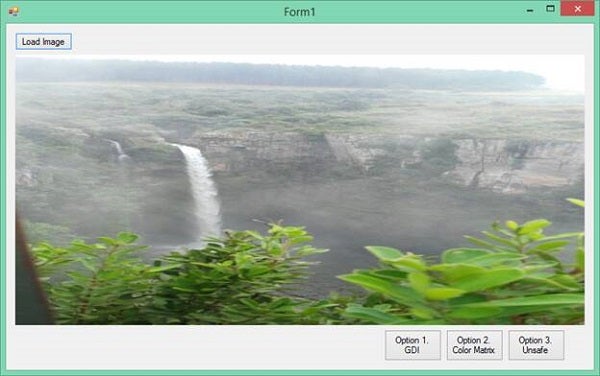
Figure 2: Loaded Picture
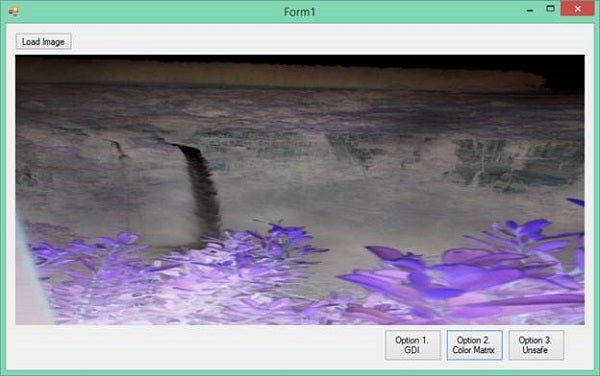
Figure 3: Inverted
Conclusion
As you can see, there are always more than one option to achieve a goal. With graphics, there is a plethora of options for dealing with color. Maybe in another article, I can play around more, but, until then, code safely!