Common .NET Controls Crash Course, Part 4: ImageList | CodeGuru

Common .NET Controls Crash Course, Part 4: ImageList

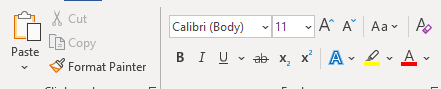
Continuing this series, Part 5 talks about the ImageList. What Is an ImageList? An ImageList holds images for toolbars, menubars, or any other component making use of many images. An example of an ImageList in action is shown in Figure 1. Figure 1: Microsoft Word Toolbar You will see that the ImageList can produce many […]
Written By
Hannes DuPreez
Hannes DuPreez
Mar 26, 2020
2 minute read
CodeGuru content and product recommendations are editorially independent. We may make money when you click on links to our partners. Learn More

Continuing this series, Part 5 talks about the ImageList.

What Is an ImageList?

An ImageList holds images for toolbars, menubars, or any other component making use of many images.

An example of an ImageList in action is shown in Figure 1.

Microsoft Word Toolbar
Figure 1: Microsoft Word Toolbar

You will see that the ImageList can produce many images, all of which depend on the various images you can add and the properties you set.

Using the ImageList

Let’s create a Windows Forms application with at least one form. When the form has loaded, you can have a look in the toolbox for the ImageList. The Toolbox is shown in Figure 2.
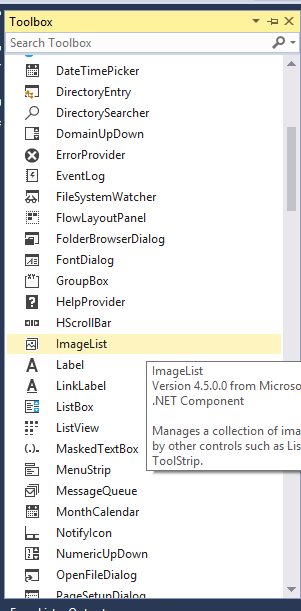
Toolbox
Figure 2: Toolbox

Once the ImageList has been added, you may notice the Properties window, as shown in Figure 3. This is where we set the ImageList properties.
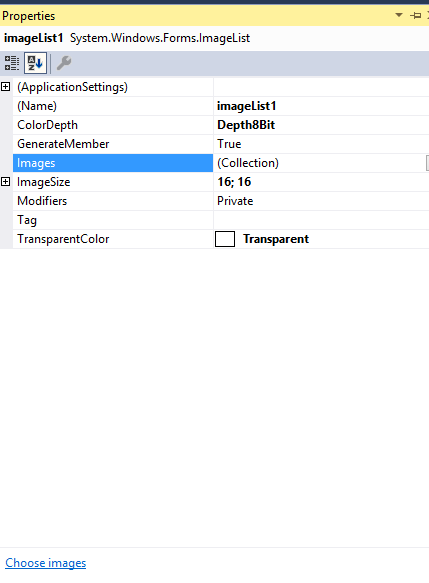
Properties Window
Figure 3: Properties Window

Let’s have a look at some of the properties.

Cool ImageList Properties

The following properties control how the ListBox work and how it appears:

  • ColorDepth
  • Images
  • ImageSize

ColorDepth

The ListBox ColorDepth property determines the number of colors used to display images. The values are:

Depth4Bit 4-bit image Depth8Bit 8-bit image Depth16Bit 16-bit image Depth24Bit 24-bit image Depth32Bit 32-bit image
Advertisement

Images

Gets or sets the collection of images for the ImageList control.

Here is a coding example:

   // Add two images to the list.
      ImageList1.Images.Add(Image.FromFile("c:\\temp\\image1.jpg"));
      ImageList1.Images.Add(Image.FromFile("c:\\temp\\image2.jpg"));

This adds two images to the ImageList.

You also can add images to the collection in Design time by selecting the ellipses button next to the Images property and selecting Add. Figure 4 shows the Add Image dialog box in action.
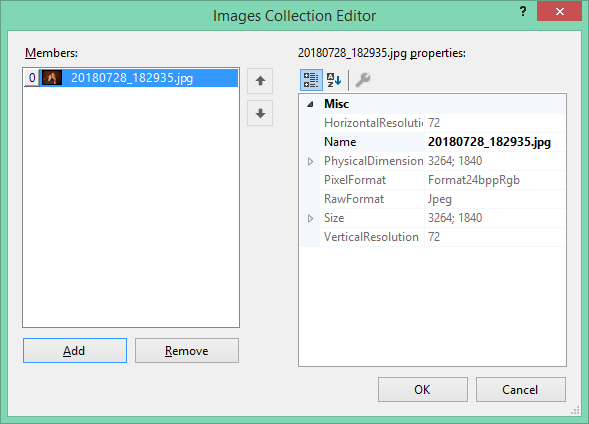
Add Images
Figure 4: Add Images

ImageSize

The ImageSize property gets or sets the size of the images in the list. The default size (in pixels) is 16 by 16. The maximum size (in pixels) is 256 by 256.

Conclusion

I hope that this article has helped you understand the intricacies of an ImageList. I would love to do more articles on the basics of controls, so hopefully there will be more.

Hannes DuPreez

Ockert J. du Preez is a passionate coder and always willing to learn. He has written hundreds of developer articles over the years detailing his programming quests and adventures. He has written the following books: Visual Studio 2019 In-Depth (BpB Publications) JavaScript for Gurus (BpB Publications) He was the Technical Editor for Professional C++, 5th Edition (Wiley) He was a Microsoft Most Valuable Professional for .NET (2008–2017).

CodeGuru Logo

CodeGuru covers topics related to Microsoft-related software development, mobile development, database management, and web application programming. In addition to tutorials and how-tos that teach programmers how to code in Microsoft-related languages and frameworks like C# and .Net, we also publish articles on software development tools, the latest in developer news, and advice for project managers. Cloud services such as Microsoft Azure and database options including SQL Server and MSSQL are also frequently covered.

Property of TechnologyAdvice. © 2026 TechnologyAdvice. All Rights Reserved

Advertiser Disclosure: Some of the products that appear on this site are from companies from which TechnologyAdvice receives compensation. This compensation may impact how and where products appear on this site including, for example, the order in which they appear. TechnologyAdvice does not include all companies or all types of products available in the marketplace.