


Introduction
If you know me or have read some of my articles, you would know that I am very inquisitive. I also love languages. I have always wanted to study further, something like drama or writing; sadly, I never had the chance. The ultimate dream would be to have a book or two published. I have written two novels, which aren’t quite good, frankly. The third one, with which I am busy with currently, is going much better, because I spend a lot more time and effort on it.
Anyway, you are not here to read about my sad life story, you are here to learn. In this article, you will learn how to add ordinal indicators using .NET.
Ordinal Numbers
Ordinal numbers are words representing position or rank in a sequential order. This order may be of importance, size, chronology, and so forth. Examples include second, secondary, third, fourth, and so on. Ordinal numbers differ from Cardinal numerals and other types of numbers. Cardinal numerals represent quantity such as two.
Ordinal Indicators
An ordinal indicator is a character, or group of characters, following a numeral indicating that it is an ordinal number and not a cardinal number. In the English language, this corresponds to the suffixes -st, -nd, -rd, and -th in written ordinals (1st, 2nd, 3rd, 4th).
Practical
As you can gather, you will be creating a project that is able to add the necessary suffixes to the ordinal numbers to denote their proper positions. Start Visual Studio and create either a C# or Visual Basic.NET Windows Forms Application. After the project has been created and the default form displayed, add one ListBox and one Button onto the form. Your design should resemble Figure 1.
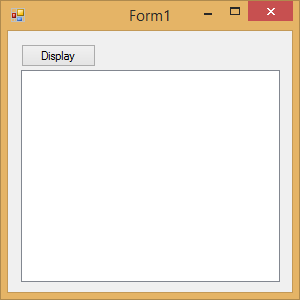
Figure 1: Design
Code
Add the following Namespaces:
C#
using System;
using System.Collections.Generic;
using System.ComponentModel;
using System.Data;
using System.Drawing;
using System.Linq;
using System.Text;
using System.Threading.Tasks;
using System.Windows.Forms;
using Microsoft.VisualBasic;
Add the AddOrdinalIndicator function:
C#
   private string AddOrdinalIndicator(int intNumber)
   {
      string strIndicator = "";

      if (intNumber < 20)
      {
         switch (intNumber)
         {
            case 1:
            {
               strIndicator = "st";
               break;
            }

            case 2:
            {
               strIndicator = "nd";
               break;
            }

            case 3:
            {
               strIndicator = "rd";
               break;
            }

            case 4:
            case 5:
            case 6:
            case 7:
            case 8:
            case 9:
            case 10:
            case 11:
            case 12:
            case 13:
            case 14:
            case 15:
            case 16:
            case 17:
            case 18:
            case 19:
            {
               strIndicator = "th";
               break;
            }
         }
      }
      else
      {
         string strNumber = "";
         strNumber = Convert.ToString(intNumber);

         char chrLast = strNumber[strNumber.Length - 1];

         switch (Convert.ToString(chrLast))
         {
            case "1":
            {
               strIndicator = "st";
               break;
            }

            case "2":
            {
               strIndicator = "nd";
               break;
            }

            case "3":
            {
               strIndicator = "rd";
               break;
            }

            default:
            {
               strIndicator = "th";
               break;
            }
         }
      }
      return Convert.ToString(intNumber) + strIndicator;
   }
VB.NET
   Private Function AddOrdinalIndicator(ByVal intNumber _
         As Integer) As String

      Dim strIndicator As String = ""

      If intNumber < 20 Then

         Select Case intNumber

            Case 1
               strIndicator = "st"
            Case 2
               strIndicator = "nd"
            Case 3 : strIndicator = "rd"

            Case 4, 5, 6, 7, 8, 9, 10, 11, 12, 13, 14, 15, 16, _
                  17, 18, 19
               strIndicator = "th"

         End Select

      Else

         Select Case Convert.ToString(intNumber).Chars(Convert _
               .ToString(intNumber).Length - 1)

            Case "1"
               strIndicator = "st"
            Case "2"
               strIndicator = "nd"
            Case "3"
               strIndicator = "rd"

            Case Else
               strIndicator = "th"

         End Select

      End If

      AddOrdinalIndicator = Convert.ToString(intNumber) + _
         strIndicator

   End Function
It is quite interesting, actually, when you think about it: The first three numbers work differently than the rest. For example: one becomes first, two becomes second, and three becomes third. So, now you have to compensate for that throughout your numbered list. Yes, there are better ways, I suppose, but that is basically what this function does. Add the call to the function:
C#
   private void btnDisplay_Click(object sender, EventArgs e)
   {

      int i;

      for (i = 1; i <= 500; i++)

         lstNumbers.Items.Add(AddOrdinalIndicator(i));
   }
VB.NET
   Private Sub btnDisplay_Click(sender As Object, e As EventArgs) _
         Handles btnDisplay.Click

      Dim i As Integer

      For i = 1 To 500

         lstNumbers.Items.Add(AddOrdinalIndicator(i))

      Next

   End Sub
When you click the Display button, a numbered list will be added to the ListBox, along with the numbers’ respective ordinal indicators. When run, it should look like Figure 2.
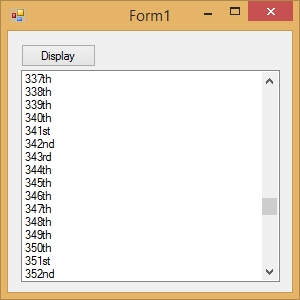
Figure 2: Running
Conclusion
Today, you have learned about Ordinal Indicators and how to add them to your strings. I hope you have enjoyed this article.