


The final part of this series will quickly tie all the code that we have written during the previous two parts to the form, Windows functions and CD functions.
There isn’t much work, but it made sense having a separate article for this as I didn’t want to overwhelm you even more with the first two parts.
Before continuing with the code, please make sure that your design of the Form resembles the Form1 figure below:
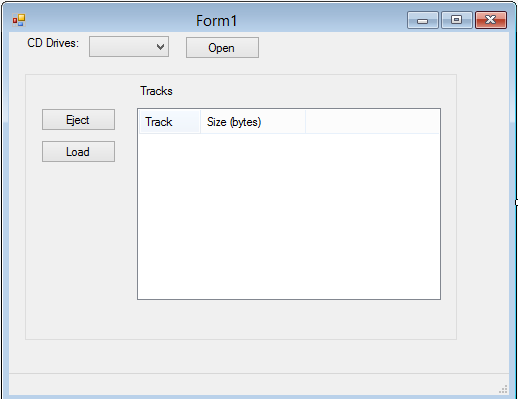
The code
Declare a modular variable that represents the CDDrive class:
        private CDDrive cdDrive;
Add the following code to the Form’s Load event:
        private void Form1_Load(object sender, EventArgs e)
        {
            cdDrive = new CDDrive();

            cdDrive.Inserted += new EventHandler(Inserted);
            cdDrive.Removed += new EventHandler(Removed);

            char[] cDriveLetters = CDDrive.DriveLetters();

            foreach (char drive in cDriveLetters)
            {
                cboDrives.Items.Add(drive.ToString());
            }

            if (cboDrives.Items.Count > 0)
            {
                cboDrives.SelectedIndex = 0;
            }
        }
Here you instantiate the CDDrive object, then create the Inserted and Removed event handlers to handle the CD insertion and removal events. You then populate the Drives combobox with all the available drives and set a default selection if a CD Drive does indeed exist.
Add the CD events:
        private void Inserted(object sender, EventArgs e)
        {
            lvTracks.Items.Clear();

            if (cdDrive.Ready())
            {
                sbStatus.Text = "CD ready";

                if (cdDrive.Refresh())
                {
                    int iTracks = cdDrive.GetTracks();

                    for (int i = 1; i <= iTracks; i++)
                    {

                        ListViewItem item = new ListViewItem(new string[] { i.ToString(), cdDrive.TrackSize(i).ToString()});


                        lvTracks.Items.Add(item);
                    }
                }
            }
            else
            {
                sbStatus.Text = "CD not ready";
            }

        }
        private void Removed(object sender, EventArgs e)
        {
            lvTracks.Items.Clear();
            sbStatus.Text = "CD Removed";
        }
The Inserted event determines if the CD drive is ready then populates the ListView with the tracks on the CD showing the track number, and the size of the track. The Remove event simply clears the ListView and informs the user on the Status bar that the CD has been removed.
Add the remaining code for the Load, Open and Eject buttons:
        private void buttonOpen_Click(object sender, EventArgs e)
        {
            if (cdDrive.Opened)
            {
                cdDrive.Close();
                btnOpen.Text = "Open";
                sbStatus.Text = "CD closed";
                lvTracks.Items.Clear();
            }
            else
            {
                if (cdDrive.Open(cboDrives.Text[0]))
                {
                    sbStatus.Text = "CD opened";
                    if (cdDrive.Ready())
                    {
                        sbStatus.Text += " and ready";
                        if (cdDrive.Refresh())
                        {
                            int iNumTracks = cdDrive.GetTracks();
                            for (int i = 1; i <= iNumTracks; i++)
                            {

                                ListViewItem item = new ListViewItem(new string[] { i.ToString(), cdDrive.TrackSize(i).ToString() });
                                lvTracks.Items.Add(item);
                            }
                        }
                    }
                    btnOpen.Text = "Close";
                }
                else
                {
                    sbStatus.Text = "Drive could not be opened";
                }
            }
        }

        private void buttonLoad_Click(object sender, EventArgs e)
        {
            lvTracks.Items.Clear();
            if (cdDrive.Load())
            {
                sbStatus.Text = "CD loaded";
            }
            else
            {
                sbStatus.Text = "Could not be loaded";
            }
        }

        private void buttonEject_Click(object sender, EventArgs e)
        {
            lvTracks.Items.Clear();

            if (cdDrive.Eject())
            {
                sbStatus.Text = "CD ejected";
            }
            else
            {
                sbStatus.Text = "Could not be ejected";
            }
        }
    }
The Open button basically does the same as the Inserted event and opens the CD drive door. The Load button Loads the contents of the CD and the Eject button ejects the CD by opening the CD Drive door.
Conclusion
This concludes my article series on how to create a basic CD player. Hopefully in the future I can take it a step further and include ripping or copying capabilities. Until then, keep playing!