


Building electronics projects with the Aurdino family of hobbyist boards typically means writing software for a Linux platform. The Netduino changed that with the incorporation of the .NET Micro Framework in the base design. The Netduino Plus 2 is based on a 168 MHz STMicro 32-bit microcontroller and supports the standard header pins to allow for the use of any Arudino shield. A shield is a board with pins to plug directly into the base system board to extend its functionality. A wide range of shields can be had for very little money, or you can build your own.
For this article we purchased the Netduino Plus 2 along with a starter kit from Sunfounder Lab from Amazon. Figure 1 shows a picture of the Netduino Plus 2 in the palm of the author’s hand. If you poke around on codeplex.com, you’ll find a number of Netduino-related projects including the Netduino Helpers project (netduinohelpers.codeplex.com). This download provides routines for all kinds of different hardware from which you can build just about any project you could think of.
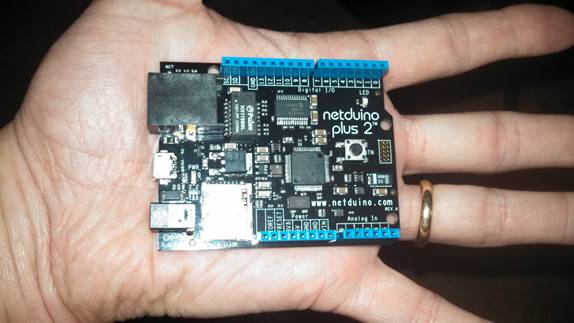
Figure 1: Netduino Plus 2
Getting Started
You’ll need a version of Visual Studio installed on the system you will use to connect to the Netduino. You can even use a virtual machine if you prefer as long as it supports USB passthru. For the purpose of this review we used a 32-bit Windows 7 virtual machine and Visual Studio 2010 express edition. Instructions on the Netduino website (http://www.netduino.com/downloads/) walk you through installing the Visual C# Express 2010 version plus the .NET Micro Framework SDK and Netduino SDK.
If you really want to use Visual Studio 2013, you’ll need to install an experimental version of the .NET Micro Framework and Netduino SDK. We gave this a try on a Toshiba laptop running Windows 8.1 update, and it worked just fine. Be sure to check out the forums on the netduino website (http://forums.netduino.com/index.php?/topic/10201-experimental-visual-studio-2013-support/) for a full rundown on this process.
Simple Code Exercise
One of the simplest code exercises you find is to blink the onboard LED. We decided to take that demo just a little further and step through six LEDs consecutively. It does require some wiring and connection from the Netduino to a breadboard (see figure 2). All Arduino-compatible devices have a total of fourteen digital input / output (I/O) ports available for various functions. Some of these ports have multiple functions to include the ability to pulse width modulation (PWM).
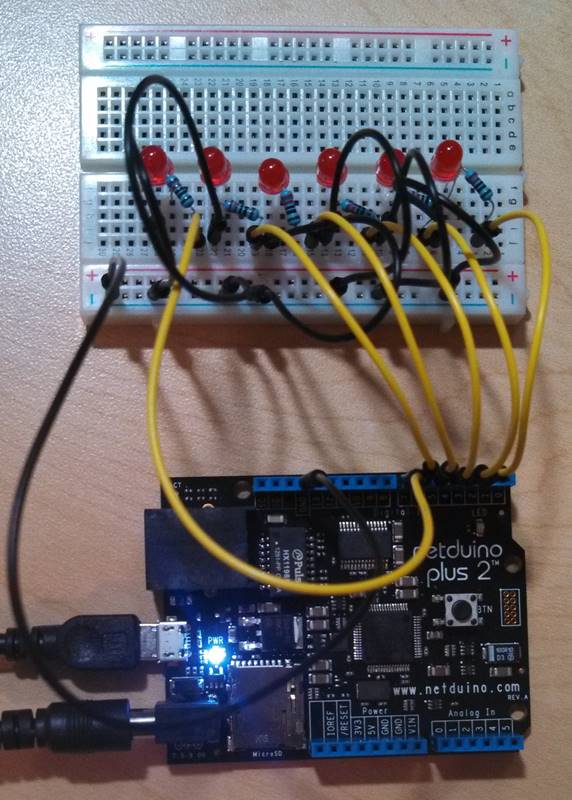
Figure 2: Connection from the Netduino to a Breadboard
Our sample code uses digital I/O pins 2 – 7 to walk down a line of LEDs. Each LED is connected to the ground (Gnd) bus on one leg and through a 220 Ohm resistor on the other to the GPIO pin. The program then simply turns a port on, delays for one second and then turns the port off. Listing 1 shows the code for the sample.
using System;
using System.Threading;
using Microsoft.SPOT;
using Microsoft.SPOT.Hardware;
using SecretLabs.NETMF.Hardware;
using SecretLabs.NETMF.Hardware.Netduino;

namespace LEDApp
{
    public class Program
    {
        static OutputPort[] leds = new OutputPort[6];
        public static void Main()
        {
            int timer = 1000;
            int icnt;
            leds[0] = new OutputPort(Pins.GPIO_PIN_D2, false);
            leds[1] = new OutputPort(Pins.GPIO_PIN_D3, false);
            leds[2] = new OutputPort(Pins.GPIO_PIN_D4, false);
            leds[3] = new OutputPort(Pins.GPIO_PIN_D5, false);
            leds[4] = new OutputPort(Pins.GPIO_PIN_D6, false);
            leds[5] = new OutputPort(Pins.GPIO_PIN_D7, false);

            for (icnt = 0; icnt < 6 ;icnt++ )
            {
                leds[icnt].Write(true);
                Thread.Sleep(timer);
                leds[icnt].Write(false);
            }
        }
    }
}
Listing 1 – LED blinking code
The OutputPort class comes from the .NET Micro Framework and provides the functionality to set the digital IO pin (GPIO) to the on condition (true) or off (false). Using an array to instantiate the six GPIP ports makes it easy to iterate over the group using a for loop. You could just as easily add a random number generator and create an endless loop to turn different LEDs on and off.
Wrap Up
If you’re a .NET developer and you want a quick and cheap way to get started experimenting with the Internet of Things, you’ll definitely want to take a look at the Netduino. You can get started for as little as $34.95 for the Netduino 2, which doesn’t have an Ethernet connector, or step up the the Netduino 2 Plus for another $25.