


Introduction
Add-Ins are custom programs that helps extend the capabilities of a certain
program. For example, we can create add-ins to make Outlook, or any other Office
product more powerful. We can add cool features to existing programs. With this
article series we will create Outlook Add-Ins to backup our important emails.
This article ( Part 1 ), will concentrate on Outlook 2003 and VB.NET 2003, and
Part 2 will concentrate on Outlook 2007 & Outlook 2010 with VB 2010.
Our Add-In’s Purpose
I made this add-in to save some of the very funny emails I receive, and I
receive a lot. This add-in ( called FunnySave ) will allow us to browse an
outlook folder, which contains all of the email we want to backup ( this can be
any email ), then save them all to disk. Short and sweet; supposedly. We have to
do a lot of work, to make sure we get the right emails as well as to save them in
the proper format. Without any further ado, let us get started.
Outlook 2003 Setup
This step is optional, if you have a separate folder containing all the
email you want to backup already, or you do not want to do it. I have a folder
named Funnies Limbo inside Outlook, specifically to store my funny emails. It
looks like the following picture:
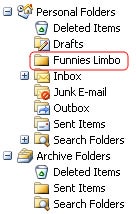
Figure 1 – Funnies Limbo
Design & Code
With Add-Ins, we don’t have to design forms, everything is code based.
You may be wondering how are we going to create something like a BrowseForFolder
dialog, or even a button. With code, only with code, as you will see shortly.
Open Visual Studio 2003, and click on File,
New, Project, Shared Add, under
Other Project Types, Extensibility Projects, as shown in the next picture:
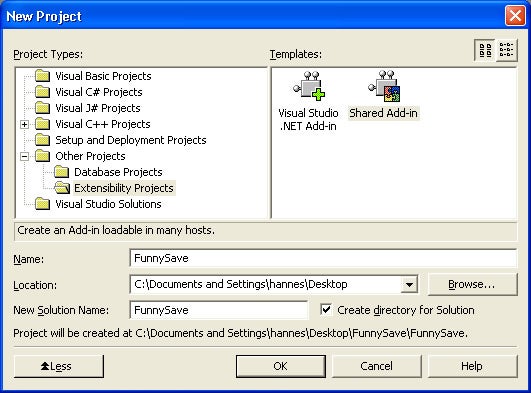
Figure 2: Shared Add-In
This will open the Shared Add-In Wizard; let us look at the steps
screen for screen.
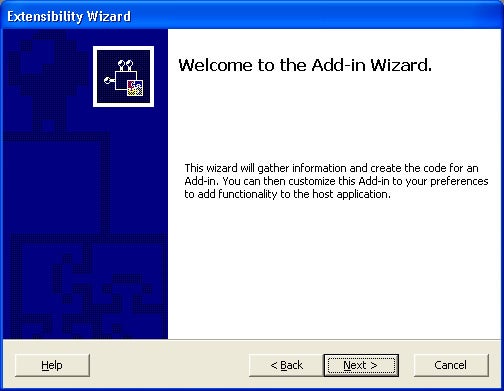
Figure 3: Screen 1
Screen 1 just provides some basic information about what is going to happen.
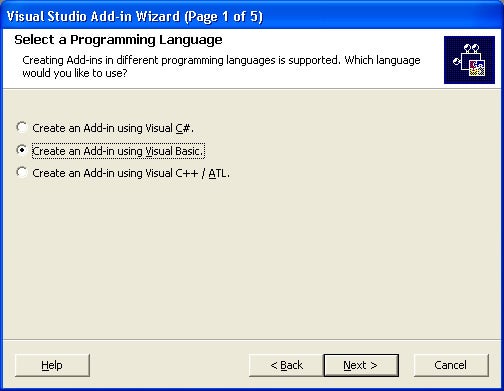
Figure 4: Screen 2, Language Options
On the second screen we must choose which language we will use for this
Add-In. Choose Visual Basic.
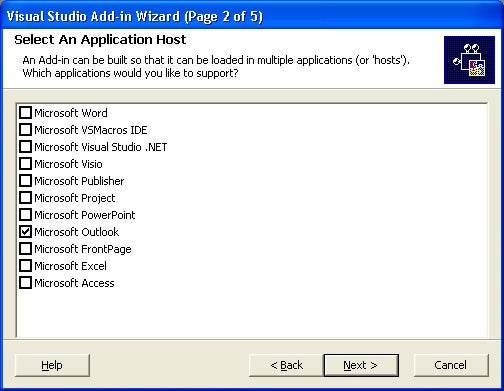
Figure 5: Screen 3, Select Host Application
In this screen we must select Microsoft Outlook as the application this Add-In
is for.
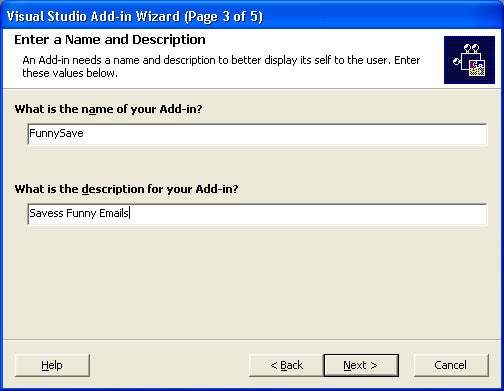
Figure 6: Screen 4, Add-In details
Fill in the text fields according to the above picture.
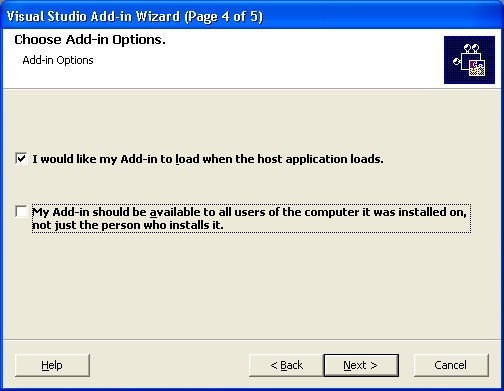
Figure 7: Screen 5, Add-In Options
A very important thing to remember here, is the bottom checkbox. We must
remember that if we do not choose this, only one user can use it, and not all
the users on one computer. When creating the setup application, we must keep
this in mind.
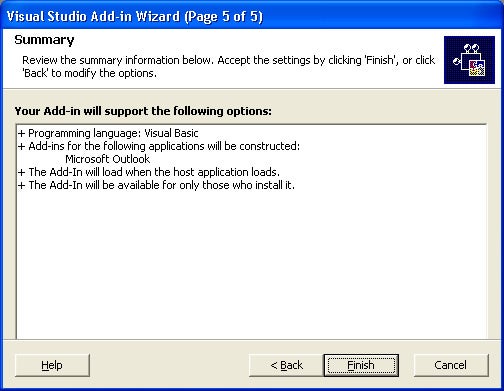
Figure 8: Summary
Once we have clicked Finish, Visual Studio will create the project according
to our specifications. Your Solution Explorer will look similar to the following
picture.
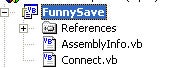
Figure 9: Solution Explorer