


Previously, you looked at doing stick figures and simple 2D vectors; this time, you are looking at animating simple raw images. You also are going to be using a few rather interesting APIs, mostly BitBlt. By the end of this article, you will have covered enough to write a simple Platform game.
Animating the Bitmap Image
In the first example, you are going to use a single image built up of multiple frames of your animation. By selecting just the piece of the image that contains your current frame, and displaying it in sequence, you can create a simple animation.
Why use a single image to hold all the frames? Simple. It’s only a single image that needs to be loaded and it’s easy to switch and change graphics as needed. Also, a single image and an array of locations uses less memory that an array of images.
So, what are you animating? This is the image that you built up for your animation. Each frame is 64 by 64 pixels, and spaced 64 pixels apart.
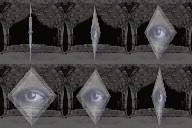
After you have your frames set up in the image, you need to load them into your application. You create a picturebox that is hidden to hold the full image. Then, you set up an array of pointers to the top left corner of each frame within the image.
Public Type Cords
   X As Long
   Y As Long
End Type

Public ScrLoc(5) As Cords

Public Sub Init()
ScrLoc(0).X = 0
ScrLoc(1).X = 64
ScrLoc(2).X = 128
ScrLoc(3).X = 0
ScrLoc(4).X = 64
ScrLoc(5).X = 128
ScrLoc(0).Y = 0
ScrLoc(1).Y = 0
ScrLoc(2).Y = 0
ScrLoc(3).Y = 64
ScrLoc(4).Y = 64
ScrLoc(5).Y = 64
End Sub
After everything is set up and loaded, you can start your timer and step through the frames to complete your animation.
Private Sub Timer1_Timer()
   BitBlt Picture1.hdc, 0, 0, 64, 64, Picholder.hdc, _
      ScrLoc(Img).X, ScrLoc(Img).Y, vbSrcCopy
   Img = Img + 1
   If Img > 5 Then Img = 0
End Sub
In this code, you are simply copying each frame over the previous. This is sufficient for simple static framed animations, useful for About and Startup pages in your applications.
Download the Simple BLT Sample below to see this animation at work.
Moving the Animated Image
Okay, so now you need to make this animation move around the screen. The first thing you need to do is clear out the previous frame and place the next frame in the new location. For this, you need to set up a few coordinate variables, one for the new image location, and one for the old image location, as well as your Tristate variables to enable you to move the image.
You also add a second timer to the form so that you can adjust the speed that the image moves separately from the speed of the animation.
Public Enum Tri_Stat
   neg  = -1
   Zero = 0
   pos  = 1
End Enum
Private Xmove As Tri_Stat
Private Ymove As Tri_Stat
Private Old_Loc As Cords
Private New_Loc As Cords
Next, you set the form’s Keypreview property to True so that you have a single event to handle all the key presses in your project. You add the relevant code to the KeyDown event.
Note: this code is almost identical to the code in the Asteroids Demo in Part 1.

Private Sub Form_KeyDown(KeyCode As Integer, Shift As Integer)
Select Case KeyCode
   Case 37
      Xmove = neg
   Case 39
      Xmove = pos
   Case 38
      Ymove = neg
   Case 40
      Ymove = pos
   Case 32, 12
      Xmove = Zero
      Ymove = Zero
End Select
’32 = Space
’38 = up
’40 = Down
’39 = right
’37 = left
End Sub

Because you are blanking large sections at a time and not just single pixel lines, you use a buffer picturebox to do the hard work on, and simply overlay the complete buffer onto your display. This might sound complicated but it’s as simple as drawing the image in the background, and once you’re complete, show it. This is done to limit the amount of flicker you would see when the image is cleared.
In your animation Timer, you set your image source as you did previously, but into your buffer image, and then transfer the buffer to your picturebox.

Private Sub Timer1_Timer()
   BitBlt Buffer.hdc, New_Loc.X, New_Loc.Y, 64, 64, _
      Picholder.hdc, ScrLoc(Img).X, ScrLoc(Img).Y, vbSrcCopy
   BitBlt Picture1.hdc, 0, 0, Buffer.ScaleWidth, _
      Buffer.ScaleHeight, Buffer.hdc, 0, 0, vbSrcCopy
   Img = Img + 1
   If Img > 5 Then Img = 0
End Sub
In your movement timer, there is somewhat more that needs to be done. You first update the location according to your movement variables. You check whether the frame is still within borders, and change the direction around if the image is on the edge. Once you know where the new image is going to be, you White out the previous image at the old coordinates, and place the current frame at the new coordinates. Then, finally, you transfer the buffer to the display.

Private Sub Timer2_Timer()
   With New_Loc
      If .X < 0 Then Xmove = pos
      If .Y < 0 Then Ymove = pos
      If .X > Picture1.ScaleWidth  – 64 Then Xmove = neg
      If .Y > Picture1.ScaleHeight – 64 Then Ymove = neg
      .X = .X + Xmove
      .Y = .Y + Ymove
   End With
   BitBlt Buffer.hdc, Old_Loc.X, Old_Loc.Y, 64, 64, Buffer.hdc, _
      0, 0, vbWhite
   BitBlt Buffer.hdc, New_Loc.X, New_Loc.Y, 64, 64, _
      Picholder.hdc, ScrLoc(Img).X, ScrLoc(Img).Y, vbSrcCopy
   BitBlt Picture1.hdc, 0, 0, Buffer.ScaleWidth, )
      Buffer.ScaleHeight, Buffer.hdc, 0, 0, vbSrcCopy
   Old_Loc = New_Loc
End Sub

To see this animation method at work, download Step 2 below.
On the next page, you are going to look at moving a non-square image over a color background. You will use masks and double buffering.