


Introduction
At some level, I suspect most programmers want the best of Windows development—rich clients—and Web development—high bandwidth and easy deployment. The fact is that many people and entities seem to be working on it, openly.
Asynchronous HTTP (which you have probably heard of as ATLAS or AJAX) is blurring the line between always connected rich Windows forms clients and highly available web forms clients. Microsoft’s implementation of AJAX (now called ASP.NET AJAX 1.0) permits programmers to roundtrip to the web server in a way that is almost completely transparent to the end user. Non-transparent roundtrips cause a full page repaint. AJAX roundtrips do not. AJAX trips to the server can be implemented to update only a very small part of a client page.
In an earlier article, “Rendering Graphics in ASP.NET with GDI+”, I demonstrated how to use user controls, GDI+, and an HTML image to draw on a web page much as you might draw on a WinForm. This is a follow up of that article. In this part, I will demonstrate how to use AJAX web controls to make the click in Part 1 tick; that is, you will animate the clock distinctly from other elements on the page. Begin by reviewing the previous article, but refer to that article for more specific details.
Reviewing Rendered Images
In the first half of this project, you were shown how to create a dynamic bitmap, draw on it, and write the result to the response stream. By writing to a user control’s response stream, you avoided disrupting the rest of the page. Here is a summary of the elements used to create the dynamic clock from “Rendering Graphics in ASP.NET with GDI+”:
- Create an ASP.NET Web project (VS2005 was used for the demo)
- Add a UserControl to that project
- In the UserControl’s code behind dynamically create a Bitmap object, draw on the bitmap, rendering the dynamic image
- Save the drawn bitmap to the output stream for the request
- Add a web page and drag and drop the UserControl onto the web page
- Add a second web page with an HTML image wherever you will want to the rendered drawing to appear
- Set the image’s (<img>) source property (for example, <img src=”clockpage.aspx”>) to the web page with the UserControl on it not to an actual image URL
That’s all you need to do. For the code, see the referenced Part 1 of this article.
Animating the Rendered Image
Now that you have an image, how do you animate it?
Everyone knows about animated GIFs, but these are generally a half dozen images that are predefined and stored in one GIF like a repeating slide show. For your purposes, I am talking about images that are rendered based on real, dynamic data, like the changes in a stock price. To animate rendered images, you need the basic rending mechanism from the first part of this article, and you need AJAX.
Built on top of AJAX are the ScriptManager, TimerControl, and UpdatePanel. (There are more AJAX Web controls, but these will do for your purposes.)
The main page—named default.aspx—contains an HTML image control. The image control’s source property loads the rendered image dynamically; hence, you need to use AJAX to send requests to update the image part of the web page. To do this, you need to add a ScriptManager, UpdatePanel, and TimerControl to the default page.
Adding AJAX Controls to Your Project
You can download and install the AJAX controls from http://ajax.asp.net/Default.aspx. The Microsoft.Web.Atlas.dll can be added to your Toolbox, permitting you to drag and drop the needed controls from Visual Studio’s toolbox onto your web page.
Adding the ScriptManager
Once ASP.NET AJAX 1.0 is installed and the Microsoft.Web.Atlas.dll has been added to your toolbox, drag a ScriptManager from the Toolbox onto the default.aspx page (or whatever page you are using). Right-click on the ScriptManager’s smart tag and check EnablePartialRendering (see Figure 1). You will need only one ScriptManager per AJAX-enabled page.
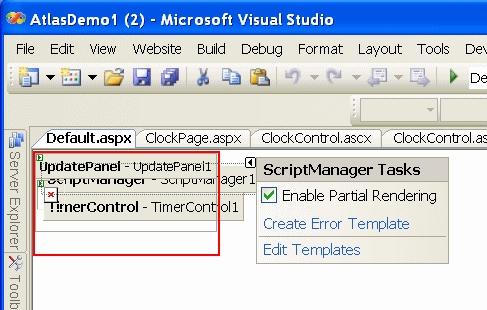
Figure 1: Enabled partial rendering for the ScriptManager.
The ASP that includes the ScriptManager should look something like the code in bold in Listing 1. Refer to Listing 1 for the remainder of the article.
Listing 1: The default.aspx page’s (elided) ASP listing.
<%@ Language AutoEventWireup="false" CodeFile="Default.aspx.vb"
             Inherits="_Default" %>

<%@ Register Assembly="Microsoft.Web.Atlas"
             Namespace="Microsoft.Web.UI.Controls"
             TagPrefix="cc1" %>
<%@ Register Assembly="Microsoft.Web.Atlas"
             Namespace="Microsoft.Web.UI" TagPrefix="cc2"%>

<!DOCTYPE html PUBLIC "-//W3C//DTD XHTML 1.0 Transitional//EN"
   "http://www.w3.org/TR/xhtml1/DTD/xhtml1-transitional.dtd">

<html  >
<head runat="server">
   <title>Untitled Page</title>
</head>
<body>
   <id="form1" runat="server">
      <cc2:ScriptManager ID="ScriptManager1" runat="server"
                         EnablePartialRendering="True">
         </cc2:ScriptManager>
      <cc1:TimerControl ID="TimerControl1" runat="server"
                        Interval="1000">
   </cc1:TimerControl>
   <div>
      <div style="border-right: red thin solid;
                  border-top: red thin solid; left: 0px;
                  border-left: red thin solid; width: 95px;
                  border-bottom: red thin solid; position: absolute;
                  top: 1px; height: 95px">
         <cc2:UpdatePanel ID="UpdatePanel1" runat="server">
            <ContentTemplate>
               <img src="ClockPage.aspx" runat="server"
                    id="Image1" />
            </ContentTemplate>
            <Triggers>
               <cc2:ControlEventTrigger ControlID="TimerControl1"
                                        EventName="Tick" />
            </Triggers>
         </cc2:UpdatePanel>
      </div>
   </div>
   </form>
</body>
</html>
Adding the TimerControl
Next, YOU need to add a TimerControl. For Your purposes, this works just like a Windows Timer. The Timer will be used to kick off the AJAX roundtrip every second. To complete the work with the TimerControl, set the Interval to 1000 (which is approximately one second). Listing 2 contains an excerpt from Listing 1 showing the ASP for the TimerControl.
Listing 2: An excerpt from Listing 1 showing the ASP for the TimerControl.
<cc1:TimerControl ID="TimerControl1" runat="server" Interval="1000">
</cc1:TimerControl>
Finishing Up with the UpdatePanel
The final step is to wrap the controls you want to update asynchronously using AJAX in an UpdatePanel. You can code the ASP manually or drag an UpdatePanel onto the default.aspx page and put the <img> in the UpdatePanel’s <ContentTemplate>
The most important step is to specify what triggers the UpdatePanel’s roundtrip behavior. This could be something like a click or client event; for your purposes, you want AJAX to do its thing every time the TimerControl ticks. The code for the UpdatePanel and its content template and triggers is provided in Listing 1 and excerpted in Listing 2.
Listing 2: Adding the UpdatePanel, content and trigger.
<cc2:UpdatePanel ID="UpdatePanel1" runat="server">
   <ContentTemplate>
      <img src="ClockPage.aspx" runat="server" id="Image1"/>
   </ContentTemplate>
   <Triggers>
      <cc2:ControlEventTrigger ControlID="TimerControl1"
                               EventName="Tick" />
   </Triggers>
</cc2:UpdatePanel>
That’s all there is to it. When you run the page now, the clock should tick and draw about every second.
Summary
Should you use AJAX for something as trivial as a clock? Unless you are building a web clock, probably not. The example was designed to show you that dynamic GDI+ and rendered animation is possible now. Simply install ASP.NET AJAX 1.0 and a few controls later and you have round trip asynchronous programming for the web.
What’s more important is that one day (soon) it won’t matter what platform you are programming for. Programmers will get the best of Windows and the web and use the same tools; whether the back end is squawking across HTTP, on the desktop, or something else simply describes how the bits are moving around. Even more important is that some day may be here. With Windows Vista, WPF (Windows Presentation Foundation), and XAML (Extended Application Markup Language, pronounced zammel), the lines differentiating Windows development and web development just got a little hazier.
About the Author
Paul Kimmel is the VB Today columnist for www.codeguru.com and has written several books on object-oriented programming and .NET. Check out his new book UML DeMystified from McGraw-Hill/Osborne. Paul is an architect for Tri-State Hospital Supply Corporation. You may contact him for technology questions at pkimmel@softconcepts.com.
If you are interested in joining or sponsoring a .NET Users Group, check out www.glugnet.org.
Copyright © 2007 by Paul T. Kimmel. All Rights Reserved.
Prepared for www.codeguru.com, VB Today.