


Introduction
How many times have you come across a situation where you have a message box pop up with some text in it and three buttons: Yes, No, and Cancel. Have you ever been stumped by the options, trying to figure out what the difference was with selecting No versus selecting Cancel? Well, I have had to scratch my head on numerous occasions where a MessageBox simply wasn’t conveying the right message. Finally, Windows Vista seems to have an answer to this. And it is aptly called the Task Dialog. It is worth paying attention to the name. It is no longer a dumb, unintelligible Message box. It is a dialog, an interactive one, and one whose aim is to get some meaningful task done.
There are two new APIs in Vista (implemented in comctl32.dll) related to Task Dialogs: TaskDialog and TaskDialogIndirect. The TaskDialog API is pretty straightforward and it has a small improvement over the MessageBox API. In this article, you look at the more powerful API, TaskDialogIndirect.
The API, the Dialog, and the Parts
The API you are interested in is TaskDialogIndirect. This is defined in the new commmctrl.h and the signature of this function is like that below:
HRESULT TaskDialogIndirect(
   [in] const TASKDIALOGCONFIG *pTaskConfig,
   [out] int *pnButton,
   [out] int *pnRadioButton,
   [out] BOOL *pfVerificationFlagChecked
);
The most glaring difference between this and the MessageBox API is that, unlike MessageBox, the return value of TaskDialogIndirect is NOT the option the user selected. Instead, the API returns a more generic HRESULT and if the HRESULT did indicate success, the options selected (note the plural) are returned in the three out values (pnButton, pnRadioButton, and pfVerificationFlagChecked).
The TASKDIALOGCONFIG is where you would let Vista know how the task dialog is to be presented. It is powerful enough to meet most of your needs addressed and, I think, this had been a long time coming. The structure is shown below for convenience.
typedef struct _TASKDIALOGCONFIG {
   UINT cbSize;
   HWND hwndParent;
   HINSTANCE hInstance;
   TASKDIALOG_FLAGS dwFlags;
   TASKDIALOG_COMMON_BUTTON_FLAGS dwCommonButtons;
   PCWSTR pszWindowTitle;
   union {
      HICON hMainIcon;
      PCWSTR pszMainIcon;
   };
   PCWSTR pszMainInstruction;
   PCWSTR pszContent;
   UINT cButtons;
   const TASKDIALOG_BUTTON *pButtons;
   int nDefaultButton;
   UINT cRadioButtons;
   const TASKDIALOG_BUTTON *pRadioButtons;
   int nDefaultRadioButton;
   PCWSTR pszVerificationText;
   PCWSTR pszExpandedInformation;
   PCWSTR pszExpandedControlText;
   PCWSTR pszCollapsedControlText;
   union {
      HICON hFooterIcon;
      PCWSTR pszFooterIcon;
   };
   PCWSTR pszFooter;
   PFTASKDIALOGCALLBACK pfCallback;
   LONG_PTR lpCallbackData;
   UINT cxWidth;
} TASKDIALOGCONFIG;
One minor observation here. All text data are strictly widechar strings now. Unlike other windows structures that normally had an ANSI and a UNICODE option, there is no such thing here. The data has to be UNICODE.
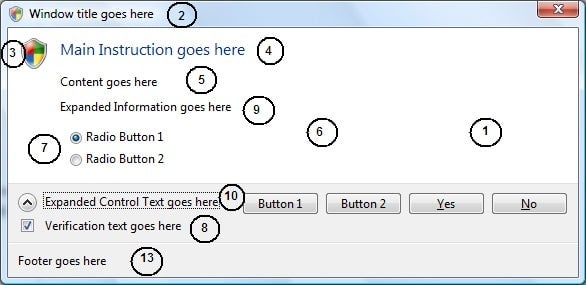
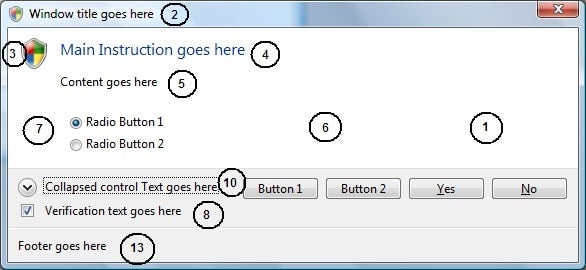
First, you should get familiar with all the parts that make up the new Task Dialog. The pictures below are two samples of task dialogs, and have the different parts marked for convenience. Each part is represented by a member variable of the TASKDIALOGCONFIG structure.
| Member Variable | Part Number in Sample | Notes |
|---|---|---|
| hWndParent | – | Similar to MessageBox, specifies the parent window for the task dialog |
| hInstance | – | This is new. Note that all the text resource and icon resource members in this structure can simply indicate the resource ID, in which case one would have to specify the module handle that contains these resources in the hInstance member. This helps very much in localization and one would not have to do all the LoadString and LoadIcon; the API takes care of all this. |
| dwCommonButtons | 1 | This is a set of flags that indicate which one of the standard buttons is to be shown. The options are OK, Yes, No, Cancel, Retry, and Close. The text for these buttons is fixed. |
| pszWindowTitle | 2 | Equivalent to the caption of MessageBox, used to specify something related to the task. Typically, the application name is shown here. |
| hMainIcon,pszMainIcon | 3 | An icon to associate the task dialog with. Like MessageBox, one can associate this with a stop, information, or warning icon. |
| pszMainInstruction | 4 | Area used to convey the main message. This should be as crisp and clear as possible. |
| pszContent | 5 | Area used to convey supplementary information that could provide additional information to user. This is not as prominent as the main instruction. |
| pButtons | 6 | Any user-specified buttons that are to be shown on the dialog. The TASKDIALOG_BUTTON structure allows one to specify a command ID and text to be associated with each of the buttons. |
| pRadioButtons | 7 | Any user-specified radio buttons that are to be shown on the dialog. The TASKDIALOG_BUTTON structure allows one to specify a command ID and text to be associated with each of the radio buttons. |
| pszVerificationText | 8 | One of the cool things and a very useful feature is to have a check box. Quite often one would have had a situation where showing a message box repeatedly could be an annoyance and one wished there was an option to let the user turn it off. Here it is. The verification text is just that. It is a text shown alongside a checkbox and the API returns this setting to user in its pfVerificationFlagChecked out parameter. |
| pszExpandedInformation | 9 | Additional information that can be shown or hidden via a button. Again, intended to reduce clutter and show information only when requested. |
| pszExpandedControlText | 10 | Text to be shown alongside an expand/collapse button when in expanded state. |
| pszCollapsedControlText | 11 | Text to be shown alongside an expand/collapse button when in collapsed state. |
| pszFooter | 13 | A footer that could contain more information. |