


Introduction
In this article, we show a simple example to send and receive data through the serial port. In what concerns data reception, we use an event driven mechanism. An event is generated and transmitted to our program when a character arrives on the serial port. The MSComm control uses the OnComm event to trap and handle communications events. We check the event type; if it is a “receive event,” we retrieve data from the serial input buffer and display it in a text box.
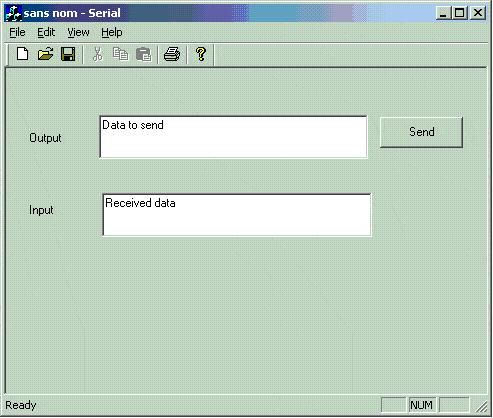
Example
Follow these steps to make a sample of serial communication under Visual C++:
- Select a “new” project from the “File” menu. Name the project “Serial“.
- Under the “Projects” tab, select “MFC App Wizard” and click “OK“.
- In the first step, select “Single Document” instead of “Multiple Documents“.
- In the second step, click “Next“.
- In the third step, make sure that “ActiveX Controls” is checked.
- In the fourth and fifth steps, click “Next“.
- In the sixth step, change the base class of “CserrView” to “CFormView“.
- Select “IDD_Serial_Form” under “Dialog” on the “Resources View” tab. Create two EditBoxes: one for sending data and the other for viewing received data. Make one button to confirm a send of data; change its caption to “Send“.
- Next, you must add the ActiveX control. Go to the “Project” menu and select “Add To Project“; then select “Components And Controls“. Next, find the “Microsoft Communications Control, version 6.0” in “Registered ActiveX Controls” and click the “Insert” button; then click “OK“. At the end, click the “Close” button.
- Now, you must associate several variables for each control. Select “Class Wizard” in the “View” menu. On the “Member Variables” tab, you see all the controls IDs you have placed on the form. For each control, associate one variable by selecting the control and clicking “Add variable“.
- With the “class Wizard“, you must add two messages: one for the “send” button and the other for the MSComm event “OnComm“. To do this, select the MSComm object ID. On the right, you see “OnComm” messages. Click to “Add Function”, and repeat this step for “IDC_Button1“.
Com Initialization
Before you send or receive data on the serial port, you should initialize it. You can make that in the code or directly by clicking the right button on the MSComm Control and selecting “Properties MSComm Object”.
For more information about InputLen, InputMode, and RThreshold, you should see the help file “comm98.chm”.
void CSerialView::OnInitialUpdate()
{
   CFormView::OnInitialUpdate();
   GetParentFrame()->RecalcLayout();
   ResizeParentToFit();
   // COM Port Initialization

   m_comm.SetCommPort(1);    // Com 1
   m_comm.SetSettings("9600,N,8,1");
   m_comm.SetInputLen(1);
   m_comm.SetInputMode(0);
   m_comm.SetRTSEnable(TRUE);
   m_comm.SetRThreshold(1);
   m_comm.SetPortOpen(TRUE);
}
Sending Data
You must begin by updating the data variable from the edit box. Next, you convert data to “Variant”; you can do that by calling the “COLeVariant” class that encapsulates the “Variant” structure.
void CSerialView::OnButton1()
{
   // TODO: Add your control notification handler code here

   UpdateData(TRUE);
   m_comm.SetOutput(COleVariant(m_output));
}
Receiving Data
“GetCommEvent()” permits us to know the event type, if it is equal to 2; it is concern a data arrival in serial port. To retrieve the data from a serial buffer, you must call the GetInput() method, which returns a Variant object. The next step consists of extracting a string from a Variant structure.
void CSerialView::OnOnCommMscomm1()
{
   // TODO: Add your control notification handler code here
   if (m_comm.GetCommEvent()==2 )
   {
      VARIANT in_dat;
      in_dat = m_comm.GetInput();
      CString strInput(in_dat.bstrVal);
      m_input = m_input + strInput;
      UpdateData(FALSE);
   }

}