


The first step in enabling source code step-through with MFC/ATL and the C/ C++ Runtime Libraries (CTR) is to ensure that the source code is installed when Visual Studio is installed. Figure 1 shows the Visual Studio installer options for source code installation. There are separate nodes for CRT and ATL/MFC installation, and granular control of source code installation based on character byte width and thread safety is also available. With the source code successfully installed, the options shown in Figure 2 should be displayed.
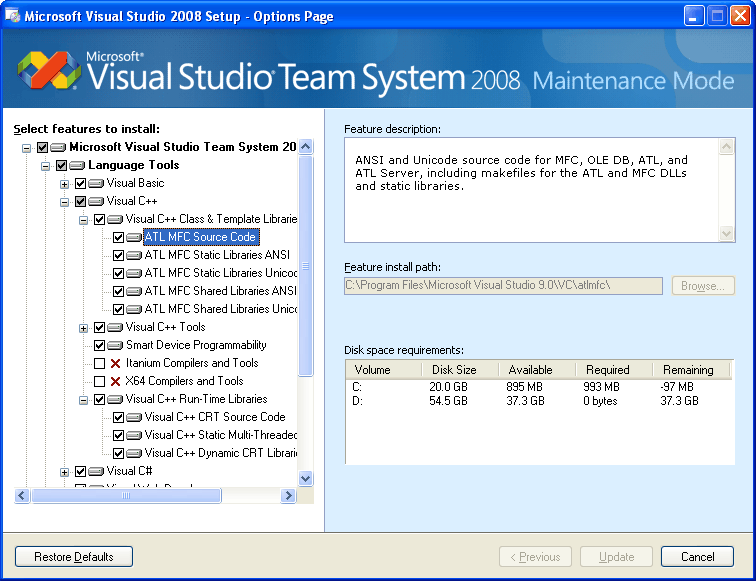
Figure 1: Installing the Visual C++ Source Code Libraries
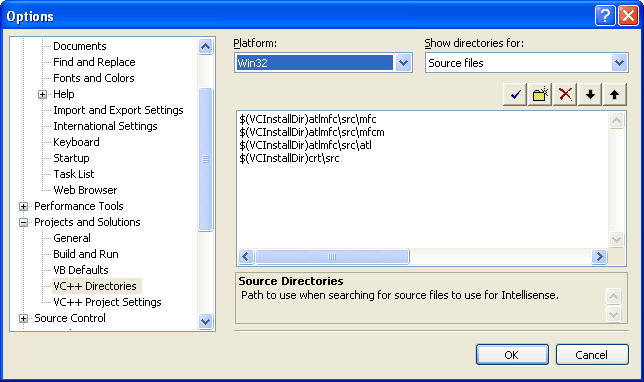
Figure 2: Visual C++ Source Code Library Paths
With the options shown in Figure 1 and Figure 2 set, stepping into the CRT and MFC/ATL source code is extremely simple—the compiler treats the library source code the same as other source code for the project, and stepping into a CRT, ATL, or MFC method can be accomplished with a simple Step-Into Debug command. If the Microsoft Symbol Server (covered in this article) is configured to bring down debug symbol information, it is important that the PDB files that install as part of Visual Studio and the Visual Studio Service Packs are configured to be searched before the Microsoft Symbol Server. The debug symbols that the Microsoft Symbol Server brings down have the source code information stripped out of them, and if these are loaded in preference to the debug symbol files that ship with Visual Studio and its Service Packs, stepping into the CRT, MFC and ATL source will not be possible. The correct settings for the symbol file location are shown in Figure 3.
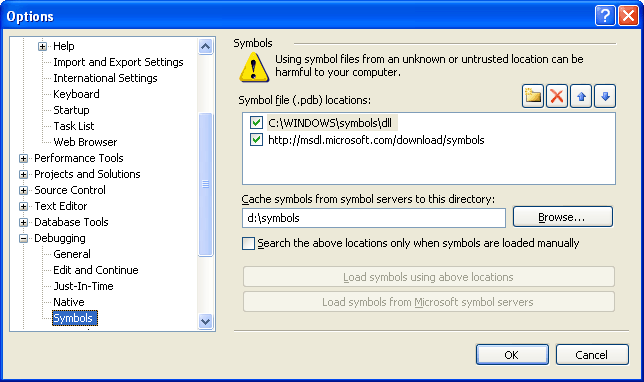
Figure 3: Symbol File Location
If the debug symbol files have been downloaded from the Microsoft Symbol Server previously, it is necessary to delete the symbol files from the local cache as well as adding the c:\windows\symbols\dll path to the symbol search path. The Module debug Window can be used to inspect where the debug symbols for a particular DLL have been loaded from, and whether they contain source code information. Figure 4 shows the Modules window with this information displayed.
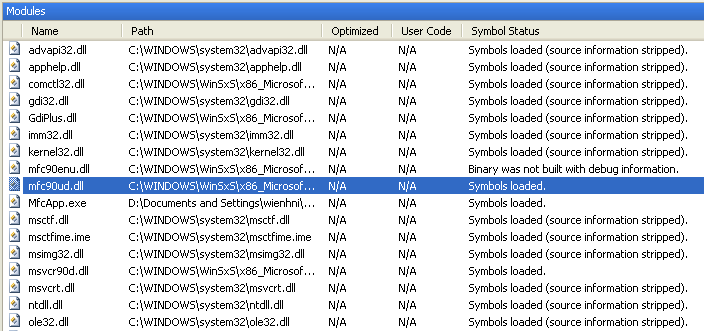
Figure 4: Module Debug Window
Visual C++ 2008 Service Pack 1, which contains the MFC Feature Pack (see these two previous articles for coverage of the MFC Updates and TR1 enhancements) in addition to a number of bug fixes, contains updates debug symbol files and source code files that allow all the new Feature Pack functionality to be stepped through.