CodeGuru content and product recommendations are editorially independent. We may make money when you click on links to our partners.
Learn More Introduction
To store or transmit data, we need the data to be converted into a sequence of bytes. We can achieve this by serializing data.
Serialization is defined as converting an object into a sequence of bytes for storage or transmission. Deserialization is the reverse (converting a series of bytes into objects).
Serialization Support in Windows Phone 8
Windows Phone platform provides support for serializing and deserializing data via classes in the System.Runtime.Serialization namespace.
Developers can also choose to provide their own implementation for serialization. To do to, they need to implement the ISerializable interface in their classes.
The complete documentation of the Serialization namespace is available at http://msdn.microsoft.com/en-us/library/windowsphone/develop/system.runtime.serialization(v=vs.105).aspx.
For the purpose of this article, we will focus on serializing objects to JavaScript Object Notation (JSON) format.
Windows Phone 8 provides support for serializing objects to JSON via the DataContractJsonSerializer class available in the System.Runtime.Serialization.Json namespace in the System.ServiceModel.Web assembly.
The main methods on this class are:
- ReadObject, which reads a document stream in the JSON object.
- WriteObject, which serializes a specified object to JSON data and writes it to a stream.
Hands On
Let us create a simple Windows Phone 8 application to demonstrate how to use the DataContractJsonSerializer class to serialize data to JSON.
Create a new Windows Phone 8 project in Visual Studio 2013 called WPSerializationJSONDemo.
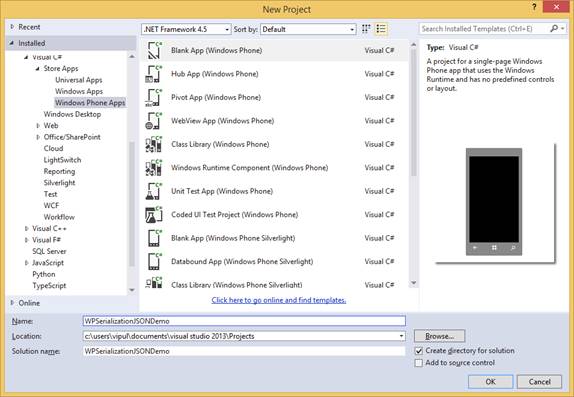
New Windows Phone 8 Project
Next, let us add a new UI controls on the MainPage.
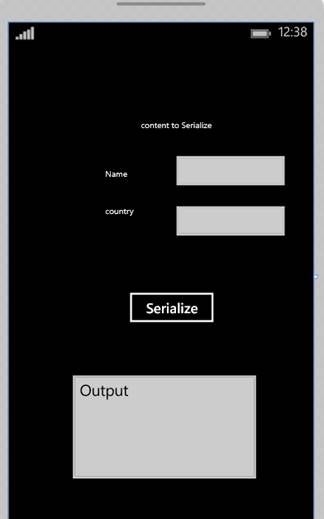
Add UI Controls
We will add a few textBlocks, the first textbox for capturing Name, the second textbox for capturing Country and the third textbox for showing output and one button titled Serialize.
The XAML for this would be:
<Page
    x:Class="WPSerializationJSONDemo.MainPage"
    xmlns="http://schemas.microsoft.com/winfx/2006/xaml/presentation"
    xmlns:x="http://schemas.microsoft.com/winfx/2006/xaml"
    xmlns:local="using:WPSerializationJSONDemo"
    xmlns:d="http://schemas.microsoft.com/expression/blend/2008"
    xmlns:mc="http://schemas.openxmlformats.org/markup-compatibility/2006"
    mc:Ignorable="d"
    Background="{ThemeResource ApplicationPageBackgroundThemeBrush}">

    <Grid>
        <Button x:Name="buttonSerialize" Content="Serialize" HorizontalAlignment="Left" Margin="159,318,0,0" VerticalAlignment="Top" />
        <TextBox x:Name="textName" HorizontalAlignment="Left" Margin="220,148,0,0" TextWrapping="Wrap" VerticalAlignment="Top" Width="142"/>
        <TextBlock HorizontalAlignment="Left" Margin="173,102,0,0" TextWrapping="Wrap" Text="content to Serialize" VerticalAlignment="Top" Height="26"/>
        <TextBox x:Name="textOutput" HorizontalAlignment="Left" Margin="84,436,0,0" TextWrapping="Wrap" Text="Output" VerticalAlignment="Top" Width="240" Height="135" IsReadOnly="True"/>
        <TextBlock HorizontalAlignment="Left" Margin="127,166,0,0" TextWrapping="Wrap" Text="Name" VerticalAlignment="Top"/>
        <TextBlock HorizontalAlignment="Left" Margin="127,214,0,0" TextWrapping="Wrap" Text="country" VerticalAlignment="Top"/>
        <TextBox x:Name="textCountry" HorizontalAlignment="Left" Margin="220,214,0,0" TextWrapping="Wrap" VerticalAlignment="Top" Width="142"/>

    </Grid>
</Page>
Next, we add a class to the project.
Right click on the project name in Solution Explorer and select Add -> Class.
Call the call MyClass.
Add the following as the code for MyClass.
using System;
using System.Collections.Generic;
using System.Linq;
using System.Runtime.Serialization;
using System.Text;
using System.Threading.Tasks;

namespace WPSerializationJSONDemo
{
    [DataContract]
    public class MyClass
    {
        [DataMember]
        public string Name
        {
            get;
            set;
        }

        [DataMember]
        public string Country
        {
            get;
            set;
        }

        public MyClass()
        {

        }

        public MyClass(string name, string country)
        {
            Name = name;
            Country = country;

        }
    }
}
We can see that we have created a class with two properties: Name and Country and provided two constructors – one is the default constructor and the other, which takes in a name and country and sets these properties.
Now, we will implement the code behind for MainPage.xaml.
Open MainPage.xaml.cs and include the following namespace in the declarations.
using System.Runtime.Serialization.Json;
Next, declare the following as member variables inside the MainPage class – a MemoryStream object and a DataContractJsonSerializer object.
public sealed partial class MainPage : Page
    {
        MemoryStream memoryStream = new MemoryStream();
        DataContractJsonSerializer serialer = new DataContractJsonSerializer(typeof(MyClass));

        public MainPage()
Finally, we implement the event handler for click event on the button. Here, we will initialize the memorystream object, instantiate the MyClass object and use the Json serializer object to serialize the contents and write to the stream. Finally, we will extract the contents to a byte array and display it in a textbox.
private void buttonSerialize_Click(object sender, RoutedEventArgs e)
        {
            memoryStream = new MemoryStream();
            MyClass myClassObj = new MyClass(textName.Text, textCountry.Text);
            serialer.WriteObject(memoryStream, myClassObj);
            byte[] jsonArray = memoryStream.ToArray();
            memoryStream.Dispose();
            textOutput.Text = Encoding.UTF8.GetString(jsonArray, 0, jsonArray.Length);
        }
When you compile and run your application, you will notice that once the text is serialized, it is displayed in JSON notation in the output textbox.
This shows that the object has been serialized into JSON notation
Summary
In this article, we learned about the support for serialization and deserialization in Windows Phone 8. I hope you have found this information useful.
About the author
Vipul Patel is a Program Manager currently working at Amazon Corporation. He has formerly worked at Microsoft in the Lync team and in the .NET team (in the Base Class libraries and the Debugging and Profiling team). He can be reached at vipul.patel@hotmail.com
http://msdn.microsoft.com/en-us/library/windowsphone/develop/system.runtime.serialization.json.datacontractjsonserializer(v=vs.105).aspx


