1. Introduction
In the first article,
Writing a Debugger Visualizer in WPF: Part 1, we discussed how to create a basic debugger visualizer in WPF. Our visualizer was read-only and supported only one data type.
Now let
’
s extend this concept and try to improve it.
2. Editable Visualizer
In the previous discussion one visualizer was created using XAML file. Now let
’
s move forward and improve the functionality of the visualizer. The previous visualizer was a read-only visualizer in taht it could only view the data in it. Now we are going to make a visualizer that is interactive and thus has a feature to change the value of a variable.
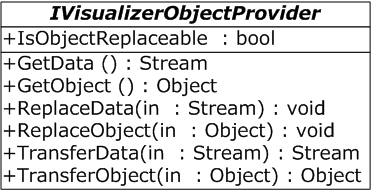
The basic concept behind this is to use the ReplaceObject function of IVisualizerObjectProvider interface. Here is a class diagram of this interface.
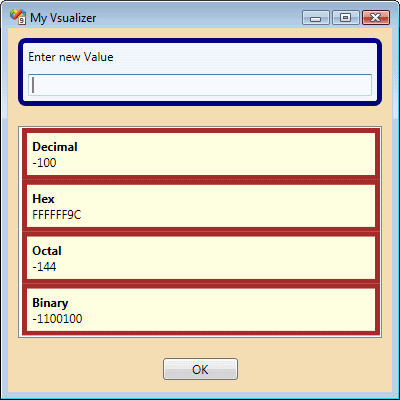
We added one text box in our WPF window to enter data. Here is a piece of code for the new text box.
<Border Margin=”10″ Background=”AliceBlue” BorderBrush=”Navy” BorderThickness=”5″ CornerRadius=”5″>
    <StackPanel>
        <TextBlock Margin=”5″>Enter new Value</TextBlock>
        <TextBox Name=”txtValue” Margin=”5″/>
    </StackPanel>
</Border>
The name of the new text box is “txtValue”. We use the same FindWindow technique, which we used in the previous article, to get the value of this text box and then call ReplaceObject. After that we close the window.
TextBox text = win.FindName(“txtValue”) as TextBox;
Int32 newValue = Convert.ToInt32(text.Text);
if (objProvider.IsObjectReplaceable)
{
    objProvider.ReplaceObject(newValue);
}
win.Close();
Here is the complete XAML code for this program.
<Window
  xmlns_x=”http://schemas.microsoft.com/winfx/2006/xaml”
  Title=”My Vsualizer” Height=”400″ Width=”400″ Background=”Wheat”
  WindowStartupLocation=”CenterScreen”>
    <StackPanel>
        <Border Margin=”10″ Background=”AliceBlue” BorderBrush=”Navy” BorderThickness=”5″ CornerRadius=”5″>
            <StackPanel>
                <TextBlock Margin=”5″>Enter new Value</TextBlock>
                <TextBox Name=”txtValue” Margin=”5″/>
            </StackPanel>
        </Border>
        <ListBox Name=”listBox” Margin=”10″ HorizontalContentAlignment=”Stretch”>
            <ListBox.ItemTemplate>
                <DataTemplate>
                    <Border Background=”LightYellow” BorderBrush=”Brown” BorderThickness=”5″>
                        <StackPanel Margin=”5″>
                            <TextBlock Foreground=”Black” FontWeight=”Bold” Text=”{Binding Path=Type}”/>
                            <TextBlock Foreground=”Black” Text=”{Binding Path=Value}”/>
                        </StackPanel>
                    </Border>
                </DataTemplate>
            </ListBox.ItemTemplate>
        </ListBox>
        <Button Name=”btnOK” Margin=”10″ Width=”75″>OK</Button>
    </StackPanel>
</Window>
Here is the complete C# code for this project.
using System;
using System.Collections.Generic;
using System.Linq;
using System.Text;
using Microsoft.VisualStudio.DebuggerVisualizers;
using System.Windows;
using System.Windows.Controls;
using System.Windows.Markup;
using System.IO;
[assembly: System.Diagnostics.DebuggerVisualizer(
typeof(MyVisualizer.MyVisualizerClass), typeof(VisualizerObjectSource),
Target = typeof(System.Int32),Description = “My Visualizer”)]
namespace MyVisualizer
{
    public class MyVisualizerClass : DialogDebuggerVisualizer
    {
        private Int32 obj;
        private Window win;
        private IVisualizerObjectProvider objProvider;
        protected override void Show(IDialogVisualizerService windowService, IVisualizerObjectProvider objectProvider)
        {
            objProvider = objectProvider;
            obj = (Int32)objProvider.GetObject();
            List<TypeValue> listType = new List<TypeValue>();
            listType.Add(new TypeValue(“Decimal”, obj.ToString()));
            listType.Add(new TypeValue(“Hex”, obj.ToString(“X”)));
            listType.Add(new TypeValue(“Octal”, DecimalToBase(obj, 8)));
            listType.Add(new TypeValue(“Binary”, DecimalToBase(obj, 2)));
            FileStream fs = new FileStream(“VisualWindow.xaml”, FileMode.Open, FileAccess.Read);
            win = (Window)XamlReader.Load(fs);
            fs.Close();
            ListBox listBox = win.FindName(“listBox”) as ListBox;
            listBox.ItemsSource = listType;
            Button buttonOK = win.FindName(“btnOK”) as Button;
            buttonOK.Click += new RoutedEventHandler(buttonOK_Click);
            win.ShowDialog();
        }
        void buttonOK_Click(object sender, RoutedEventArgs e)
        {
            TextBox text = win.FindName(“txtValue”) as TextBox;
            Int32 newValue = Convert.ToInt32(text.Text);
            if (objProvider.IsObjectReplaceable)
            {
                objProvider.ReplaceObject(newValue);
            }
            win.Close();
        }
        // This function is only for debugging purpose
        public static void TestShowVisualizer(object obj)
        {
            VisualizerDevelopmentHost host = new VisualizerDevelopmentHost(obj, typeof(MyVisualizerClass));
            host.ShowVisualizer();
        }
        // Orignally written by Balamurali Balaji
        // Changed little bit to handle the negative sig
        // http://www.codeproject.com/KB/cs/balamurali_balaji.aspx
        private string DecimalToBase(int number, int basenumber)
        {
            string strRetVal = “”;
            const int base10 = 10;
            char[] cHexa = new char[] { ‘A’, ‘B’, ‘C’, ‘D’, ‘E’, ‘F’ };
            int[] result = new int[32];
            int MaxBit = 32;
            bool isNegative = false;
            if (number < 0)
            {
                isNegative = true;
                number *= -1;
            }
            for (; number > 0; number /= basenumber)
            {
                int rem = number % basenumber;
                result[–MaxBit] = rem;
            }
            for (int i = 0; i < result.Length; i++)
            {
                if ((int)result.GetValue(i) >= base10)
                {
                    strRetVal += cHexa[(int)result.GetValue(i) % base10];
                }
                else
                {
                    strRetVal += result.GetValue(i);
                }
            }
            strRetVal = strRetVal.TrimStart(new char[] { ‘0’ });
            if (isNegative)
            {
                strRetVal = strRetVal.Insert(0, “-“);
            }
            return strRetVal;
        }
    }
    public class TypeValue
    {
        public TypeValue()
        {
        }
        public TypeValue(String type, String value)
        {
            Type = type;
            Value = value;
        }
        public String Type
        { get; set; }
        public String Value
        { get; set; }
    }
}
Now when you click on the MyVisualizer either on the Watch window or on the context menu that appears when you clicks on the integer variable, then you will see the following window: