


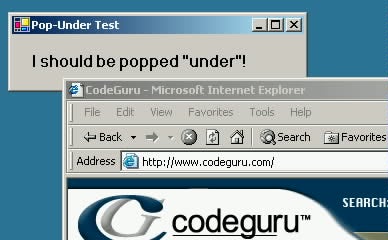
Figure 1
Pop-under windows are windows that, when created, are immediately shuttled behind all other windows in the z-order. In fact, many times you don’t notice them until you’ve closed or minimized all other open windows. Basically, they’re seen as a less obtrusive means of advertising than pop-ups that require immediate (and usually resentful) attention from the user. With the lines between browser-based Web applications and traditional Windows applications being blurred every day, it should come as no surprise that Windows programmers are looking for ways to emulate the (infamous) pop-under effect utilized by Web marketers. Therefore, in this week’s article, we’ll look at the steps required to pull of this stunt…er…task.
Note: If you also would like to see how pop-under windows are created in JavaScript, you can read about that in an article by Joe Burns on one of our sister sites—HTMLGoodies.com.
- The function that’s used to modify the window position is the Win32 API SetWindowPos. Therefore, the first thing you’ll need to do is to include the following using statement to import and use this native function from your C# application:
- To import the native SetWindowPos function, use the DllImport attribute and define the function’s signature as follows where I’m also specifying a few of the constants defined in the Platform SDK C++ header file WinUser.h. (Note that while I’ve chosen to define these types within a class called Win32, that is purely a subjective choice. You can name the class anything you like or simply include these type definitions in an already-existing class.)
- Implement a helper method (ShoveToBackground) to call the SetWindowPos function at the appropriate times.
- Finally, implement handlers for the form’s Activate and Resize events and have them both simply call the helper ShoveToBackground method.
using System.Runtime.InteropServices;
class Win32
{
   [DllImport("user32.dll", EntryPoint = "SetWindowPos")]
   public static extern bool SetWindowPos(
      int hWnd,               // window handle
      int hWndInsertAfter,    // placement-order handle
      int X,                  // horizontal position
      int Y,                  // vertical position
      int cx,                 // width
      int cy,                 // height
      uint uFlags);           // window positioning flags
   public const int HWND_BOTTOM     = 0x1;
   public const uint SWP_NOSIZE     = 0x1;
   public const uint SWP_NOMOVE     = 0x2;
   public const uint SWP_SHOWWINDOW = 0x40;
}
   private void ShoveToBackground()
   {
      Win32.SetWindowPos((int)this.Handle,
         Win32.HWND_BOTTOM,
         0, 0, 0, 0,
         Win32.SWP_NOMOVE | Win32.SWP_NOSIZE |
         Win32.SWP_SHOWWINDOW);
   }
private void Form1_Activated(object sender, System.EventArgs e)
{
   ShoveToBackground();
}

private void Form1_Resize(object sender, System.EventArgs e)
{
   ShoveToBackground();
}
Now, when the form is first executed or activated from the task bar or task list, it will always flicker and then immediately get “pushed” to the background as you see in Figure 1.