


Install iis60rkt.exe (IIS 6.0 Resource Kit Tools), which is a free download from Microsoft. You can use this link: http://www.microsoft.com/downloads/details.aspx?familyid=56FC92EE-A71A-4C73-B628-ADE629C89499&displaylang=en or Search for iis60rkt.exe. The only requirement is that your machine should have a version of IIS.
Go to Start -> Programs -> IIS Resources -> IISCertDeploy.vbs -> IISCertDeploy.vbs
A command window will open outlining the various options. I installed a cert on my website by typing in:
selfssl /N:CN=ICE /K:1024 /V:3650
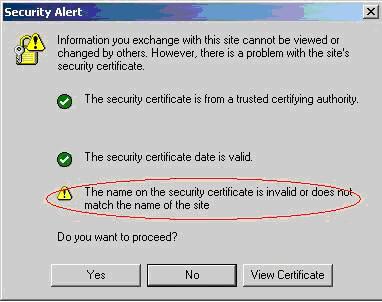
If you type CN=<actual website name> then when you browse the site, you won’t get this as a warning:
Now open the website properties and go to directory security, you will see ‘View Certificate’ Enabled.
When you view the certificate, it will show a red icon. That is because the certificate has not been added to the trusted list yet.
To add it in the trusted, go to Start -> Run -> Type mmc
Go to File and select Add/Remove snap In
Click on Add and select Certificates
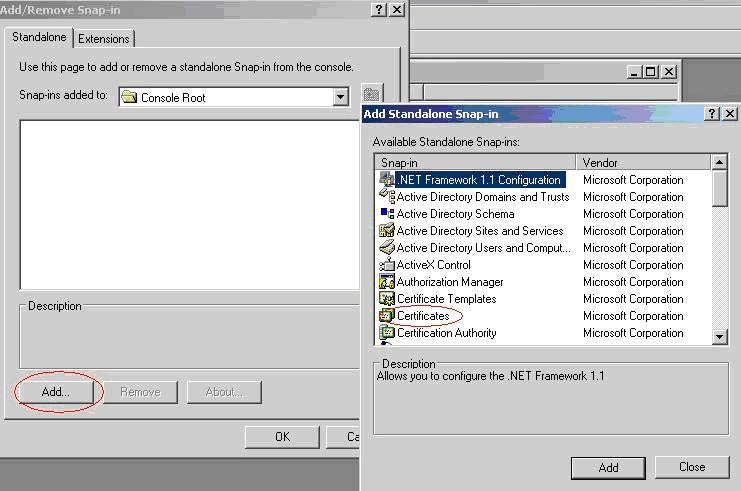
Select Computer Account and click on Next
Click on Finish, then close for the “Add Standalone Snap-In” window and then OK
Expand Certificates -> Personal -> Certificates
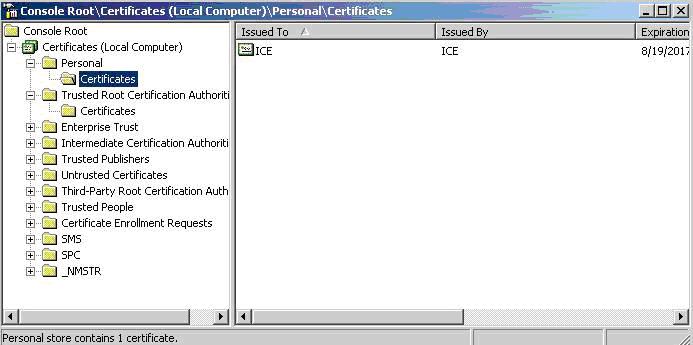
Right click on ICE and select Copy
Then Expand Trusted Root Certificate (right under it) -> Certificates
Right Click and Select Paste.
Now if you want to export this to another machine, then right click on the cert name under Certificates -> Personal -> Certificates. Right click on it, All Tasks -> Export
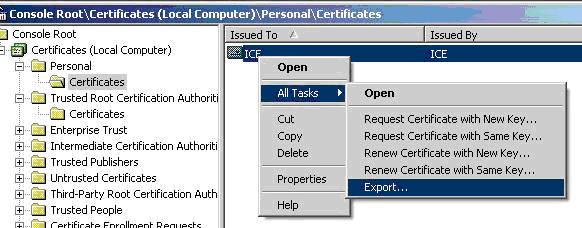
Click on Next, then on the next screen, select Export Private Key as well
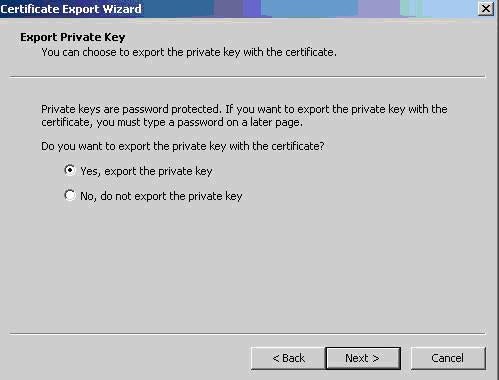
Click on Next, then Next again and then input a password that you will remember. I used demo1234. Then put in a path where to export it to. I exported it locally and then copied it over onto the server where I needed it installed.
On the actual server:
Open the website properties, go to Directory Security and click on Server Certificate.
Click Next and then Select Import from a pfx file
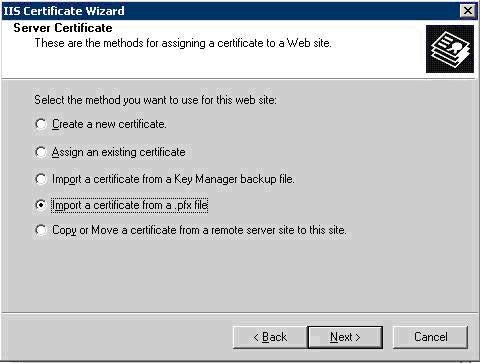
Click on Next. Enter the path and file name and check the box to make the cert exportable.
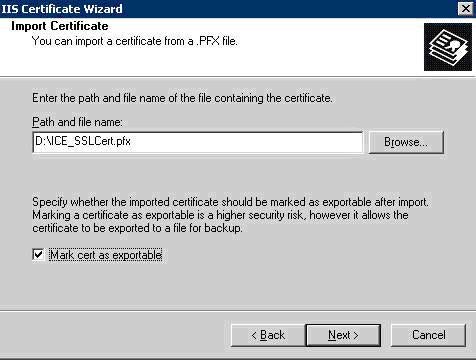
Click on Next
Type in the same password and click on Next and then again on Next
Repeat the same process to add this cert into the trusted collection.