


Most of the time the Windows Phone 7
(WP7) Web Browser is viewed as a necessary but standalone component of the
phone; and while true, it is can also be very useful to your application. The
browser itself can be embedded within your app, in the form of a control. The
control known as WebBrowser provides the ability to render HTML using the
native rendering engine. The Web Browser control does not include the usual
navigation components such as the address bar, back buttons and/or home
buttons. Essentially the control provides only the rendering area of the
browser, which means you have the basis for creating your browser.
To get started you first need to create a page within your app to be used
for the browser. Then you can either add the WebBrowser from the tool box or
manually insert the tag yourself as shown below:
<phone:WebBrowser Name="webBrowser1" VerticalAlignment="Top" Height="696" Source="http://www.google.com" />
As you can see the tag is fairly simple with your normal attributes plus a
Source attribute. The Source attribute is used to specify the initial page to
be displayed within the browser control. If you go ahead and run this you
should see a simple browser view with the Google home page displayed.
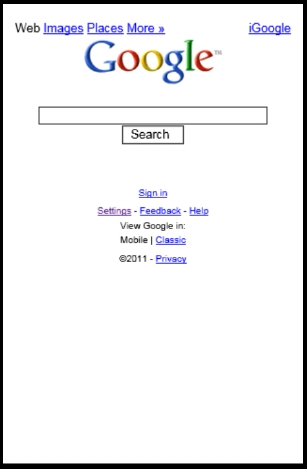
Figure 1: Figure 1 – Browser Window
From here, the user can click on any of the links available; however, they
cannot enter another URL unless you provide them with the means, such as a
search page and/or address bar. In addition to providing the user with an
initial page to access you can also change the URL or content being displayed
using either the Navigate or NavigateToString. The Navigate method shown below
allows you to send the user to a specific URL.
webBrowser1.Navigate(new Uri("http://www.bing.com"));
If you plan to generate HTML content within your app, you can also use the
NavigateToString as seen in the following example.
webBrowser1.NavigateToString("<html><body><h1>This is a test!</h1></body></html>");
Conclusion
For such a simple control, the Web Browser brings quite a bit of power and
flexibility to your app. Aside from creating a so called "better
browser" app, there are other uses that can greatly enhance other apps.
Here are a couple of typical uses:
- Host Help content as HTML on your web site and make a
simple Help Browser - Display HTML content generated within your app
- Simple News Reader for your app