


You should be familiar by now with What is Visual WebGui and What is Visual WebGui over Silverlight. It is recommended that you read “How to create a Visual WebGui Silverlight application” and other articles in the “Get Started with Silverlight” section.
The Visual WebGui (VWG) SDK supplies you with a default theme to your application. This theme holds the default display specification to all the VWG controls. The VWG silverlight installation adds a new project type, “Visual WebGUI Silverlight Theme.” This project allows you to take the default theme and design it according to your needs.
Open one of the previous applications that you created in one of the previous “How tos.” I’ve opened “How to embed HTML inside a Visual WebGui Silverlight application.”
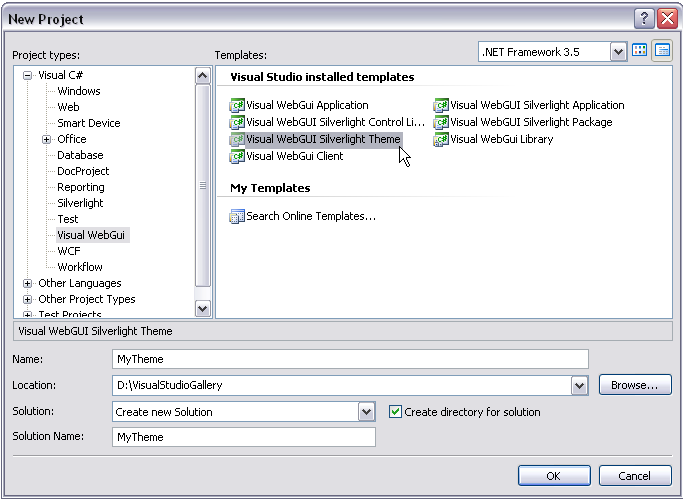
Now, add a new project to your solution. Select a project type Visual WebGui Silverlight theme.
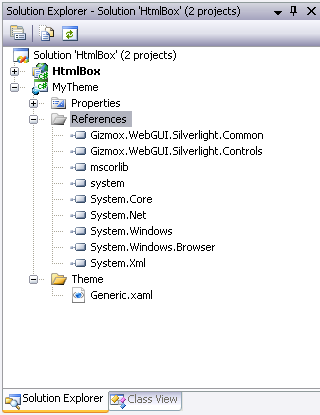
Your new theme project should look like this. The Generic.xaml file holds the the XMAL styles of all the VWG Silverlight controls.
Look at one of them. This is the Window Background Style. This style defines the style of a window in a Silverlight application.
<!-- Default style for WindowBackgroundStyle -->
  <Style x:Name="WindowBackgroundStyle" TargetType="Control">
    <Setter Property="Template">
      <Setter.Value>
        <ControlTemplate TargetType="ContentControl">
          <Grid>
            <Rectangle>
              <Rectangle.Fill>
                <LinearGradientBrush StartPoint="0,0"
                                     EndPoint="0.2,1">
                  <GradientStop Color="#FFBFDBFF" Offset="0"/>
                  <GradientStop Color="#FF6591CD" Offset="0.8"/>
                </LinearGradientBrush>
              </Rectangle.Fill>
            </Rectangle>
          </Grid>
        </ControlTemplate>
      </Setter.Value>
    </Setter>
  </Style>
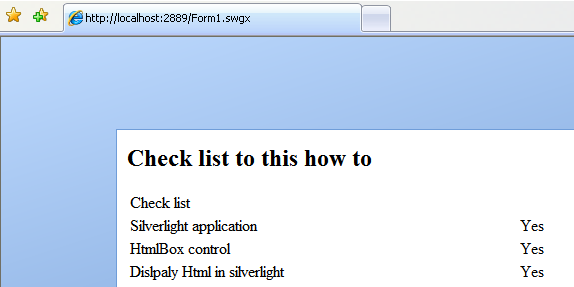
This is what it looks like.
Now, change the gradient color of the rectangle to a different color.
<!-- Default style for WindowBackgroundStyle -->
  <Style x:Name="WindowBackgroundStyle" TargetType="Control">
    <Setter Property="Template">
      <Setter.Value>
        <ControlTemplate TargetType="ContentControl">
          <Grid>
            <Rectangle>
              <Rectangle.Fill>
                <LinearGradientBrush StartPoint="0,0"
                                     EndPoint="0.2,1">
                  <GradientStop Color="Yellow" Offset="0"/>
                  <GradientStop Color="Orange" Offset="0.8"/>
                </LinearGradientBrush>
              </Rectangle.Fill>
            </Rectangle>
          </Grid>
        </ControlTemplate>
      </Setter.Value>
    </Setter>
  </Style>
Next, you will set the build order of your application. Right-click on the solution and select properties. Open project dependencies and set HtmlBox to depend on the MyTheme project.

Now, build your application. If this is the first time you build your application, you will see the packager application. Make sure that the new theme is included in the main package.