


One of my previous articles, “Accessing Files and Directories,” covered how to get file and directory properties in the 1.0 and 1.1 versions of the .NET Framework. This article serves as a sequel of sorts, focusing on the I/O enhancements in the .NET Framework 2.0 release due out later this year. Specifically, it demonstrates reading and writing compressed data with the new System.IO.Compression namespace.
System.IO.Compression
The System.IO.Compression namespace introduces a series of classes that provide compression and decompression capabilities. The classes exhibit similar behaviors and characteristics, but the compression classes operate against streams. To my knowledge, the .NET Framework 2.0 will include two algorithms for compression/decompression: Deflate and GZip.
Sample code to compress a file
The following sample code reads the contents of a file, compresses it, and then writes it to an output file. It should clearly demonstrate how easy it is to add compression capabilities into your applications:
FileStream inputFile = null;
GZipStream compressedZipStream = null;
try
{
   // Open and read the contents of the file
   inputFile = new FileStream("c:\\mylog.txt", FileMode.Open,
                              FileAccess.Read, FileShare.Read);
   byte[] buffer = new byte[inputFile.Length];
   int count = inputFile.Read(buffer, 0, buffer.Length);
   inputFile.Close();

   // Compress the file contents by writing them to a memory stream
   MemoryStream memoryBuffer = new MemoryStream();
   compressedZipStream = new GZipStream(memoryBuffer,
   CompressionMode.Compress, true);
   compressedZipStream.Write(buffer, 0, buffer.Length);
   compressedZipStream.Close();
   Console.WriteLine("Original Size: {0}, Compressed Size: {1}",
                     buffer.Length, memoryBuffer.Length);

   // Pause so we can see the output
   Console.ReadLine();
}
finally
{
   if (inputFile != null) inputFile.Close();
   if (compressedZipStream!= null) compressedZipStream.Close();
}
I created a file named mylog.txt. I then typed in the well known test phrase “The quick brown fox jumped over the slow lazy dog.” into the file about thirty times. I use files for the examples, but you could just as easily use any other sort of stream.
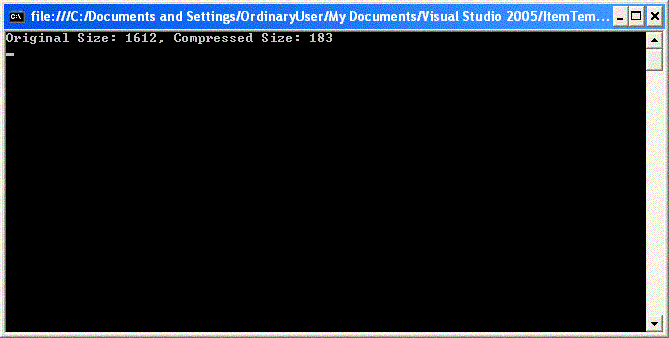
Figure 1. File Compression
Note: The examples here are all with the GZipStream class, which you could just as easily swap out for the DeflateStream class.
Sample code to decompress a file
The following sample code reads the contents of a file, decompresses it, and then writes it to the console. It relies on the file created in the prior sample:
FileStream inputFile = null;
GZipStream compressedZipStream = null;

try
{
   // Determine the uncompressed size of the file;
   // we can't rely on the compressed size because
   // it's not the true size
   inputFile = new FileStream("c:\\mylogcompressed.txt",
                              FileMode.Open, FileAccess.Read,
                              FileShare.Read);
   compressedZipStream = new GZipStream(inputFile,
                                        CompressionMode.Decompress);
   int offset = 0;
   int totalBytes = 0;
   byte[] smallBuffer = new byte[100];
   while (true)
   {
      int bytesRead = compressedZipStream.Read(smallBuffer, 0, 100);
      if (bytesRead == 0)
      {
         break;
      }
      offset += bytesRead;
      totalBytes += bytesRead;
   }
   compressedZipStream.Close();

   // Open and read the contents of the file now that
   // we know the uncompressed size
   inputFile = new FileStream("c:\\mylogcompressed.txt",
                              FileMode.Open, FileAccess.Read,
                              FileShare.Read);

   // Decompress the file contents
   compressedZipStream = new GZipStream(inputFile,
                                        CompressionMode.Decompress);
   byte[] buffer = new byte[totalBytes];
   compressedZipStream.Read(buffer, 0, totalBytes);

   // Display the decompression information
   Console.WriteLine(System.Text.Encoding.UTF7.GetString(buffer));
   Console.WriteLine("Compressed Size: {0}, Decompressed Size: {1}",
                     inputFile.Length, buffer.Length);
   compressedZipStream.Close();

   // Pause so we can see the output
   Console.ReadLine();
}
finally
{
   if (inputFile != null) inputFile.Close();
   if (compressedZipStream != null) compressedZipStream.Close();
}