


Introduction
Silverlight is a browser plugin that promotes a collaborative development environment of rich online media content that enables developers and designers alike to integrate multimedia and graphics into web pages within the context of the managed environment of Microsoft .NET framework. Over the past few years, Silverlight, formerly known as Windows Presentation Foundation (WPF), has quickly become the technology of choice for developing the next generation of cross-browser, cross-platform Rich Internet Applications (RIAs). ASP.NET MVC Framework is a platform that enables you to design and implement applications that are based on the MVC design pattern. This article takes a look at how ASP.NET MVC Framework 2.0 applications can be used to bind data to Silverlight 4.0 data controls.
Pre-requisites
To execute the code examples illustrated in this article, you should have the following installed in your system:
- ASP.NET MVC 2.0
- Microsoft Visual Studio 2008
Alternatively, you can have Microsoft Visual Studio 2010 installed in your system–you’ll get the ASP.NET MVC Framework and the necessary templates you need to work embedded there.
Before we delve deep into implementing an application that would demonstrate how to integrate Silverlight 4.0 and ASP.NET MVC Framework 2.0, let’s take a quick tour of a few basic concepts.
What is the ASP.NET MVC Framework?
The ASP.NET MVC Framework is based on the proven time tested Model View Controller (MVC) Design Pattern and provides you a platform for designing and implementing web applications where you can have a cleaner separation of concerns, better code organization, seamless extensibility, scalability and code reuse. Applications designed using the ASP.NET MVC Framework is easier to test and maintain. The Model View Controller Design Pattern comprises mainly of three components: the model to store the data and business components of the application, the view to present data to the user and the controller to integrate all the components nicely.
Implementing a Sample Application
In this section we will implement a sample application that would use Silverlight 4.0 to present data to the user in a data grid. When you create a new Silverlight project, you have the option of choosing ASP.NET MVC as its host.The Silverlight 4.0 application will use an ASP.NET MVC 2.0 application as its host. In essence, Json data returned from the ASP.NET MVC application will be data bound to a Silverlight 4.0 data grid.
In this example we will make use of the AdventureWorks sample database for SQL Server 2008. To implement an application that uses ASP.NET MVC 2.0 to bind data to a Silverlight 4.0 data grid, follow these steps:
- Open Visual Studio 2008/2010 IDE
- Click on File -> New -> Project
- Select Silverlight Application from the list of the project templates displayed
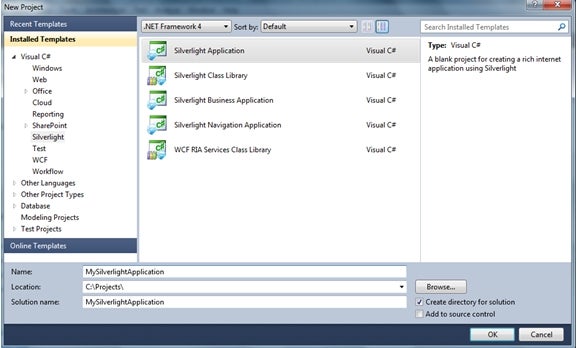
Figure 1 - Select ASP.NET MVC Web Project as a host for the Silverlight application

Figure 2 - Refrain from creating a Unit Test Project as we wouldn’t be discussing anything on how we can do unit tests in this article

Figure 3Here’s how the Solution Explorer would look like:
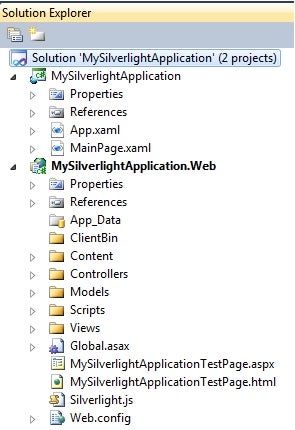
Figure 4 - Right-click on the models folder in the ASP.NET MVC web project and select LINQ to SQL classes to create a data context for the AdventureWorks database
- Create a new Controller class and name it as
CustomerController. Paste the following code for the List action method into this class:
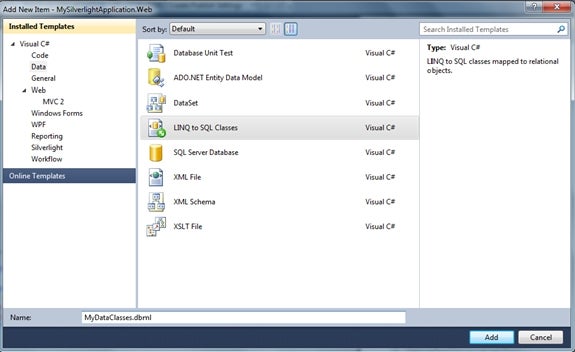
Figure 5
           public ActionResult List()
           {
               MyDataClassesDataContext dataContext = new MyDataClassesDataContext();
               var customers = from c in dataContext.Customers
                          select new
                          {
                              c.CustomerID,
                              c.AccountNumber
                          };
               return Json(customers,JsonRequestBehavior.AllowGet);
           }