Applying Themes to User Controls and Packaging Them in a Separate Library/.dll in C#, WPF & XAML with .NET Framework 4.0
Introduction
This article describes how to apply themes to simple user controls, so these match the standard controls. I have written the code of 2 such controls: a numeric up/down control and a time control. I am not discussing the implementation details of these controls – only how to apply the themes. I have used my name for naming the namespaces etc…, but obviously, users of this code are free to rename these into something more significant.
The User Controls in a Standard Project
First of all, I shall describe briefly the 2 controls:
–Up/down control: this has 4 properties: min (default = 0), max (default = 100), step (default = 1) and decimal places (default = 0)
–Time control:no extra properties
There controls share some features in common: time control and up/down control have the same up and down buttons for instance. This up and down button control (updownbuttons.xaml) had the buttons painted with the styles UpButtonStyle and DownButtonStyle. These styles are defined in each of the files in Themes subfolder: generic.xaml, lunanormalcolor.xaml etc…All other styles that should change according to theme selected are similarly defined in those files.
To use the correct theme: You need to open file app.xaml, and add the code marked in bold:
(for generic style:)
<Application.Resources>
     <ResourceDictionary Source="themes/Generic.xaml"/>
</Application.Resources>
For all other styles – make sure you have added the reference to the correct PresentationFrameWork .dll. Example below for Luna.Homestead:
<Application.Resources>
     <ResourceDictionary Source="PresentationFramework.Luna;component/themes/Luna.homestead.xaml">
          <ResourceDictionary.MergedDictionaries>
               <ResourceDictionary Source="themes/Luna.homestead.xaml"/>
          </ResourceDictionary.MergedDictionaries>
     </ResourceDictionary>
</Application.Resources>
Creating the Library/.dll
To create the library, you need to create a new project. File -> New Project. Then
select Visual C# ->Windows->WPF User Control Library. See below:
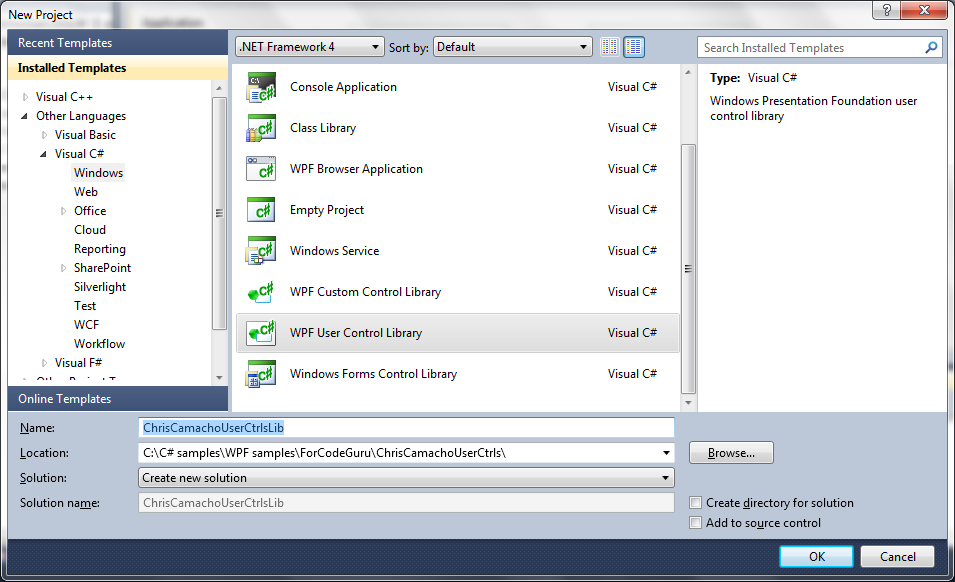
I have unchecked ‘Create Directory for solution’. Once create the project, delete the default user control that appears and add the user controls from the other project we just created. These are all the files that appear in MyUserCtrls folder. Compile. That is all that needs to be done!
Getting a Client to use the Library
Create a new project. Add a combo box and a text box (for example). Compile. To use our controls, first of all copy the .dll from the bin/debug subdirectory of the library we just created into the bin/debug subdirectory of the new project. The .dll is local, so needs to either be in same directory or in a subdirectory of the executable. There is a way of publishing the .dll/library so it is available globally, but this is not done here. Once you have copied the .dll, you need to add the reference. To do this, click on references in project section. Add reference and select folder ‘Browse’. Navigate to the .dll you just copied and add it.
I would suggest starting the project with the ‘generic’ theme. This is because it is easier to move the controls about. Create a new folder ‘Themes’ and copy the
file ‘generic.xaml’ from original test project. This new copy needs a few minor modifications, as follows (which will work with my sample):
xmlns:ChrisCam="clr-namespace:ChrisCamachoUsrCtrls; assembly=ChrisCamachoUserCtrlsLib"
All other occurrances of ‘local’ need to be changed into ‘ChrisCam’.
Makes the same changes to App.xaml as discussed previously. In MainWindow.xaml file, add at top same line again:
xmlns:ChrisCam="clr-namespace:ChrisCamachoUsrCtrls; assembly=ChrisCamachoUserCtrlsLib"
The controls are ready to be used:
<ChrisCam:NumericUpDown x_Name="NumericUpDown" Height="23" Margin="140,76,0,0" VerticalAlignment="Top" HorizontalAlignment="Left" IsEnabled="True" Width="120" />
<ChrisCam:TimeCtrl x_Name="TimeCtrl" Height="23" HorizontalAlignment="Left" Margin="140,160,0,0" VerticalAlignment="Top" Width="120" />
<ChrisCam:NumEditCtrl x_Name="NumEditCtrl" Height="23" HorizontalAlignment="Left" Margin="140,117,0,0" VerticalAlignment="Top" Width="120" />
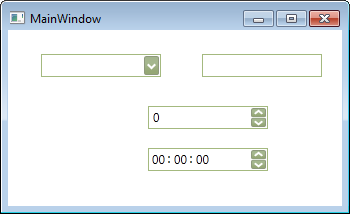
Suppose we wish to use the Luna Homestead theme. First of all, we need to add the reference to PresentationFramework.luna. Next, we copy the ‘Luna.Homestead.xaml’ file from our initial test project into the folder ‘Themes’. Afterwards we make same changes to this file as we made for the generic.xaml file. In App.xaml, correctly reference the Luna Homestad theme, and we are done!
Generic theme:
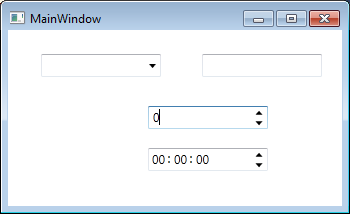
Luna Homestead theme: