


Several months ago, I invested several days’ work to find how to implement the multiline combobox in VS8 DataGridView control. I found several solutions but they didn’t fit my needs. I wanted something very simple. And I found it by using Owner Draw approach—just drawing a multicolumn control by myself. Here are the results.
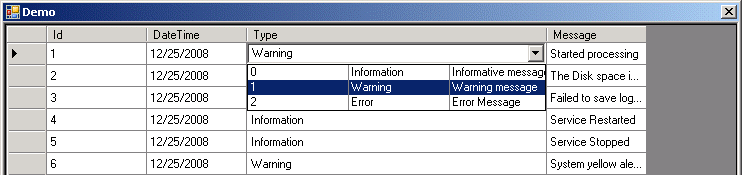
The code implementation and usage is extremely simple.
*New in this version
*After multiple comments that I have got about the old implementation, I decided to make this solution nicer. Following the solution using designed DataSet tables and dropping some workarounds and fixing some bugs I had in my first version!
You do all the steps as you do if you want to embed the regular combobox into your DataGridView, but in place of the DataGridViewComboColumn, you use my DataGridViewMultiColumnComboColumn class. This class is derived from DataGridViewComboColumn. Additionally, you need to set the column CellTemplate with the DataGridViewMultiColumnComboCell class that is derived from DataGridViewMultiColumnComboCell. After creating the DataGridViewMultiColumnComboCell class, you will need to set two data members to allow the multiline combobox to display the relevant values.
//create the multicolumncombo column
DataGridViewMultiColumnComboColumn newColumn =
       new DataGridViewMultiColumnComboColumn();

newColumn.CellTemplate = new DataGridViewMultiColumnComboCell();
//Set the source table settings from the database for combobox values
newColumn.DataSource = ds.LogMessageTypes;
newColumn.DisplayMember = ds.LogMessageTypes.TypeNameColumn.ColumnName;
newColumn.ValueMember = ds.LogMessageTypes.TypeIdColumn.ColumnName;

//this property point on main table of this grid to bind to this column
newColumn.DataPropertyName = ds.LogTable.TypeColumn.ColumnName;
newColumn.HeaderText = ds.LogTable.TypeColumn.ColumnName;

newColumn.DisplayStyle = DataGridViewComboBoxDisplayStyle.Nothing;

dataGridView1.Columns.Remove(ds.LogTable.TypeColumn.ColumnName);

dataGridView1.Columns.Insert(position, newColumn);

dataGridView1.Columns[position].Width = 300;
First, I am very happy that, after 10 years of programming experience, I found the way to contribute something small to this great professional discussion.
I am originally a C++/MFC programmer and I still work mostly in these programming languages. So, I was strictly used to thinking that implementing a non-standard UI is a piece of work. So, I think Microsoft did a great job when it developed the .NET platform.
BTW: I still love developing ActiveX in C++, but there is no client that wants it anymore and I can understand why.
Disclaimer of Warranty
All of the code, information, instructions, and recommendations in this article are offered on a strictly “as is” basis. This material is offered as a free public resource, without any warranty, expressed or implied.
This code is completely free. I will be happy to know it it was helpful for somebody.