


This article explains the steps for installing a BizTalk Server AIC using the .NET setup project. It explains how to use the custom actions to copy the ASP files that are used for the property pages in a BizTalk Server channel to the BizTalk Server pipeline directory depending on the location where BizTalk Server is installed.
Creating a New Setup Project
In the solution explorer of the AIC, right click the solution. Go to Add -> New Project. Select Setup and Deployment projects, as shown below.

Add Items to the Project
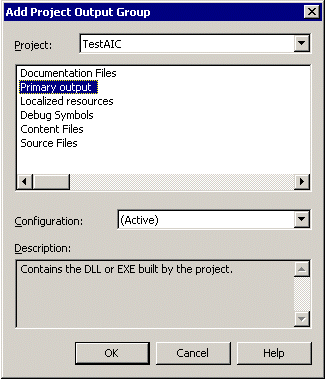
- Add project output: Right-click the setup project. Go to Add -> Project Output, as shown below.
- Add the ASP files: Right-click the setup project. Go to Add -> File. Select the two ASP files that need to be copied to the BizTalk Server pipeline directory.
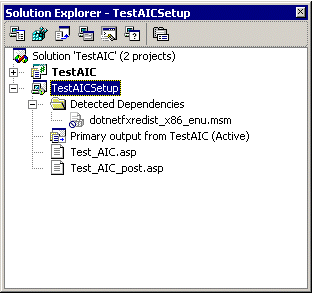
On adding the items, the solution explorer will look as follows:
Setting the Properties of the Items
- Primary output: Set the properties as shown below.
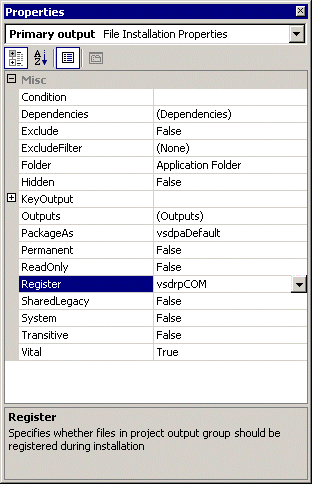
The Register property is set to vsdrpCOM to register the component as a COM+ component.
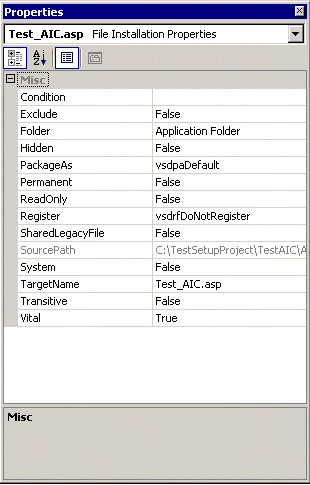
- ASP files: The properties for the ASP files should be as shown below:
Setting the Custom Actions
To set the custom action, you need to create a new library project. Add a new library project, as shown below.

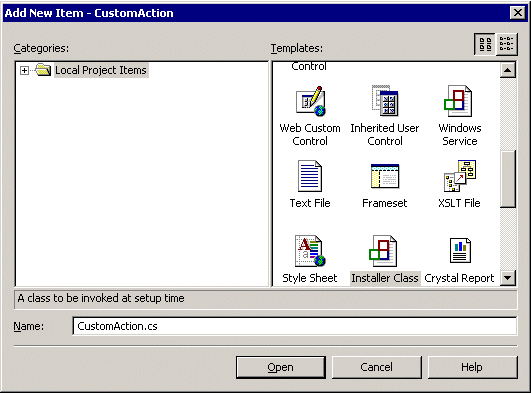
Delete the default class that is created and add a new installer class.
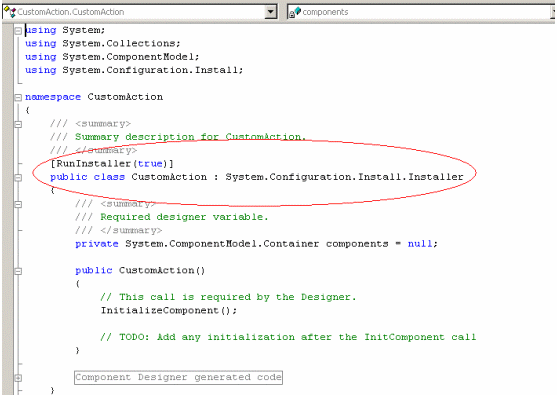
The installer class created above should inherit the System.Configuration.Install.Installer class and RunInstaller attribute should be True as shown below. Otherwise, CustomAction will not be invoked by the setup program.
Write a private method in this class file to get the location of the BizTalk Server pipeline directory.
private string GetBizTalkPipelinePath()
   {
   string strBizTalkPipelinePath = "";
   Microsoft.Win32.RegistryKey rgBzPipelinePath = null;

   try
   {
   rgBzPipelinePath = Microsoft.Win32.Registry.LocalMachine.
                      OpenSubKey("SOFTWARE\\MICROSOFT\\Windows\\
                      CurrentVersion\\App Paths\\MSCIS.exe");
   strBizTalkPipelinePath = rgBzPipelinePath.GetValue("Path").ToString();
   strBizTalkPipelinePath = strBizTalkPipelinePath.Substring(
                            0,strBizTalkPipelinePath.IndexOf(";"));
   strBizTalkPipelinePath = strBizTalkPipelinePath +
                            "MessagingManager\\Pipeline";

      }
      catch(Exception regException)
      {
         strBizTalkPipelinePath = "";
         StreamWriter sw = File.AppendText ("InstallError.log");

         sw.WriteLine ("Uninstall Error: {0}", regException.Message);

throw new ApplicationException("Error getting the BizTalk Server path",
                               regException);

      }
      finally
      {
         rgBzPipelinePath.Close();

      }
      return strBizTalkPipelinePath;
   }
Override the Install method as follows:
public override void Install(IDictionary stateSaver)
      {
         string strASPSourcePath = "";
         string strASPDestPath = "";
         try
         {
            base.Install (stateSaver);
            strASPSourcePath = Context.Parameters["ASPPath"];
            if (strASPSourcePath.EndsWith("\\"))
            strASPSourcePath = strASPSourcePath + "Test_AIC.asp";
            else
            strASPSourcePath = strASPSourcePath + "\\Test_AIC.asp";
            strASPDestPath = GetBizTalkPipelinePath();
            if (strASPDestPath.EndsWith("\\"))
               strASPDestPath = strASPDestPath + "Test_AIC.asp";
            else
               strASPDestPath = strASPDestPath + "\\Test_AIC.asp";

            File.Copy(strASPSourcePath,strASPDestPath,true);

   stateSaver.Add("ASPFile",strASPDestPath);
   strASPSourcePath = Context.Parameters["ASPPath"];

   if (strASPSourcePath.EndsWith("\\"))
   strASPSourcePath = strASPSourcePath +
      "Test_AIC_post.asp";
   else
     strASPSourcePath = strASPSourcePath + "\\Test_AIC_post.asp";

   strASPDestPath = GetBizTalkPipelinePath();
   if (strASPDestPath.EndsWith("\\"))
      strASPDestPath = strASPDestPath + "Test_AIC_post.asp";
   else
      strASPDestPath = strASPDestPath + "\\Test_AIC_post.asp";

            File.Copy(strASPSourcePath,strASPDestPath,true);
                      stateSaver.Add("ASPPostFile",strASPDestPath);

         }
         catch(Exception InstallEx)
         {
            StreamWriter sw = File.AppendText ("InstallError.log");

            sw.WriteLine ("Uninstall Error: {0}", InstallEx.Message);


            throw new ApplicationException("Error copying the ASP
                                            files", InstallEx);

         }
         finally
         {
      }
Override the Uninstall method as follows:
public override void Uninstall(
       System.Collections.IDictionary savedState)
   {
      try
      {
         string strDestPath = "";
         strDestPath = (string)savedState["ASPFile"];
         WriteToEventLog(strDestPath + " deleted");
         File.Delete(strDestPath);
         strDestPath = (string)savedState["ASPPostFile"];
         WriteToEventLog(strDestPath + " deleted");
         File.Delete(strDestPath);
      }
      catch(Exception UnInstallEx)
      {
         throw new ApplicationException("Error UnInstalling Test AIC");
      }
   }
Build the above library. Right-click the setup project. Go to Add-> Project Output.
Select Primary Output. The solution explorer will look as shown below.

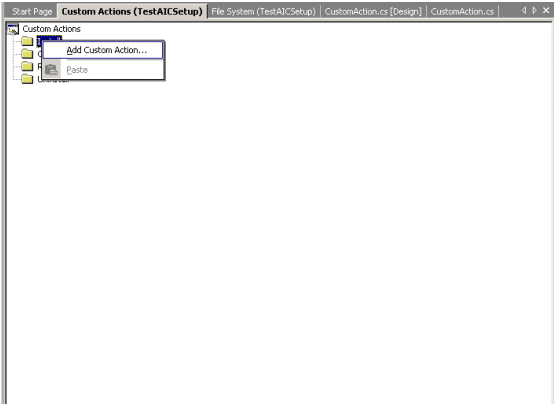
Right-click the setup project. Go to View -> Custom Actions. Right-click on Install. Select Add Custom Action as shown below.
Add the Primary output of the AIC as well as the CustomAction.dll, as shown below.
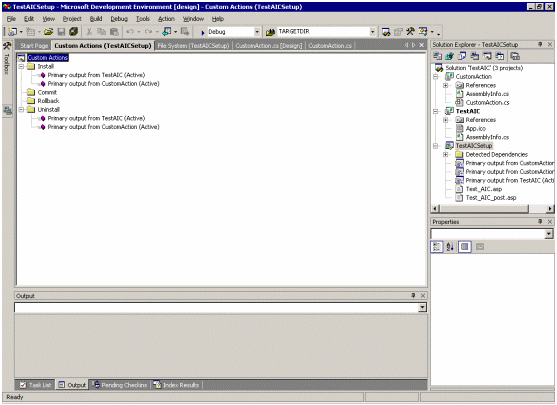
In the properties of Primary output from CustomAction under Install, set the CustomActionData property value to /ASPPath=”[TARGETDIR]\”.
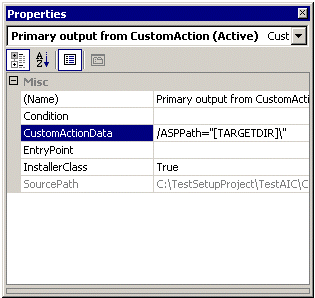
Set the InstallerClass property to True. The setup copies the ASP files from the [TARGETDIR]. In other words, the setup directory to the BizTalk Server pipeline directory.