


Introduction
Background processes, applications that run from the tray, and many other types of applications frequently need to show notification/alerts to the user. One of the common examples is Outlook 2003, which shows e-mail notification just over the system tray. This article is about a base class, TransDialog, that derives from Form and adds the fade in/out effect to any form. It also contains a notification form that derives from this TransDialog and shows notification over the system tray.
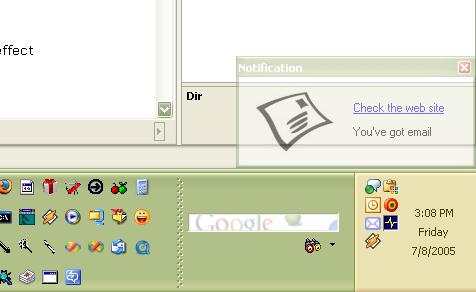
Using the Code
The project contains the following three forms/classes:
- TransDialog—Derives from System.Windows.Forms.Form and adds the fade in effect
- Notification—Derives from TransDialog and actually shows the notification
- Form1—Driver form used just for the demo
If you are just interested in adding the fade in/out effect, you can derive any TransDialog form as follows.
public class Notification : TransDialog
{
   #region Ctor, init code and dispose
   public Notification()
      : base(true)
   {
      InitializeComponent();
   }
   /* ... */
}
Passing true to the base class will ensure that when you call close on the Notification form, TransDialog will call Dispose and do the cleanup.
How TransDialog Works
TransDialog uses the layering (opacity) property of the form to add the fade in/out effect. At the Form Load event, the opacity of the form is set to 0 (completely transparent or invisible) and a m_clock timer is started. The m_bShowing variable is set to true. The timer is set to tick every 100 ms.
private void TransDialog_Load(object sender, EventArgs e)
{
   this.Opacity = 0.0;
   m_bShowing = true;
   m_clock.Start();
}
On every Tick event, as long as m_bShowing is true, the opacity is increased until is reaches 1 (completely opaque):
if (m_bShowing)
{
   if (this.Opacity < 1)
   {
      this.Opacity += 0.1;
   }
   else
   {
      m_clock.Stop();
   }
}
This gives the fade-in effect.
On the form closing event, the m_bShowing is set to false, the form closing is canceled, and the timer is started again. However, because this time m_bShowing is false, the opacity is decreased until 0 is reached (completely transparent). This gives the fade-out effect.
private void TransDialog_Closing(object sender, CancelEventArgs e)
{
   /* ... */
   m_origDialogResult = this.DialogResult;
   e.Cancel = true;
   m_bShowing = false;
   m_clock.Start();
   /* ... */
}
How Notification Works
The fade-in/out effect on the notification works just by deriving from TransDialog. To show the form at the correct location over the system tray, the following code is used in the load event handler:
private void Notification_Load(object sender, System.EventArgs e)
{
   /* ... */
   int screenWidth = Screen.PrimaryScreen.WorkingArea.Width;
   int screenHeight = Screen.PrimaryScreen.WorkingArea.Height;
   this.Left = screenWidth - this.Width;
   this.Top = screenHeight - this.Height;
   /* ... */
}