


Check-in policies
Excerpted from:
| [CheckInCover.jpg] |
Team Foundation Server 2008 in Action EARLY ACCESS EDITION
Jamil Azher MEAP Release: March 2008 Softbound print: November 2008 (est.); 375 pages ISBN: 1933988592 |
|
This article is taken from the book Team Foundation Server 2008 in Action. This segment looks at how to use TFS Power Tools to apply custom policies at the branch level. |
Using the Custom Path Policy
After installing TFS Power Tools, you’ll find a number of new policies available in the Add Check-in Policy dialog box (see Figure 1). One of the newly available policies is the Custom Path policy. In the Custom Path Policy configuration dialog box, you have the option to associate a single check-in policy with one or more folders in TFVC (see Figure 2).
TIP: in order to be able to select a policy from the Select Child Policy drop-down, a child policy should already be added to the team project. You also need to mark the policy as disabled. Otherwise, the child policy will be executed twice. Moreover, due to a bug in TFS 2005, after adding a child policy to a team project, you need to close the Source Control Settings dialog box (click OK) and then launch the dialog box again. The newly added child policy will be available for use in Custom Path policy.
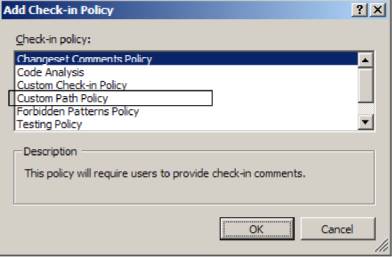
Figure 1 TFS Power Tools provides additional check-in policies.
Figure 2 You can associate a check-in policy with specific folders using the custom path policy.
Creating a Custom Policy
In this section, we create a custom policy for associating check-in policies with branches. The motivation for creating a custom policy is to improve the user experience associated with defining, executing, and maintaining branch-specific child policies.
The Custom Path policy (available in TFS Power Tools) allows you to associate a single child policy with a folder, at a time. To associate multiple policies with one or more branches, the Custom Path policy has to be invoked multiple times. If there are many combinations of policies and branches, the Source Control Settings dialog box (in the Check-in Policy tab) becomes cluttered, and you can not tell which instance belongs to which policy and branch.
The custom policy that we create allows you to view branches and corresponding child policies in a single form. Only a single instance of the custom policy appears in the Source Control Settings dialog box (Check-in Policy tab). This approach enhances usability and makes it easier to create and maintain branch-specific policy associations.
Moreover, the Custom Path policy executes the child policies in the alphabetical order of their names, no matter which order you added them in. For example, if you specify Work Items, Testing Policy, and Code Analysis policies, in that order, the policies will be executed in the following order:
- Code Analysis
- Testing Policy
- Work Items
This behavior is similar to the policy execution order when check-in policies are defined at the team project level.
The custom policy that we create provides the flexibility to define the policy execution order. The policies are executed in the order that they are added. This feature gives you greater control, as sometimes it becomes necessary to execute check-in policies in a specific order, due to their logical dependencies.
Our functional approach is as follows:
- Create a custom policy which is invoked when a developer attempts to check in code. Just like the Custom Path policy in TFS Power Tools, the child policies are defined at the team-project level and marked disabled (see Figure 3). However, unlike the Custom Path policy in TFS Power Tools, as discussed, only a single instance of the policy appears in the Source Control Settings dialog box (in the Check-in Policy tab), and the child policies are executed in the order that they are added.
- When you add the custom policy, a dialog box is displayed where you can specify branches and associated policies (see Figure 4). Click Add Branch to specify a branch. Click Add Policy to select the policies associated with the branch. When you click Add Policy, a dialog box is displayed containing the list of policies installed in the client machine.
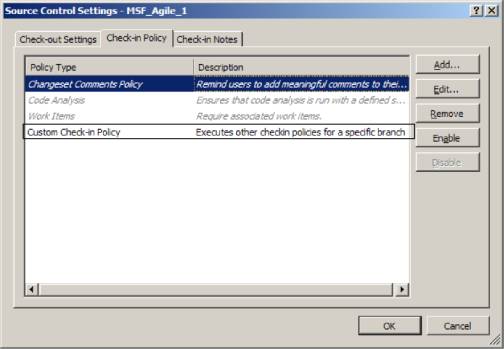
Figure 3 A single instance of the custom check-in policy appears in the Source Control Settings dialog box (in the Check-in Policy tab).
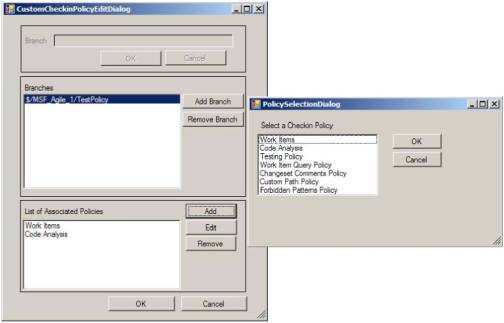
Figure 4 The custom policy displays branches and associated policies in a single form.