


Introduction
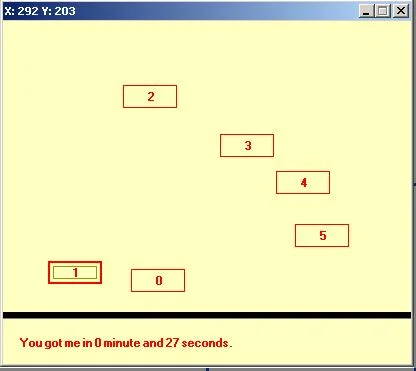
This is a small game I have written just for fun. It’s a Windows form application and the main purpose of the game was to provide an easy way to add controls dynamically.
Game Target
The target of the game is to catch the button before it moves to an another position. When you have caught the button a few times, another button will be added; you also need to catch that one. When you have caught that one too, a third button will be added, and so on. I am still thinking to write a real target for the game. Currently, the game will never end.
Dynamically Added Controls
The game consists only of buttons that are dynamically added. The AddButton() function is used to add a new button and looks like this:
private void AddButton()
{
   Point p    = new Point(10, 10);
   Button btn = new Button();

   btn.Name      = nButtonID.ToString();
   btn.Text      = nButtonID.ToString();
   btn.FlatStyle = FlatStyle.Flat;
   btn.Height    = 23;
   btn.Width     = 54;
   btn.Location  = p;

   btn.MouseEnter += new System.EventHandler(this.btn_MouseEnter);
   btn.Click      += new System.EventHandler(this.btn_Click);
   btn.KeyDown    +=
       new System.Windows.Forms.KeyEventHandler(this.btn_KeyDown);

   this.Controls.Add(btn);
   nButtonID++;
}
This function is simple and straightforward. In the first line, we create a new object of the Point class. In the constructor of the class, I have added the coordinates 10,10—so that each new button will be placed at the top left corner. The seven lines after that just create the button and set the properties. One important property is the Name property. This property is the ID of the button, so that we refer to it later. For that purpose, I am using a simple integer that will be incremented each time a new button is added. That way, each button will have an unique Name. After the properties have been set, I am assigning three eventhandlers to the button. The first one is used to track when the mouse is over the button. The second one is used when the button is clicked, and the third one is used whenever somebody tries to hit the button with the spacebar or Enter keys.
Btn_MouseEnter
As mentioned, the btn_MouseEnter is fired whenever the mouse is over the button. Keep in mind that the mouse events are fired in the following order:
- MouseEnter
- MouseMove
- MouseHover/MouseDown/MouseWheel
- MouseUp
- MouseLeave
The problem here was that the button was positioned to fast, so that the user wasn’t able to catch it. To avoid this, I have implemented a Timer that waits for approximately 150ms before the button is moved somewhere else. I think that the player has enough time to catch it. Here is how I created the timer in the btn_MouseEnter event.
...
   System.Timers.Timer t = new System.Timers.Timer();
   t.Elapsed+=new System.Timers.ElapsedEventHandler(OnTimedEvent);
   t.Interval = 150;
   t.Start();
   t.Enabled = true;
   t.AutoReset = false;
...
Remember to set the AutoReset property to false; otherwise, the timer will run all the time and not only one time. And, here is what happens in 150ms in the OnTimedEvent:
private void OnTimedEvent(object source,
                          System.Timers.ElapsedEventArgs e)
{
   int y = NextHeight();
   int x = NextWidth();

   Point p = new Point(x,y);
   btnPublic.Location = p;

   this.Text = "X: "+x.ToString() + " Y: " + y.ToString();
}
The functions NextHeight() and NextWidth() always return a random position for the button. The rest of the code is just straightforward and simple; I don’t think that it requires further explanation.