


Introduction
Tree and list controls always look better when you have images associated with each item. Both trees and lists use a CImageList to display images. However, it’s not handy to display true color (24 or 32 bits) images using CImageList. To quickly overcome this, I have created a class for true color images,
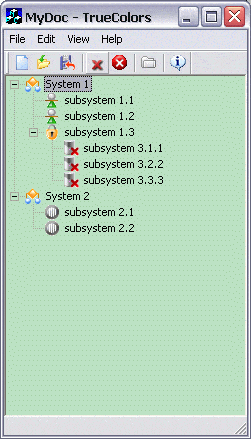
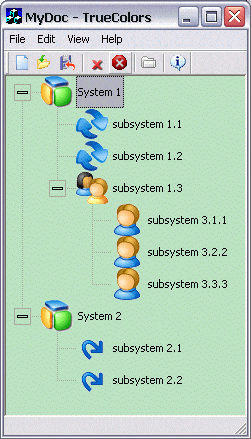
True Color Image List
CTCImageList is derived from CImageList. It provides several methods for creating a true color image list.
BOOL CreateTC(UINT nID);
BOOL CreateTC(UINT nID, COLORREF colMask);
BOOL CreateTC(UINT nID, int cx);
BOOL CreateTC(UINT nID, int cx, COLORREF colMask);
BOOL CreateTC(UINT nID, int cx, int cy);
BOOL CreateTC(UINT nID, int cx, int cy, COLORREF colMask);
where
nID is the ID of the true color bitmap resource
cx is the width of images
cy is the height of images
colMask is the color treated as transparent
CreateTC(UINT nID) determines the size of images from the bitmap, and the width of the bitmap with ID nID must be a multiple of its height (images are squared). The transparent color is white (RGB(255,255,255)).
CreateTC(UINT nID, int cx) creates a list of squared images with the size given by cx, and transparent color white.
CreateTC(UINT nID, int cx, int cy, COLORREF colMask) creates a list of true color images, the size given by cx, cy, and the transparent color colMask.
How to Use CTCImageList
Create a bitmap with the images you want. Here are two examples. The transparent color is RGB(255, 0, 255). Whatever color you use, you should make sure is not present in the image itself, because in that case, parts of the image will become transparent.


Import the image to the resource list. VC++ 6.0 will be able to display the image because it has more than 256 colors.
Include the TCImageList.h file in your class header and declare an object in your class.
CTCImageList m_imageList;
Create the image list and attach it to a tree or list. (The example is taken from the sample project: a SDI app with a tree view.)
void CTrueColorsView::OnInitialUpdate()
{
   CTreeView::OnInitialUpdate();
   CTreeCtrl &tree = GetTreeCtrl();
   // bitmap ID: TREE_ICONS_SMALL
   // transparent color: RGB(255, 0, 255)
   m_imageList.CreateTC(TREE_ICONS_SMALL, COLORREF(RGB(255,0,255)));
   tree.SetImageList(&m_imageList,TVSIL_NORMAL);
}
CTCImageList for True Color Toolbar
Another usage for CTCImageList is to create true colors toolbars. CTCToolBar is derived from CToolBar is uses CTCImageList.
A tool bar button may have three states: disabled, enabled, and hovered (when it is enabled and the cursor is on it). A true color toolbar needs three bitmaps, one for each state.
BOOL LoadTCToolBar(int nWidth, UINT uNormal, UINT uHot,
                   UINT uDisabled);
BOOL LoadTCToolBar(int nWidth, UINT uNormal, UINT uHot,
                   UINT uDisabled, COLORREF colMask);
The LoadTCToolBar() method allows you to load the true color bitmaps to the toolbar. You must specify the size of the buttons, and for the second overloaded, the transparent color (which is RGB(255, 255, 255) for the first).
How to use CTCToolBar
Create tree bitmaps with the button images you want, like these:



Add them to the resources in your project (VC++ 6.0 can display them because they have more than 256 colors).
Include TCToolbar.h in your main frame header (or any other file you need) and declare a CTCToolBar object. (This example shows you how to replace the default toolbar from CMainFrame with a true color toolbar).
After creating the toolbar, call LoadTCToolBar:
int CMainFrame::OnCreate(LPCREATESTRUCT lpCreateStruct)
{
   if (CFrameWnd::OnCreate(lpCreateStruct) == -1)
      return -1;
   if (!m_wndToolBar.CreateEx(this, TBSTYLE_FLAT, WS_CHILD
       | WS_VISIBLE | CBRS_TOP | CBRS_GRIPPER | CBRS_TOOLTIPS
       | CBRS_FLYBY | CBRS_SIZE_DYNAMIC) ||
       !m_wndToolBar.LoadToolBar(IDR_MAINFRAME))
   {
      TRACE0(“Failed to create toolbar\n”);
      return -1;      // fail to create
   }
   // buttons size: 16
   // bitmaps:
   // enabled – IDB_TOOLBAR_NORMAL
   // hovered – IDB_TOOLBAR_HOT
   // disabled – IDB_TOOLBAR_DISABLED
   // transparent color RGB(255, 0, 255)
   m_wndToolBar.LoadTCToolBar(16, IDB_TOOLBAR_NORMAL,IDB_TOOLBAR_HOT,
                              IDB_TOOLBAR_DISABLED, RGB(255,0,255));
}
See the attached project for more details.