


Introduction
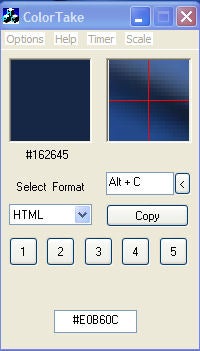
This program gets the color of pixels from the desktop, displays them in a window, and has a 4×1 magnifier by default. 2x or 8x can be selected from the menu. The color value can later be copied to the Clipboard.
Background
The selected colors fill the five boxes. The associated button copies its color to the copy window in the format selected by the Select Format option. The buttons are initially disabled; otherwise, the background color of the dialog window would be copied. Press Copy to sent this value to the Clipboard.
Using the Code
The elements:
- A menu
- Window to display the color of the pixel
- Zoom window (4×1 magnifier)
- Display HEX, HTML, or RGB
- Mouse coordinates
- Five boxes to show the last five selected colors
- Copy to Clipboard
- The Menu, no biggie, used the resource editor. Here is the first challenge: ON_UPDATE_COMMAND_UI does not work for non-system menus. This function toggles menu items. Call it with ToggleMenuItem(0, 1). I hand coded the menu items and sub items; this call sets a check mark on Options menu, Stay on Top.
- Display current color.
- Zoom window.
- Display HEX, HTML, or RGB.
- Mouse coordinates. This was quite a challenge. I used SetCapture() to get the cursor from the desktop. In the previous version, that was an error.
- Five boxes to show the last five selected colors.
- Copy to the Clipboard.
void CColorTakeDlg::ToggleMenuItem(int nMenu, int nPos)
{
   // Onupdate command UI doesn’t work in a non-system menu
   CMenu *pMenu = GetMenu();
   CMenu *pSubMenu = pMenu->GetSubMenu(nMenu);
   UINT nID = pSubMenu->GetMenuItemID(nPos);
   UINT nState = pSubMenu->GetMenuState(nID, MF_BYCOMMAND);
   ASSERT(nState != 0xFFFFFFFF);
   if(nState & MF_CHECKED)
      pSubMenu->CheckMenuItem(nID, MF_UNCHECKED |
         MF_BYCOMMAND);
   else
      pSubMenu->CheckMenuItem(nID, MF_CHECKED |
         MF_BYCOMMAND);
}
CDC *pSDC = m_current.GetDC();
CRect sRect;
m_current.GetClientRect(&sRect);
pSDC->FillSolidRect(&sRect, m_colCurrent);
ReleaseDC(pSDC);
if (bEnableZoom)
{
    CDC *pDC = m_zoom.GetDC();
    CRect m_rect;
    m_zoom.GetClientRect(&m_rect);
    InflateRect(&m_rect, -1, 0);
    pDC->SetStretchBltMode(COLORONCOLOR);
    // stretch the 20 x 20 to the 81 x 81 window, close to
    // 4 to 1 magnifier
    pDC->StretchBlt(m_rect.left, m_rect.top, m_rect.Width(),
                    m_rect.Height(), pDesktopDC,
                    pt.x – m_nOffset, pt.y – m_nOffset,
                    m_nWidth, m_nWidth, SRCCOPY);
   pen.DeleteObject();
   pen.CreatePen(PS_SOLID, 1, RGB(255, 0, 0));
   CPen *pOldPen = pDC->SelectObject(&pen);
   CPoint point;
   // draw a red line at the mid point of the x and y axis
   point.x = m_rect.Width()/2;
   point.y = m_rect.top;
   pDC->MoveTo(point);
   point.y = m_rect.bottom;
   pDC->LineTo(point);
   point.x = m_rect.left;
   point.y = m_rect.Height()/2;
   pDC->MoveTo(point);
   point.x = m_rect.right;
   pDC->LineTo(point);
   pDC->SelectObject(pOldPen);
   ReleaseDC(pDC);
}
switch (m_nSelect)
{
   case 0:    // Hex
      str.Format(“%02X, %02X, %02X”, rVal, gVal, bVal);
      m_color.SetWindowText((LPCTSTR)str);
      break;
   case 1:    // HTML
      str.Format(“#%02X%02X%02X”, rVal, gVal, bVal);
      m_color.SetWindowText((LPCTSTR)str);
      break;
   case 2:    // RGB
      str.Format(“%d, %d, %d”, rVal, gVal, bVal);
      m_color.SetWindowText((LPCTSTR)str);
      break;
}
void CColorTakeDlg::OnTimer(UINT nIDEvent)
{
   // TODO: Add your message handler code here and/or
   // call default
   HWND m_hwnd = ::GetDesktopWindow();
   CString str;
   POINT pt;
   pt.x = pt.y = 0;
   //  =====================================================
   //  Get the mouse pointer position and display it
   //  =====================================================
   GetCursorPos(&pt);
   str.Format(“X: %d, Y: %d”, pt.x, pt.y);
   m_mouse.SetWindowText((LPCTSTR)str);
   …
   ..
// Store the current selected color in the left most of
// five boxes, shifting the old ones right.
void CColorTakeDlg::CopyColor()
{
   m_nColor[4] = m_nColor[3];
   m_nColor[3] = m_nColor[2];
   m_nColor[2] = m_nColor[1];
   m_nColor[1] = m_nColor[0];
   m_nColor[0] = m_colCurrent;
   DrawColorBoxes();
}
void CColorTakeDlg::OnCopy()
{
   // TODO: Add your control notification handler code here
   m_edit1.SetSel(0, -1);
   // Copy selected color to the Clipboard
   m_edit1.Copy();
}
Points of Interest
This program uses a CHotKeyCtrl class to copy the selected color to the list and the first box. The void GetHotKey( WORD &wVirtualKeyCode, WORD &wModifiers ) const; function is used to get the hot key from the control. wVirtualKeyCode is the keyboard key (A–Z) pressed and wModifiers are the control keys (Shift, Ctrl, Alt, and the Windows key). The modifier flags defined in CommCtrl.h can be a combination of the following values:
#define HOTKEYF_SHIFT           0x01
#define HOTKEYF_CONTROL         0x02
#define HOTKEYF_ALT             0x04
#define HOTKEYF_EXT             0x08
Then, the hot key has to be registered by using:
BOOL RegisterHotKey(
   HWND hWnd,           // handle to window
   int id,              // hot key identifier
   UINT fsModifiers,    // key-modifier options
   UINT vk              // virtual-key code
);
The values for fsModifiers are defined in WinUser.h.
#define MOD_ALT         0x0001
#define MOD_CONTROL     0x0002
#define MOD_SHIFT       0x0004
#define MOD_WIN         0x0008
As you can see, the values are not the same, so I have:
void CColorTakeDlg::OnNewHotkey()
{
   // TODO: Add your control notification handler code here
   UnregisterHotKey(m_hWnd, HOTKEYID);
   m_hotkey1.GetHotKey(wVirtualKeyCode, wModifiers);
   switch(wModifiers)
   {
   case HOTKEYF_SHIFT:
      fsModifiers = MOD_SHIFT;
      break;
   case HOTKEYF_CONTROL:
      fsModifiers = MOD_CONTROL;
      break;
   case HOTKEYF_ALT:
      fsModifiers = MOD_ALT;
      break;
   case HOTKEYF_EXT:
      fsModifiers = MOD_WIN;
      break;
   }
   RegisterHotKey(m_hWnd, HOTKEYID, fsModifiers,
                  wVirtualKeyCode);
}
These are only four combinations. I didn’t want to allow all 16, so I used SetRules().
m_hotkey1.SetHotKey(0x43, HOTKEYF_ALT);
m_hotkey1.SetRules(HKCOMB_CA | HKCOMB_SA | HKCOMB_SC |
                   HKCOMB_SCA | HKCOMB_NONE, HOTKEYF_ALT);
RegisterHotKey(m_hWnd, HOTKEYID, MOD_ALT, 0x43);
wVirtualKeyCode = 0x43;
wModifiers = HOTKEYF_ALT;
fsModifiers = MOD_ALT;
You want something zany, position the cursor in the magnifier window. When you get close to the cross-hairs that are 1 pixel wide, you will see in the window they are 4 pixels wide. If you get closer, they appear 16 pixels wide. About the time they get to be 64 pixels wide, the window will turn red.
Warning
If you use this program on older versions of Windows, Win95/Win98, and the zoom window fails to function, you have a problem. The GDI resource causes StretchBlt(…) to return FALSE. Please see the MSDN Knowledge Base article.