


Introduction
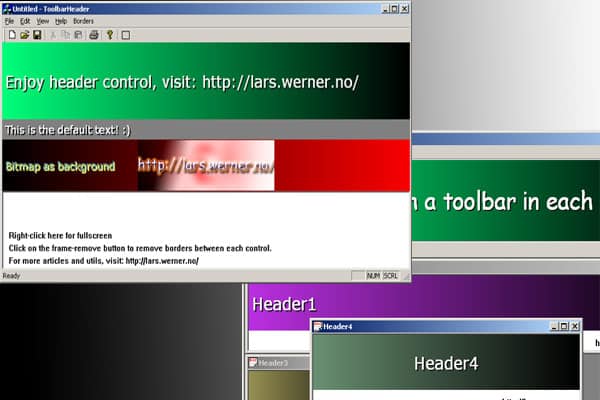
When I wanted a quick and nice header for my SDI project I could not find any, so I made my own. Some of the code is for beginners. It is not made for learning, but just for saving some time. There are some comments on the code, but almost all of it should be crystal clear, even for beginners. The header supports different colors on text, text shadows, and background, change of font size and type, change of placement of the text in the header. It does also have a gradient effect on the background.
In the new update I’ve implemented support for adding pictures in back of the text. I’ve also included a MDI project that includes a CView class that with the same toolbar. Please see the History section for other changes done.
Using the Code
The CHeaderToolbar inherits its functions from CToolBar, and it is assumed to be a regular toolbar like the default “new, open, save” toolbar in SDI/MDI projects.
When you create a toolbar, it is really important that you call the SetDrawRect(Rect) function. The creation process for a default header toolbar is like this:
CRect Size;

Size.SetRect(0,0,0,30);

if (!m_headerdefault.CreateEx(this, TBSTYLE_TRANSPARENT ,
                              WS_CHILD | WS_VISIBLE | CBRS_TOP, Size))
{
   TRACE0("Failed to create header\n");
}

//The rect is transparent, until you set the drawrect...
m_headerdefault.SetDrawRect(Size);
The Size rect is only used to set the height on creation. If the creation is successful you will get a header with default colors. To manipulate the other settings you can use these functions:
//Background
void SetDrawRect(CRect Rect);                        //Required, or
                                                     //else the
                                                     //toolbar is
                                                     //transparent
void SetGradient(BOOL Activate);                     //TRUE OR FALSE
void SetGradientStartColor(COLORREF GradientStart);  //This also sets
                                                     //the default color
                                                     //when gradient is
                                                     //off
void SetGradientEndColor(COLORREF GradientEnd);      //End gradient color

//Border
void SetRemoveBorder(BOOL OnOff);
BOOL GetRemoveBorder();

//Text
void SetWindowText(CString InputText);       //Output text on screen
void GetWindowText(CString &OutputText);     //Returns current text
void SetFont(CString FontName);              //Set the font name (as text)
void SetFontSize(int NewSize);               //Set the point-size
void SetTextCol(COLORREF Col);               //Set the text color
void SetTextShadowCol(COLORREF Col);         //Sets the color of the
                                             //shadow
void SetPlaceMent(int Place);                //DT_LEFT, DT_CENTER, and
                                             //DT_RIGHT are available
                                             //options.
                                             //(MSDN: CDC -> DrawText())
Each time you use the different functions to change the layout, the header refreshes. If you want to change more options and stop the redrawing, use the SetRedraw(FALSE) to the toolbar, and then SetRedraw() to enable redrawing again.
Border Fix and Picture Support
In this version, I’ve got a great solution for getting rid of the border around each toolbar. I want to say thanks to Christian Wieninger at codeguru.com for telling me. As a default, the border is drawn; to remove it, you can use SetRemoveBorder(TRUE). Here is an example of how it looks:
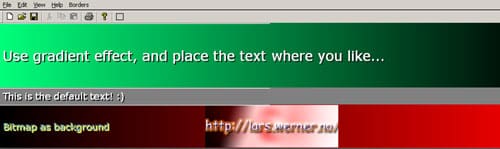
At the left the border is drawn; at the right it is gone. At the bottom, there is a picture included. To add a picture, check out these functions:
//Picture loading
void LoadBackgroundPicture(CString Path);  //Load the picture from any
                                           //location on your hard drive
void SetStrech(BOOL OnOff);                //Stretch to fit on/off
void SetPicturePlaceMent(int Place);       //Placement of the picture
                                           //(DT_LEFT, DT_CENTER, and
                                           //DT_RIGHT)
void SetVAlign(BOOL OnOff);                //Vertical align picture to
                                           //always fit on/off
BOOL GetStrech();                          //Returns the status of strech.
Toolbars in CView
When I made the MDI example, I got a request on how to implement a toolbar in a CView window. In the example, I’ve added the HeaderToolbar to each of the MDI views and on the MainFrm.
History
- v1.1—Update: Added picture support, border fix, and optimized the redraw function (thanks, barto, at codeproject.com). All these updates removed the known issues with the header (nice!)
- v1.0—First release
Todo
- Multi line—Sometimes you might need to show more info
- Text scrolling—A nice text scroller if you need to show more than one line
- Progress bar—That way, you don’t need the status bar at the bottom.