


The CCommandLine control can be used to add a command line interface to any application. It supports a “scrollback buffer” of the last 100 lines typed in, as well as a custom scrollbar whose functionality mirrors that found under certain versions of KDE and Gnome.
Note: It makes use of the CMemDC class written by Keith Rule, and downloaded from codeguru.com.
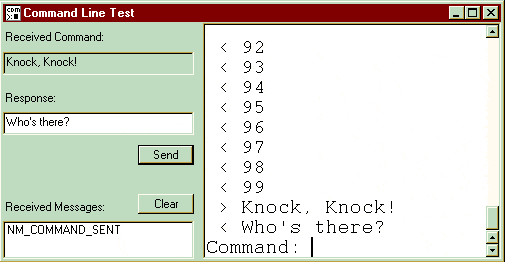
Some may find this project useful for the scrollbar alone because it is totally drawn from scratch. What makes it different is the up/down buttons usually found at the top and bottom of the average windows scrollbar are both at the bottom. This makes it easier for the user to scroll up and down without moving the mouse from the top of the window to the bottom, and vice versa. A duplicate “up” button is positioned at the top for users who feel more comfortable with the traditional placement. It is not yet as perfect as I would like it to be, but it is very serviceable. If you have any suggestions that will make it better, let me know.
The scrollback buffer is another interesting feature that mirrors a feature found it good old DOS (remember DOS?). Pressing F3 or the arrow up/down buttons recalls the last command typed in, and by pressing Enter that command can be used. The scrollback is stored as a vector, so increasing its size is a simple matter of changing a constant. The same goes for the number of display lines. It too is a vector, and increasing its size is a matter of changing a constant.
To use this control in a dialog based project, add this to your dialog’s header file:
#include “CommandLine.h”
.
.
.
#define ID_CTRL_COMMAND_LINE (WM_USER+100)    //  some valid control Id.
Then, declare an instance of it in the dialog’s class definition.
public:
   CCommandLine m_CommandLine;
To create an instance of this control, place the following in “OnInitDialog”:
UINT uiFlags = WS_CHILD | WS_VISIBLE | WS_TABSTOP;
m_CommandLine.Create(CRect(0, 0, 200, 100), uiFlags, this,
                     ID_CTRL_COMMAND_LINE);
m_CommandLine.SetReceiver(this);
The "WS_TABSTOP" ensures that keystrokes will be captured by this control if only the keyboard is being used. The "SetReceiver" method tells the control where to send notification messages. If this attribute is not set, you will not be able to detect when a command has been sent.
To perform an action, such as parsing a command, add a handler for "NM_COMMAND_SENT" to your dialog:
In the dialog header file:
afx_msg void OnCommandSent(NMHDR* pNMHDR, LRESULT* pResult);
In the dialog .cpp file message map:
ON_NOTIFY(NM_COMMAND_SENT, ID_CTRL_COMMAND_LINE, OnCommandSent)
In the dialog .cpp file:
void CTestDlg::OnCommandSent(NMHDR* pNMHDR, LRESULT* pResult)
{
   //  get the last command…
   CString szCmd = m_CommandLine.GetLastCommand();
   ParseCommand(szCmd);
   //  other stuff here…
}
To show a response within the control, call the “AddRecv” method with either char pointer or a CString.
//  some code…
m_CommandLine.AddRecv(“This is a response to your command.”);
//  some more code…
This will appear as:
< This is a response to your command.
The "<" before the text indicates that it is a “incoming” command or response. Commands typed in have a ">" to the left of them to indicate that they are outgoing.
One command is built in: the "cls" command. For those of us who remember DOS, this was the way you would clear the screen. It has the same effect here, in that it empties the control of any past display. "cls" is only the default for clearing the screen; you can change it by calling "SetClsCommand". The prompt, which is defaulted to "Command: " can be set by using "SetPrompt".
Other notable attributes and methods are:
| Attribute or Method | Description |
| SetTabSpaces | Sets the number of spaces to insert when the tab key is pressed. |
| SetLocked | Ignores any keyboard input. |
| UpdateLine | Changes the text of an existing line. This can be used to show progress by changing a line’s text from something like “Percent completed : 98%” to “Percent completed : 99%”. |
| SendChar | Sends input to the control one character at a time. Useful in re-directing characters from another control to the command line. |
This control is a good starting point if you need to include a command line-like interface with your next killer app. It is generously commented, and is fairly straightforward in its implementation. Additional features such as printing, copy, cut and paste, as well as rich formatting could be added quite easily.