


Introduction
Save the best for last… Well, this is my fourth article for this month, and it gets quite difficult during a very busy work week to always find new ideas. This was no exception. Suddenly, I realised that I have never written an article about databases in a Windows Store app. I guess my busy brain just got confused or took a long overdue holiday whilst thinking of new ideas. Today, I will demonstrate how to work with databases in a Windows 8.1 Store phone app. Brace yourselves; this one is going to be tricky!
Databases
If you are very inexperienced or a total newbie, you might have heard about databases before but haven’t had the courage to work with them. If that is the case, I suggest you read these resources before continuing:
- Exploring the Data Controls in Visual Basic.NET
- Doing Data Extraction with Visual Basic.NET
- Using Parameterized Queries and Reports in VB.NET Database Applications
- Working with Blobs and VB.NET
These should give you a good understanding on how to work with databases. Although today’s topic will not be as straightforward as those listed above, you will have the fundamentals at least. If you are new to Windows Store programming, I suggest you have a read through the following articles to get you started:
- Launching Files with Associated Programs in Windows 8.x and VB
- Windows Store Updates and Changes in Windows 8.1 and Visual Studio 2013
- GeoLocation with VB and Windows 8 /8.1
Let’s get started!
Design
Start Visual Studio 2013 and create a new Databound Windows Store app as shown in Figure 1:
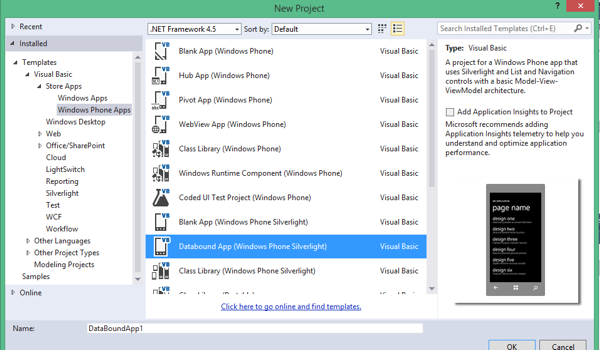
Figure 1: Databound Windows Phone App
Once the project has been created, add the following object to your page:
- A Pivot Control named pvtData
Code
Before I start with the code… You may have noticed that your application’s contents inside the Solution Explorer looks much different than what you may be accustomed to, as shown in Figure 2:
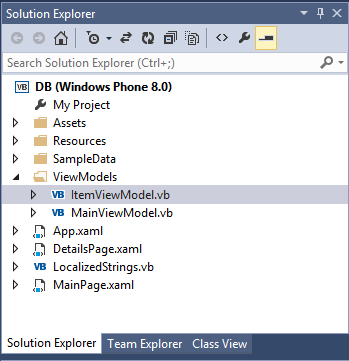
Figure 2: Solution Explorer
Now, as I was saying, the Solution Explorer looks much different than usual. This is because of the MVC structure the Databound Phone application has. MVC means Model View Controller. If this is the first time you have heard that term, have a read through this article:
Now, there are no data adapters or connectors here inside this app template. You have to add everything databound and database specific through code.
ItemViewModel
Inside the Solution Explorer, navigate to the ItemViewModel.vb file inside the ViewModels folder and open the code for it. Add the following code to it:
Imports System.ComponentModel
Imports System.Collections.ObjectModel

Imports System.Linq
Imports DB.MainPage

Public Class ItemViewModel
    Implements INotifyPropertyChanged

    Private _id As String

    Public Property ID() As String
        Get
            Return _id
        End Get
        Set(ByVal value As String)
            If Not value.Equals(_id) Then
                _id = value
                NotifyPropertyChanged("ID")
            End If
        End Set
    End Property

    Private _lineOne As String
    <returns></returns>
    Public Property LineOne() As String
        Get
            Return _lineOne
        End Get
        Set(ByVal value As String)
            If Not value.Equals(_lineOne) Then
                _lineOne = value
                NotifyPropertyChanged("LineOne")
            End If
        End Set
    End Property

    Private _lineTwo As String

    Public Property LineTwo() As String
        Get
            Return _lineTwo
        End Get
        Set(ByVal value As String)
            If Not value.Equals(_lineTwo) Then
                _lineTwo = value
                NotifyPropertyChanged("LineTwo")
            End If
        End Set
    End Property

    Public Event PropertyChanged As PropertyChangedEventHandler Implements INotifyPropertyChanged.PropertyChanged
    Private Sub NotifyPropertyChanged(ByVal propertyName As String)
        Dim handler As PropertyChangedEventHandler = PropertyChangedEvent
        If Nothing IsNot handler Then
            handler(Me, New PropertyChangedEventArgs(propertyName))
        End If
    End Sub

    Private toDoDB As ToDoDataContext

    Public Sub New(ByVal toDoDBConnectionString As String)
        toDoDB = New ToDoDataContext(toDoDBConnectionString)
    End Sub

    Private _allToDoItems As ObservableCollection(Of ToDoItem)
    Public Property AllToDoItems() As ObservableCollection(Of ToDoItem)
        Get
            Return _allToDoItems
        End Get
        Set(ByVal value As ObservableCollection(Of ToDoItem))
            _allToDoItems = value
            NotifyPropertyChanged("AllToDoItems")
        End Set
    End Property

    Private _homeToDoItems As ObservableCollection(Of ToDoItem)
    Public Property HomeToDoItems() As ObservableCollection(Of ToDoItem)
        Get
            Return _homeToDoItems
        End Get
        Set(ByVal value As ObservableCollection(Of ToDoItem))
            _homeToDoItems = value
            NotifyPropertyChanged("HomeToDoItems")
        End Set
    End Property

    Private _workToDoItems As ObservableCollection(Of ToDoItem)
    Public Property WorkToDoItems() As ObservableCollection(Of ToDoItem)
        Get
            Return _workToDoItems
        End Get
        Set(ByVal value As ObservableCollection(Of ToDoItem))
            _workToDoItems = value
            NotifyPropertyChanged("WorkToDoItems")
        End Set
    End Property

    ' To-do items associated with the hobbies category.
    Private _hobbiesToDoItems As ObservableCollection(Of ToDoItem)
    Public Property HobbiesToDoItems() As ObservableCollection(Of ToDoItem)
        Get
            Return _hobbiesToDoItems
        End Get
        Set(ByVal value As ObservableCollection(Of ToDoItem))
            _hobbiesToDoItems = value
            NotifyPropertyChanged("HobbiesToDoItems")
        End Set
    End Property

    ' A list of all categories, used by the add task page.
    Private _categoriesList As List(Of ToDoCategory)
    Public Property CategoriesList() As List(Of ToDoCategory)
        Get
            Return _categoriesList
        End Get
        Set(ByVal value As List(Of ToDoCategory))
            _categoriesList = value
            NotifyPropertyChanged("CategoriesList")
        End Set
    End Property

    ' Write changes in the data context to the database.
    Public Sub SaveChangesToDB()
        toDoDB.SubmitChanges()
    End Sub

    ' Query database and load the collections and list used by the pivot pages.
    Public Sub LoadCollectionsFromDatabase()

        ' Specify the query for all to-do items in the database.
        Dim toDoItemsInDB = From todo As ToDoItem In toDoDB.Items
                            Select todo

        ' Query the database and load all to-do items.
        AllToDoItems = New ObservableCollection(Of ToDoItem)(toDoItemsInDB)

        ' Specify the query for all categories in the database.
        Dim toDoCategoriesInDB = From category As ToDoCategory In toDoDB.Categories
                                 Select category


        ' Query the database and load all associated items to their respective collections.
        For Each category In toDoCategoriesInDB
            Select Case category.Name
                Case "Home"
                    HomeToDoItems = New ObservableCollection(Of ToDoItem)(category.ToDos)
                Case "Work"
                    WorkToDoItems = New ObservableCollection(Of ToDoItem)(category.ToDos)
                Case "Hobbies"
                    HobbiesToDoItems = New ObservableCollection(Of ToDoItem)(category.ToDos)
                Case Else
            End Select
        Next category

        ' Load a list of all categories.
        CategoriesList = toDoDB.Categories.ToList()

    End Sub

    Public Sub AddToDoItem(ByVal newToDoItem As ToDoItem)
        toDoDB.Items.InsertOnSubmit(newToDoItem)

        toDoDB.SubmitChanges()

        AllToDoItems.Add(newToDoItem)

        Select Case newToDoItem.Category.Name
            Case "Home"
                HomeToDoItems.Add(newToDoItem)
            Case "Work"
                WorkToDoItems.Add(newToDoItem)
            Case "Hobbies"
                HobbiesToDoItems.Add(newToDoItem)
            Case Else
        End Select
    End Sub

    Public Sub DeleteToDoItem(ByVal toDoForDelete As ToDoItem)

        AllToDoItems.Remove(toDoForDelete)

        toDoDB.Items.DeleteOnSubmit(toDoForDelete)

        ' Remove the to-do item from the appropriate category.
        Select Case toDoForDelete.Category.Name
            Case "Home"
                HomeToDoItems.Remove(toDoForDelete)
            Case "Work"
                WorkToDoItems.Remove(toDoForDelete)
            Case "Hobbies"
                HobbiesToDoItems.Remove(toDoForDelete)
            Case Else
        End Select

        ' Save changes to the database.
        toDoDB.SubmitChanges()
    End Sub


End Class
This code is quite similar to what Microsoft provides in their SDK. I chose to use it because it is quite simple. This creates the necessary functionality to connect to a database and manipulate its data. Add the next code for the MainViewModel file, also located in the same place:
Imports System.ComponentModel
Imports System.Collections.ObjectModel

Public Class MainViewModel
    Implements INotifyPropertyChanged

    Public Sub New()
        Me.Items = New ObservableCollection(Of ItemViewModel)()
    End Sub

    Public Property Items() As ObservableCollection(Of ItemViewModel)

    Private _ViewProperty As String = "Value"

    Public Property ViewModelProperty() As String
        Get
            Return _ViewProperty
        End Get
        Set(ByVal value As String)
            If Not value.Equals(_ViewProperty) Then
                _ViewProperty = value
                NotifyPropertyChanged("SampleProperty")
            End If
        End Set
    End Property

    Public ReadOnly Property DBProperty() As String
        Get
            Return AppResources.DBProperty
        End Get
    End Property

    Public Property IsDataLoaded() As Boolean
    Public Sub LoadData()
        ' Sample data; replace with real data
        Me.Items.Add(New ItemViewModel() With {.ID = "0", .LineOne = "runtime one", .LineTwo = "Temp Text"})
        Me.Items.Add(New ItemViewModel() With {.ID = "1", .LineOne = "runtime two", .LineTwo = "TempText"})
        Me.IsDataLoaded = True
    End Sub

    Public Event PropertyChanged As PropertyChangedEventHandler Implements INotifyPropertyChanged.PropertyChanged
    Private Sub NotifyPropertyChanged(ByVal propertyName As String)
        Dim handler As PropertyChangedEventHandler = PropertyChangedEvent
        If handler IsNot Nothing Then
            handler(Me, New PropertyChangedEventArgs(propertyName))
        End If
    End Sub
End Class
This aids in displaying the values from our database.
Conclusion
I hope you have enjoyed today’s article. Until next time, cheers!