


Welcome to today’s article. Today, you are going to learn how to detect palindromes from within your VB.NET application.
Palindromes
A palindrome is a word, phrase, or number which reads the same backward as forward. There are different types of palindromes, including the following:
- Characters and words
- Sentences and phrases
- Names
- Numbers
- Semordnilap
Characters and Words
Character palindromes read the same backward as forward. Noon, civic, radar, level, and kayak are good examples of character palindromes. Word-unit palindromes are palindromes in which the unit of reversal is simply the word. For example, the following is a word-unit palindrome: Blessed are they that believe that they are blessed.
Sentences and Phrases
Palindromic sentences consist of a sentence or phrase, for example: Live on time, emit no evil.
Names
Some given names are palindromes, for example: Hannah, Anna, and Bob.
Semordnilap
Semordnilap (palindromes spelled backward)—also known as: word reversals, reversible anagrams, heteropalindromes, or a semi-palindrome—spell a different word in reverse. For example: desserts, which is stressed backward, or vice versa.
Practical
In today’s project, you will learn four different ways to identify a potential palindrome. Create a new Visual Basic Windows Forms project and design it as shown in Figure 1. You may give your objects different names than mine.
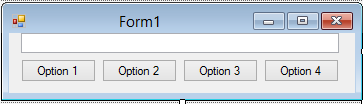
Figure 1: Design
Code
Add the following code behind the button labeled ‘Option 1‘:
   Private Sub Button1_Click(sender As Object, e As EventArgs) _
         Handles Button1.Click

      'Option 1'
      Dim strText As String = TextBox1.Text

      strText = StrReverse(strText)

      If strText.Equals(strText) Then

         MessageBox.Show("Palindrome")

      Else

         MessageBox.Show("Not Palindrome")

      End If

   End Sub
This is relatively easy. It makes use of the built-in StrReverse string function to reverse the input; then, it simply compares the reversed string with the input string.
Add the following code for the button labeled ‘Option 2’:
   Public Function Palindrome2(strText As String) As Boolean

      'Option 2'
      Dim intCurr As Integer = 0
      Dim intLength As Integer = strText.Length - 1

      While intCurr < intLength

         If strText(intCurr) <> strText(intLength) Then

            Return False

         End If

         intCurr += 1
         intLength -= 1

      End While

      Return True

      End Function


   Private Sub Button2_Click(sender As Object, e As EventArgs) _
         Handles Button2.Click

      MessageBox.Show(Palindrome2(TextBox1.Text))

   End Sub
This method basically counts the letters from the front to the back, thus resulting in a True or False value.
Add ‘Option 3’:
   Public Function Palindrome3(strText As String) As Boolean

      'Option 3'
      Dim blnPal As Boolean = True

      For i As Integer = 0 To strText.Length \ 2

         If strText(i) <> strText(strText.Length - i - 1) Then

            blnPal = False

            Exit For

         End If

      Next

      Return blnPal

   End Function

   Private Sub Button3_Click(sender As Object, e As EventArgs) _
         Handles Button3.Click

      MessageBox.Show(Palindrome3(TextBox1.Text))

   End Sub
Add the last method:
   Private Function Palindrome4(ByVal strText As String, _
         ByVal blnWhiteSpace As Boolean, _
         ByVal blnCase As Boolean) As Boolean

      'Option 4'
      Dim scCompare As StringComparison = If(blnCase, _
         StringComparison.CurrentCultureIgnoreCase, _
         StringComparison.CurrentCulture)

      If blnWhiteSpace Then

         Return String.Equals(strText.Replace(" ", String.Empty), _
            String.Join("", strText.Replace(" ", String.Empty) _
            .ToArray.Reverse), scCompare)

      Else

         Return String.Equals(strText, String.Join("", _
            strText.ToArray.Reverse), scCompare)

      End If

   End Function
   Private Sub Button4_Click(sender As Object, e As EventArgs) _
         Handles Button4.Click

      MessageBox.Show((Palindrome4(TextBox1.Text, True, True)))

   End Sub
Method 4 caters to Whitespace and case sensitivity, if needed.
The code for this article is available on GitHub.
Conclusion
Palindromes can be tricky. Languages can be tricky. Hopefully, with this article you have learned how to properly manipulate strings to check for palindromes.