


Introduction
Well, the title of this article says it all.…
When I was young, my family and I used to play darts quite frequently. Ever since, I have been having issues with my shoulder I have stopped playing as frequently as I used to. I wouldn’t say I was good, but I was definitely not bad either!
Enough about me. To create a useful control, you need to expose the correct events and Properties for your dartboard. You need to include events such as when a throw didn’t count anything, where a throw landed such as on a triple, or a double, or a throw counted, or landed off the board.
After all this, you need to determine where (in a scoring area) a throw has landed. This proves somewhat difficult because you are dealing with triangular blocks on a circle. Let’s see how to implement this.
Our Project
Create a new Visual Basic.NET Windows Forms project. Once the project has been loaded, add a User Control by selecting Project, Add User Control.
Once the User Control has been loaded, add a Big PictureBox onto it and add a picture of a dartboard inside. I am including a picture for you, but there are numerous pictures on the Web that you can use. Figure 1 shows my user control in Design View.
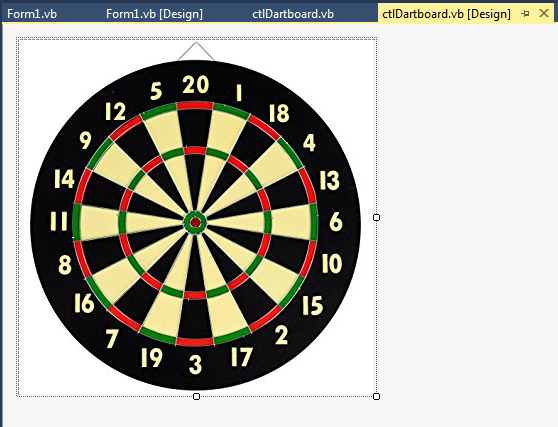
Figure 1: Dartboard image
Before you continue with the User Control, let’s first add a class for its events. Do this by selecting Add Class under the Project menu. Name this class anything you like, but, as always, keep in mind that my object names might differ from yours.
Ensure your class inherits from Event Args. Then, add the following delegates and fields.
Public Class clsDartboardEvents
   Inherits EventArgs

   Public Delegate Sub NoScore(ByVal sender As Object, ByVal e As_
      clsDartboardEvents)
   Public Delegate Sub [Single](ByVal sender As Object, ByVal _
      e As clsDartboardEvents)
   Public Delegate Sub [Double](ByVal sender As Object, ByVal _
      e As clsDartboardEvents)
   Public Delegate Sub Triple(ByVal sender As Object, ByVal e As _
      clsDartboardEvents)
   Private ReadOnly intScore As Integer
   Private ReadOnly strScore As String
   Private ReadOnly intThrow As Integer
The Delegates will act as proxies for the events thrown by the User Control. The fields you added let you keep track of the score as well as the throw.
Add the Constructor next:
   Public Sub New(ByVal iScore As Integer, ByVal sScore As _
         String, ByVal iThrow As Integer)
      intScore = iScore
      strScore = sScore
      intThrow = iThrow
   End Sub
Add the following Properties to finalize your Events class.
   Public ReadOnly Property Score As Integer
      Get
         Return intScore
      End Get
   End Property
   Public ReadOnly Property ScoreString As String
      Get
         Return strScore
      End Get
   End Property
   Public ReadOnly Property [Throw] As Integer
      Get
         Return intThrow
      End Get
   End Property
Over to the User Control.
Import the events class in your User Control’s code. This makes the Events class part of the user Control.
Imports HTG_Dartboard.clsDartboardEvents
Add the following declarations to your User Control:
   Private intThrow As Integer = 1
   Private intScore As Integer
   Private strScore As String
   Private blnNoScore As Boolean = False
   Private blnSingle As Boolean = False
   Private blnDouble As Boolean = False
   Private blnriple As Boolean = False
   Public Event eNoScore As NoScore
   Public Event eSingle As [Single]
   Public Event eDouble As [Double]
   Public Event eTriple As Triple
   Private Enum Ring
      None = 0
      [Single]
      [Double]
      Triple
      SingleBullsEye
      DoubleBullsEye
   End Enum
The fields will keep track of where a throw has landed. The Events are added, which will be raised when necessary, and a little Enumeration for the Ring. This is to keep track of which part of the dartboard ring has an active throw.
Add the Score Properties and the reset sub procedure next.
   Public ReadOnly Property Score As Integer
      Get
         Return intScore
      End Get
   End Property
   Public ReadOnly Property ScoreString As String
      Get
         Return strScore
      End Get
   End Property
   Public Sub Reset()
      intThrow = 0
   End Sub
Add the events:
   Protected Overridable Sub OnNoScore(ByVal e As _
         clsDartboardEvents)
      RaiseEvent eNoScore(Me, e)
   End Sub
   Protected Overridable Sub OnSingle(ByVal e As _
         clsDartboardEvents)
      RaiseEvent eSingle(Me, e)
   End Sub
   Protected Overridable Sub OnDouble(ByVal e As _
         clsDartboardEvents)
      RaiseEvent eDouble(Me, e)
   End Sub
   Protected Overridable Sub OnTriple(ByVal e As _
         clsDartboardEvents)
      RaiseEvent eTriple(Me, e)
   End Sub
Add the GetScore Function:
   Private Function GetScore(ByVal X As Integer, ByVal Y As _
         Integer) As Integer
      Try
         Dim iScore As Integer = 0
         Dim dRadianCorner As Double = System.Math.Atan2(Y, X)
         Dim dDegCorner As Double = dRadianCorner * 180 / _
            System.Math.PI
         Dim iCorner As Integer = CInt(dDegCorner)
         If iCorner < 0 Then
            iCorner = 180 + (iCorner + 180)
         End If
         Dim iNummer As Integer = GetNumberThrown(iCorner)
         Dim eRing As Ring = GetRing(X, Y)
         blnNoScore = False
         blnSingle = False
         blnDouble = False
         blnriple = False
         Select Case eRing
            Case Ring.None
               strScore = "-"
               iScore = 0
               blnNoScore = True
            Case Ring.Single
               strScore = "S" & iNummer.ToString()
               iScore = iNummer
               blnSingle = True
            Case Ring.Double
               strScore = "D" & iNummer.ToString()
               iScore = iNummer * 2
               blnDouble = True
            Case Ring.Triple
               strScore = "T" & iNummer.ToString()
               iScore = iNummer * 3
               blnriple = True
            Case Ring.SingleBullsEye
               strScore = "SingleBull"
               iScore = 25
               blnSingle = True
            Case Ring.DoubleBullsEye
               strScore = "DoubleBull"
               iScore = 50
               blnDouble = True
         End Select
         Return iScore
         Catch ex As Exception
         Throw ex
      End Try
   End Function
The GetScore Function determines into which scoring section the dart was thrown and calculates the score based on the dart’s location with the help of the GetNumberThrown function. Add the GetNumberThrown Function now.
   Private Function GetNumberThrown(ByVal CornerDegree As _
         Integer) As Integer
      Try
         If CornerDegree >= 63 Then Return 1
         If CornerDegree >= 297 Then Return 2
         If CornerDegree >= 261 Then Return 3
         If CornerDegree >= 27 Then Return 4
         If CornerDegree >= 99 Then Return 5
         If CornerDegree >= 351 Then Return 6
         If CornerDegree >= 225 Then Return 7
         If CornerDegree >= 189 Then Return 8
         If CornerDegree >= 135 Then Return 9
         If CornerDegree >= 333 Then Return 10
         If CornerDegree >= 171 Then Return 11
         If CornerDegree >= 117 Then Return 12
         If CornerDegree >= 9 Then Return 13
         If CornerDegree >= 153 Then Return 14
         If CornerDegree >= 315 Then Return 15
         If CornerDegree >= 207 Then Return 16
         If CornerDegree >= 279 Then Return 17
         If CornerDegree >= 45 Then Return 18
         If CornerDegree >= 243 Then Return 19
         If CornerDegree >= 81 Then Return 20
         Return 6
      Catch ex As Exception
         Throw ex
      End Try
   End Function
Depending on which radiant the arrow lands, the appropriate number gets returned to the calling function (GetScore). Get the Dimensions of the Dartboard ring next
   Private Function GetRing(ByVal X As Integer, ByVal Y As _
         Integer) As Ring
      Try
         Dim dblLength As Double = System.Math.Sqrt(X * X + Y * Y)
         Dim intLength As Integer = _
            CInt(System.Math.Floor(dblLength))
         If intLength > 170 Then Return Ring.None
         If intLength >= 160 AndAlso intLength <= 170 Then _
            Return Ring.Double
         If intLength >= 95 AndAlso intLength <= 105 Then _
            Return Ring.Triple
         If intLength > 7 AndAlso intLength <= 15 Then _
            Return Ring.SingleBullsEye
         If intLength <= 7 Then Return Ring.DoubleBullsEye
         Return Ring.Single
      Catch ex As Exception
         Throw ex
      End Try
   End Function
Finally, add the MouseUp event for the PictureBox to indicate where you have clicked (thrown) and set the game in motion.
   Private Sub PictureBox1_MouseUp(ByVal sender As Object, _
         ByVal e As System.Windows.Forms.MouseEventArgs) Handles _
         PictureBox1.MouseUp
      Try
         Dim X As Integer = (e.X)
         Dim Y As Integer = (e.Y)
         intScore = GetScore(X, Y)
         Dim bBrush As Brush = Brushes.Red
         Dim g As Graphics = PictureBox1.CreateGraphics()
         g.FillRectangle(bBrush, X, Y, 2, 2)
         Dim de As clsDartboardEvents = New _
            clsDartboardEvents(intScore, strScore, intThrow)
         If blnNoScore Then OnNoScore(de)
         If blnDouble Then OnDouble(de)
         If blnriple Then OnTriple(de)
         If blnSingle Then OnSingle(de)
         intThrow += 1
         If intThrow = 4 Then
            intThrow = 1
         End If
      Catch ex As Exception
         Throw ex
      End Try
   End Sub
Build your application now—there should be no errors. After the build, switch to your Form and add the dartboard control from your Toolbox to your Form. Figure 2 shows the Toolbox. Figure 3 shows the game in action.
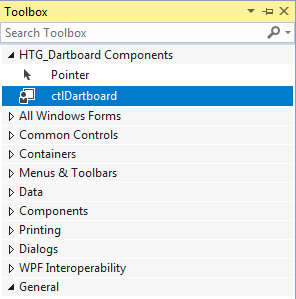
Figure 2: ToolBox
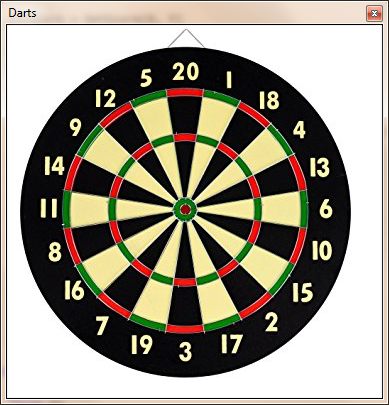
Figure 3: Running
Download the Code
The code to accompany this article is available on GitHub.
Conclusion
There is still a ton of work if you want to expand on this game. You could add a decent scoring board, and you could add decent darts; for these you’d need some extra graphics. Hopefully, I can get time to expand on this and write about it again.