


Introduction
Multithreading can be challenging. Using a lot of threads can make an application much more difficult to debug and buggier. The Parallel FX Library was created to make your life a little easier. Now the features that were in a separate download are part of the .NET Framework 4.0, and they can add a little zip to your application with a lot fewer headaches.
Everyone wants substantial performance increases and when needed programmers often turn to multithreading. However, if you follow the basic mathematics of Amdahl’s law and Gustafson’s law then you know that just chunking the work by adding threads does not produce linear increases in performance. Use threads sparingly but use them more safely with the features presented in this article.
Preparing Your Microsoft Visual Studio 2010 Environment
To try the samples create a new Console application in Microsoft Visual Studio 2010. To use the Parallel features make sure your project is using the .NET Framework 4.0. To select the target framework click the Project|project_name Properties menu item, switch to the Compile tab and click the Advanced Compile Options. At the bottom of that dialog is the Target framework select-see Figure 1. Change the target framework to the .NET Framework 4 Client Profile.
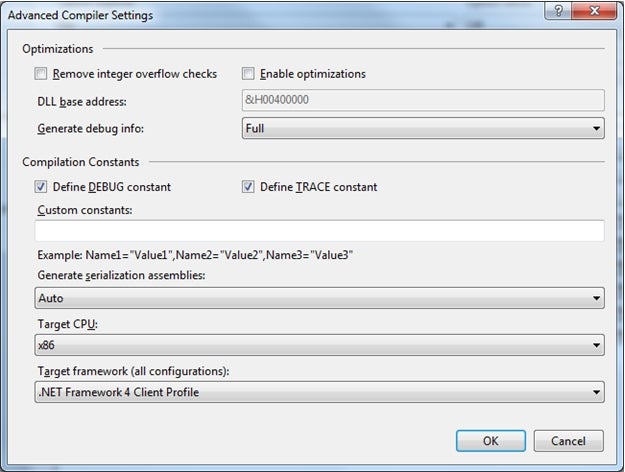
Figure 1 – Make sure the target framework is .NET 4.0
The Parallel extensions used for the demo are in System.Threading.Tasks, so add a reference to this namespace in your project using an Imports statement.
Using Parallel.ForEach
Parallel.ForEach has several overloaded versions that accept an IEnumerable(Of T) collection and an Action generic delegate. The method executes a for each operation and iterations may be run in parallel. The following fragment uses the Shared Enumerable.Range method and generates a range of numbers from 1 to 1000. The LINQ query selects just the even numbers and the Paralle.ForEach method uses a Lambda expression to write the contents to the console in parallel. Figure 2 shows all of thread spun up for this statement.
  Dim data = Enumerable.Range(1, 1000)
‘ Implicit line continuation – No line continuation. Yeah!
Dim evens = From e In data
     Where e Mod 2 = 0
     Select e
Parallel.ForEach(evens, Sub(i) Console.Write(i.ToString() + “, “))
Console.ReadLine()
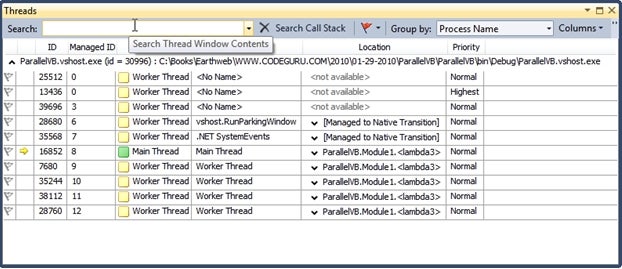
Figure 2: Threads galore for Parallel.ForEach
It is worth noting that the order of the data is not necessarily preserved, which is a consideration if you are using Parallel.ForEach.